Employees is where an organization manages its staff and handles money between the company and its own people. It has three tabs:
Directory: add, import, edit, archive, and delete employee records
Claims: create, submit, approve, and post expense claims
Payouts: pay employees, either as advances or reimbursements
The accounting rules behind this are configured under Settings → Templates → Claims.
Employees is only available on Quarterly or Annual subscription plans.
Every expense has two separate moments:
The company agrees it owes the employee, which happens when a claim is approved and posted. No cash moves at this point.
The company pays the employee, which is a separate step and can happen at the same time as posting or later.
This is tracked through the Employee Balance Account (EBA), a running balance per employee:
A posted claim moves the balance in the employee's favor
A payout brings the balance back down
An advance paid before any claim moves the balance the other way, until claims are filed against it
Note: A claim status of Processed means the amount is recognized as owed. It does not mean the employee has been paid.
Before creating employees or claims, complete the following setup:
Setup 1: Invite employees and assign roles:
Go to Settings → Access Management and assign each user as an Admin, or as a Custom User set to Claims Manager or Claims Member. Use Import Users to assign roles in bulk.
Setup 2: Configure claim settings:
Go to Settings → Templates → Claims to set up:

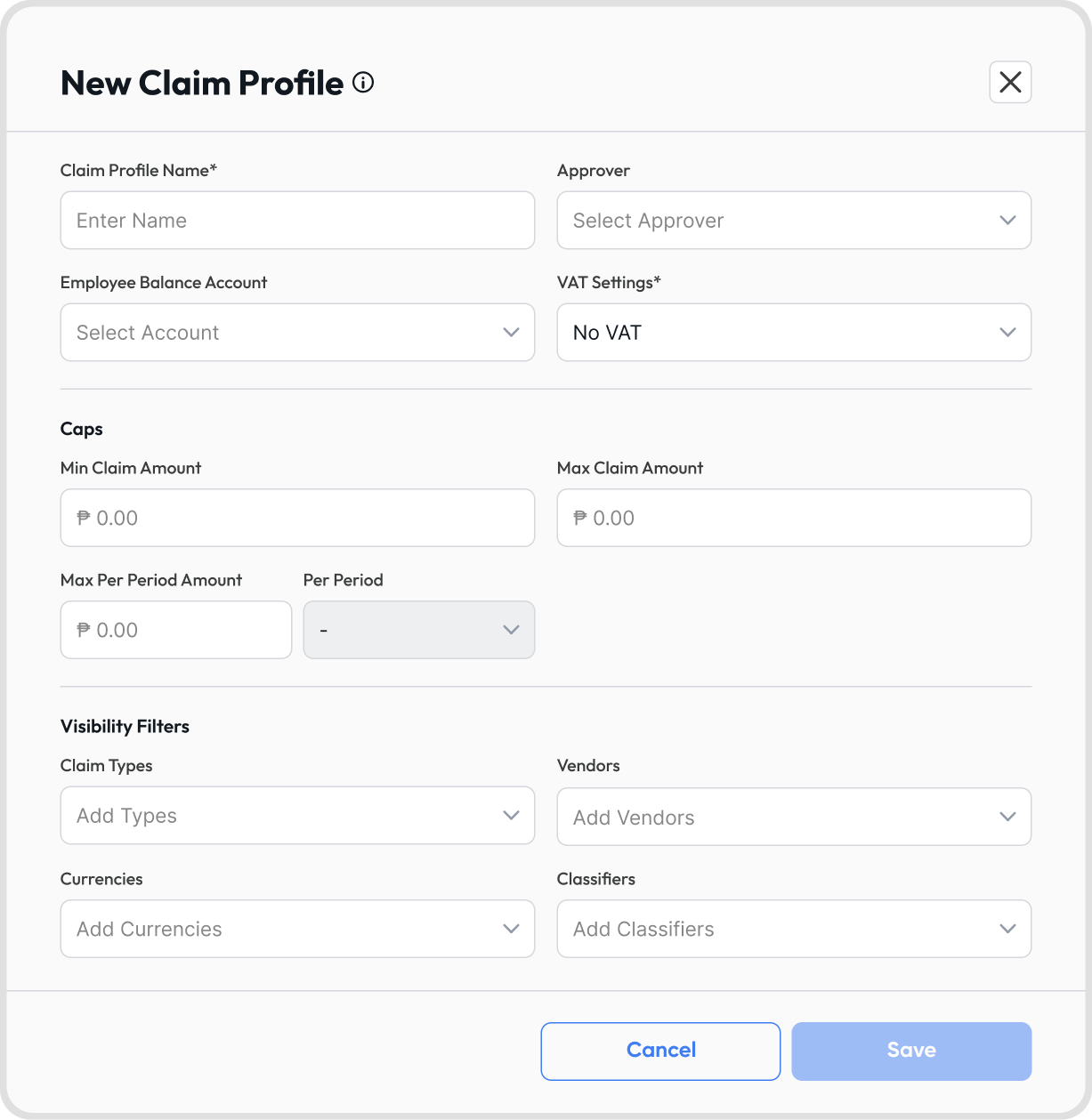
Claim Profiles: assign spending limits and an Employee Balance Account. This is the policy for an employee: their limits, what they can pick, and their balance account.
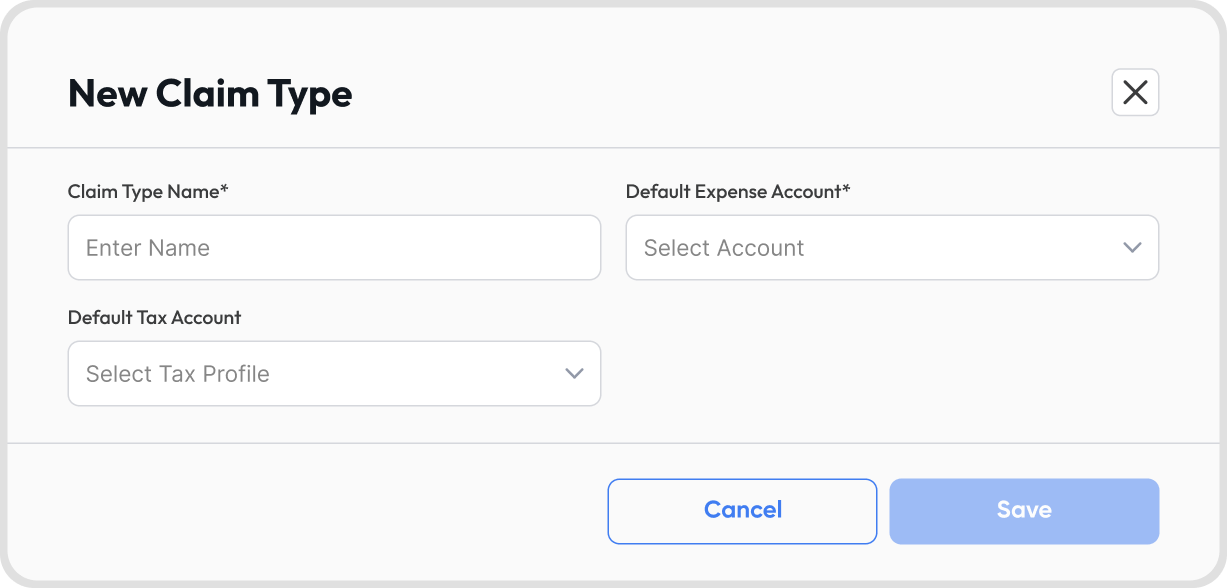
Claim Types: define expense categories with their account and tax treatment.
Posting Rules: decide how posted claims are grouped in the journal, and set default transaction descriptions.
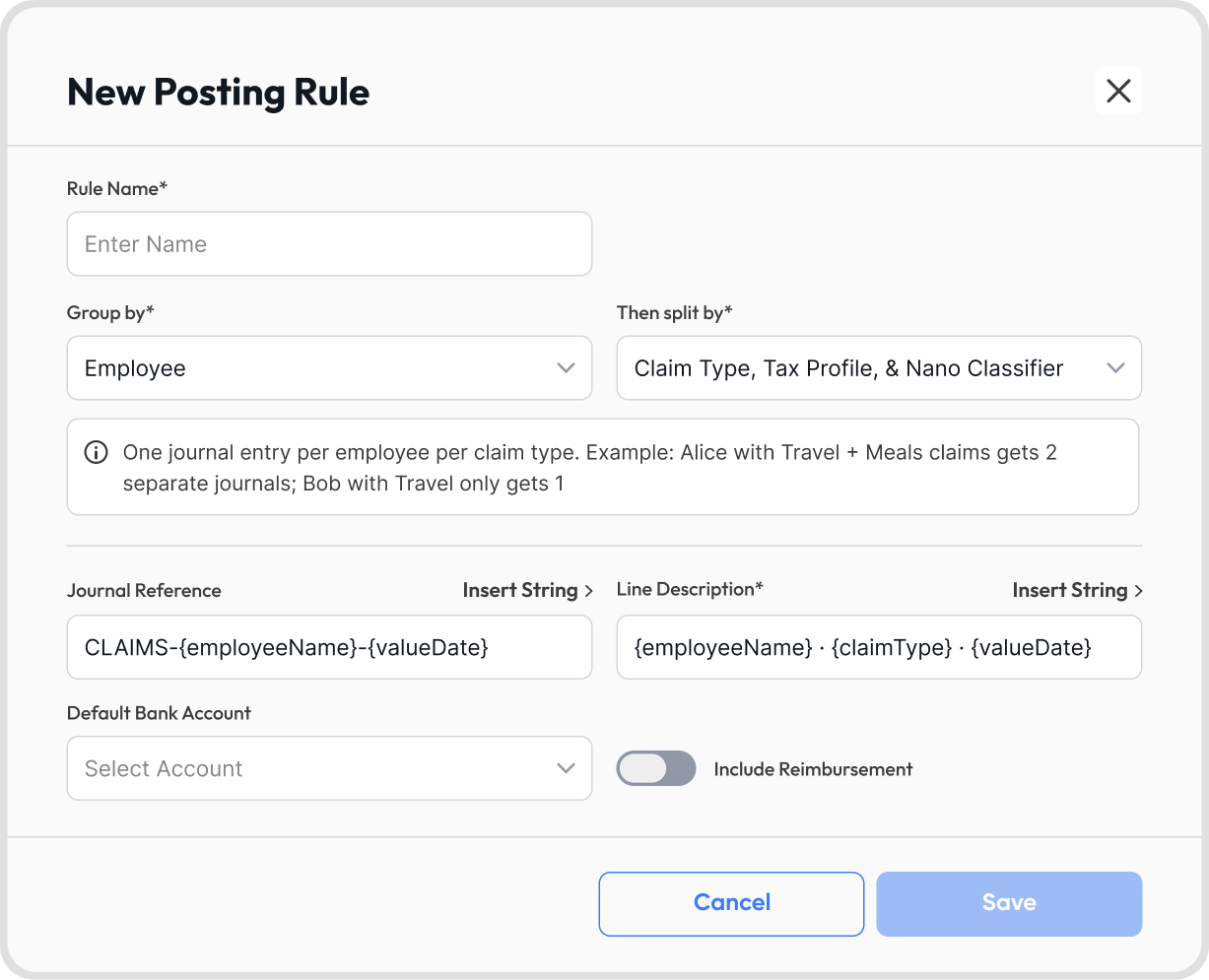
Group by:
One Batch: a single journal entry for the whole batch
Claim: one journal entry per claim
Employee: one journal entry per employee, per claim type
Pair: one journal entry per employee-vendor pair
Vendor: one journal entry per vendor
Setup 3 (Optional): Set up Digital Payments & Disbursement Profile:
if you plan to send real money to employees, set up Digital Payments and create a Disbursement Profile. Or get verified to use Juan Wallet.
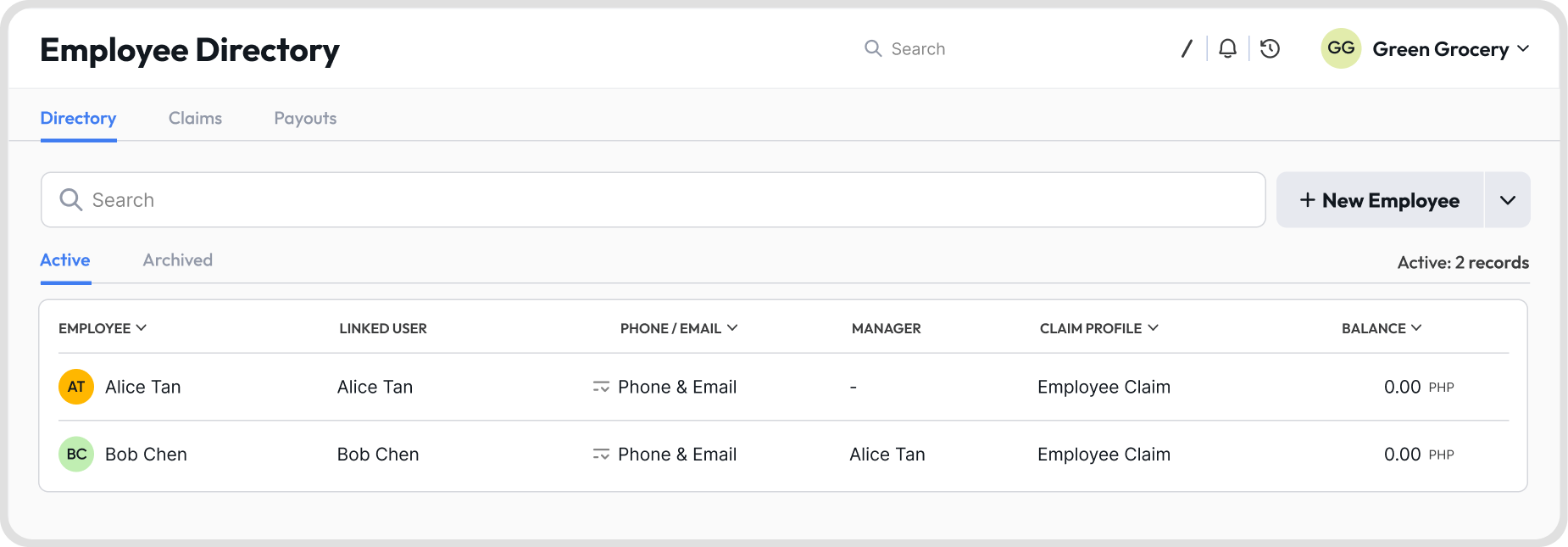
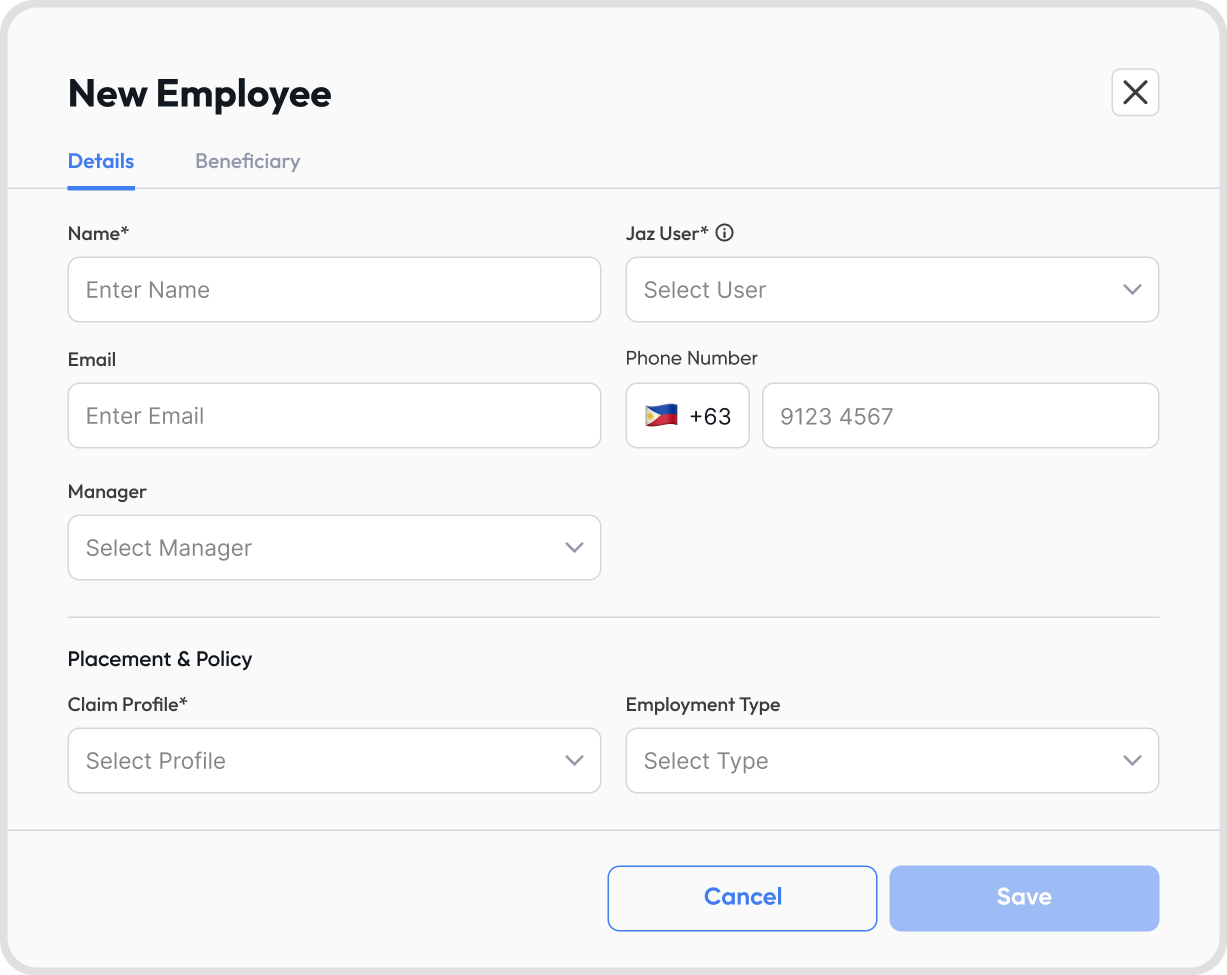
Go to Employees → Directory → + New Employee / Import Employees
Every employee must be linked to a Juan user. This link is permanent and cannot be changed later.
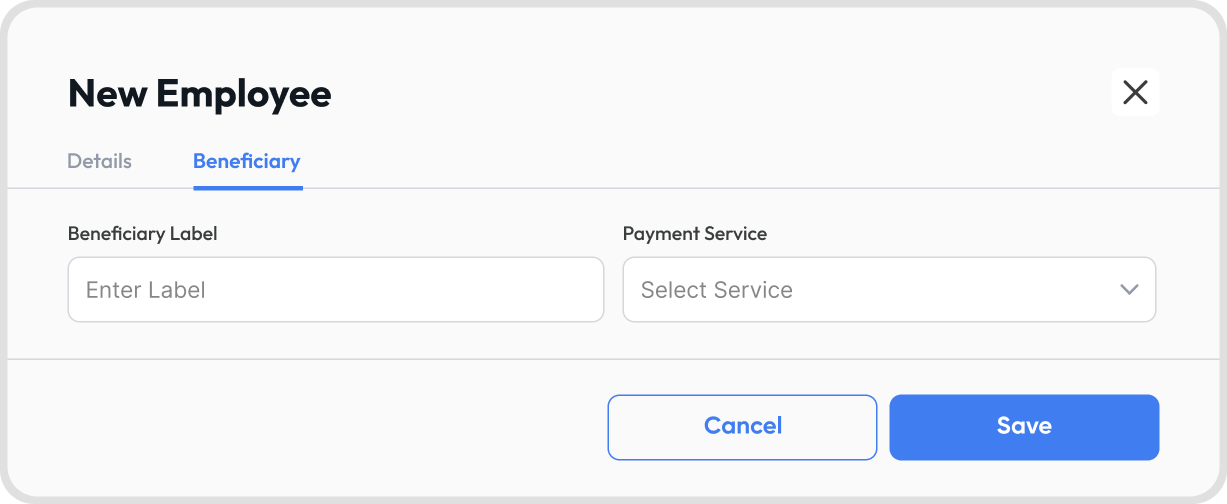
If you plan to disburse payouts, set up each employee's Beneficiary account during employee setup. This is where you attach the bank account their payouts will be sent to. You can also edit this later on.
Note: Phone numbers must be unique across the Employee Directory.
Up to 5,000 employees, new and existing combined, per import.
Archive the employee. Archiving removes them from selection lists such as claim creation and approver assignment, while keeping their existing claims visible in the Directory's Archived list. It can be reversed with Unarchive.
Deletion is permanent and removes the employee record entirely. It cannot be undone, so use it only for records created by mistake.
A claim can be created two ways:
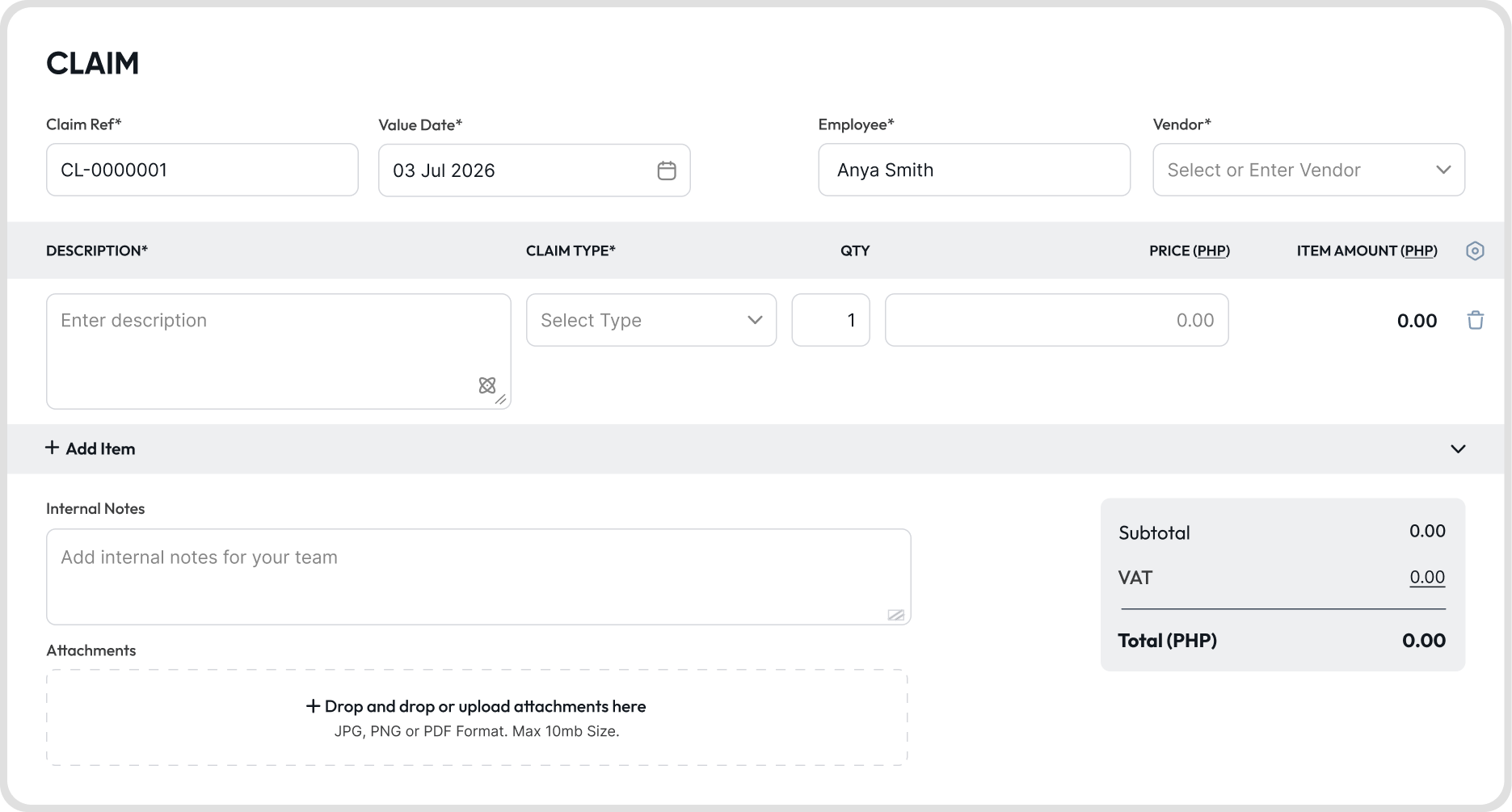
Manually, through Employees → Claims → + New Claim. Add line items with a name, quantity, unit price, and Claim Type, then set the Vendor and Approver.
Automatically, by uploading a receipt or invoice. Juan Magic reads the document and creates a draft claim with the details filled in.
Claims Members can attach receipts by dragging and dropping files directly onto the claim. Always review a Juan Magic draft before submitting.
Once submitted, the named Approver or an Admin approves the claim. Claims can be approved individually or in bulk.
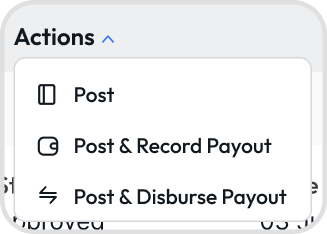
Once a claim is approved, an Admin can now post the claim. When posting approved claims, an Admin chooses one of three options:
Post: puts the claim on the books only, no payout recorded
Post & Record Payout: posts the claim and marks it paid in the books, without moving money
Post & Disburse Payout: posts the claim and sends payment through a connected payment service
Only the employee's named Approver, or an Admin, can approve a claim.
A Claims Manager can approve a claim only if they're assigned as its Approver. They cannot approve claims where another Manager is assigned.
Claims Members can only see and act on their own claims. Managers and Admins can see all claims in the organization.
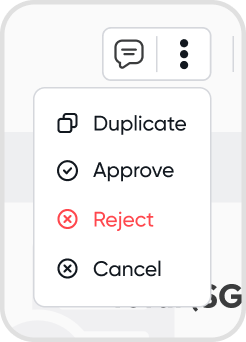
Admins post claims and pay employees, usually finance. Managers only approve claims.
A posted claim can't be edited directly. Unpost it first, make the changes, then post it again.
Unposting reverses the posted journal entry, whether the claim was posted individually or as part of a bulk posting. If the claim was already paid, reverse the payout before unposting.
A Draft or Submitted claim can be cancelled. A cancelled claim becomes Inactive.
If the claim is already Approved or Processed, it cannot be cancelled: reject it if it's Approved, or unpost it if it's Processed.
Only Draft or Inactive claims can be deleted. Approved or Processed claims cannot be deleted directly.
A Manager or Admin can create a claim for an employee. When this happens, it appears in the employee's Claims tab after it's submitted.
Creating an advance is a payout, which requires the Admin level, since only Admins record or disburse payouts.
A claim is the request to be paid back for an expense. A payout is the actual payment to the employee. A claim can exist for a while before any payout, and a payout, if it's an advance, can exist before any claim.
An advance is money paid to an employee before they spend, so they owe the company until they file claims against it. A reimbursement is money paid to settle approved, posted claims, so the company pays the employee back.
Record Payout updates the books only, no money moves through Juan. Use it when the employee was already paid some other way. Disburse Payout sends the payment through a connected payment service.
No. Processed means the claim is on the accounting books and the amount is recognized as owed. Payment is a separate step, and the employee is paid only when a reimbursement is recorded or disbursed.
A Claim Profile is the policy for an employee: their limits, what they can pick, and their balance account. A Claim Type is an expense category with its account and tax treatment. A Posting Rule decides how posted claims are grouped into accounting entries.
Profiles attach to employees, types attach to claim lines, and posting rules shape the journal.
The account that tracks what an employee is owed or owes. It's set on the Claim Profile. Without it, that employee's claims cannot be posted.
From the employee's Claim Profile: Min Claim Amount, Max Claim Amount, and Max Per Period Amount, set alongside a Per Period of day, week, month, quarter, or year.
Approving it would pass the Max Per Period Amount on the employee's Claim Profile. An Admin can raise the cap, or the claim can wait for the next period.
Yes. A Posting Rule must be in place before claims can be posted, since it determines how posted claims are grouped in the journal.
You can set a default rule, or choose a specific one each time you post a claim.
An advance is a payout made before any claim exists. It moves the employee's balance so they owe the company, and it's reduced as they file and post claims against it.
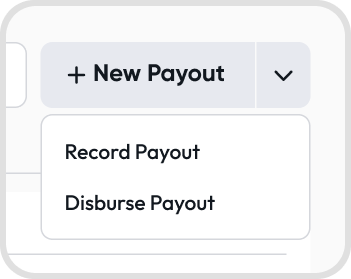
Go to Employees → Payouts → + New Payout
Choose Record Payout or Disburse Payout
Select an employee and fill in the required payout details
Note: Record Payout only updates your books; no money moves. Disburse Payout sends money from your Disbursement account to the employee's account.
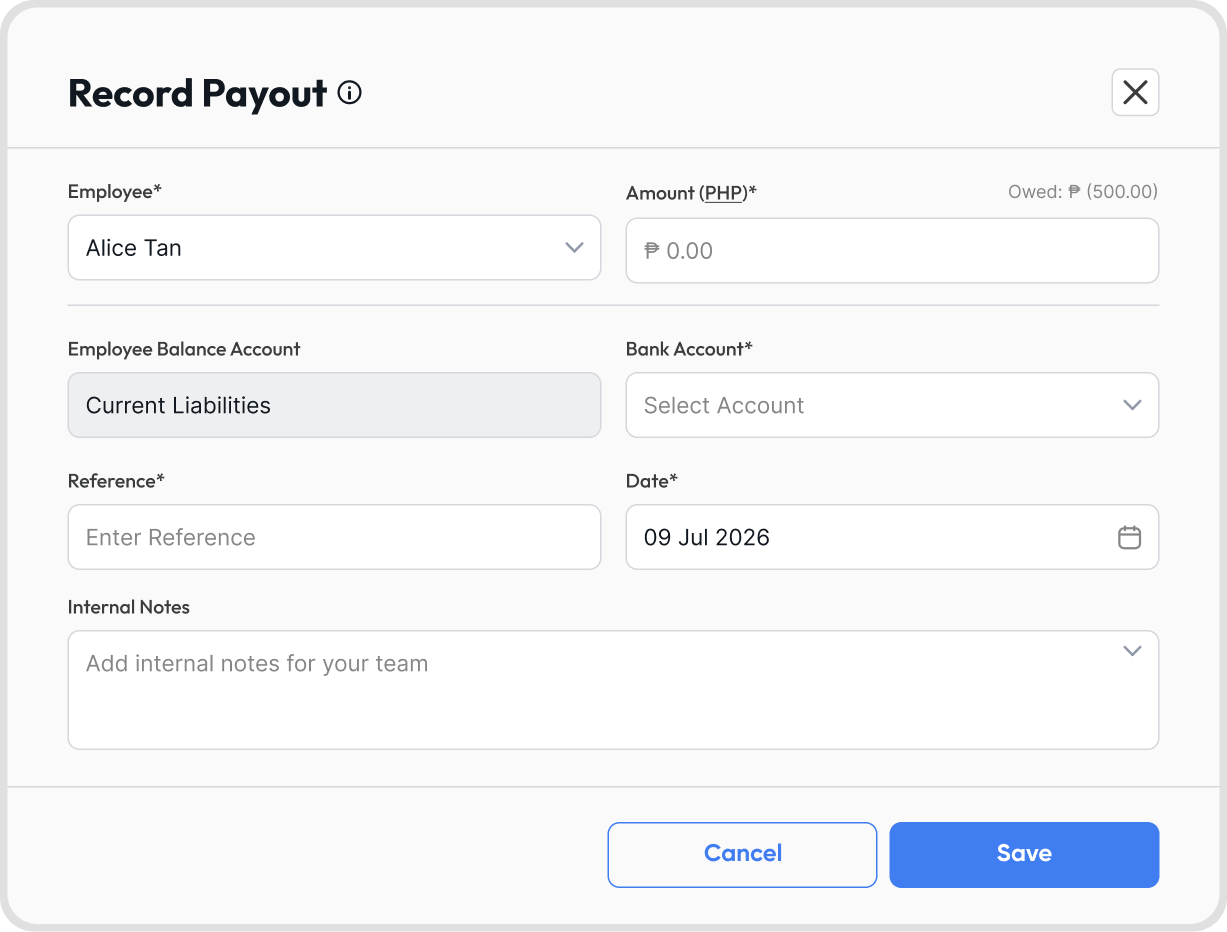
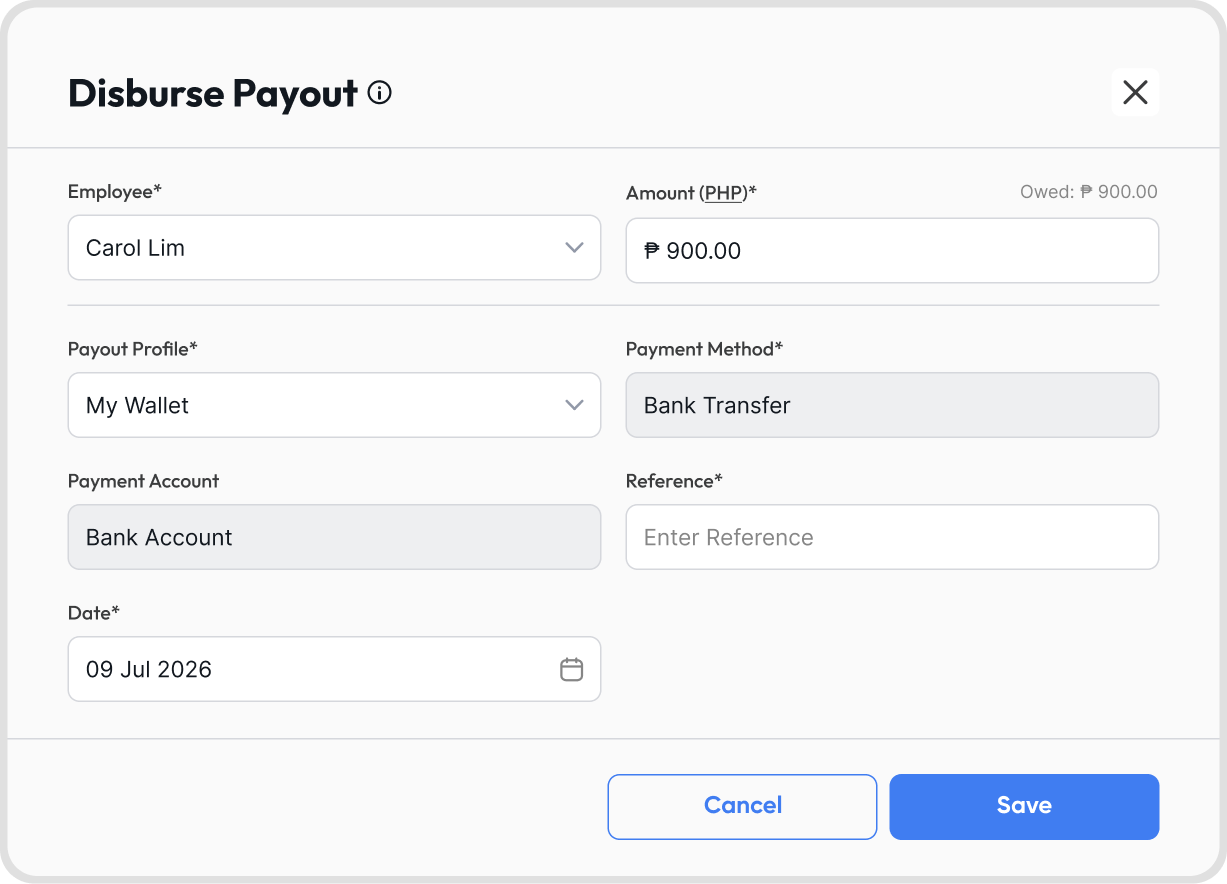
Disbursing a reimbursement pays the full claim total for that batch. A prior advance is not automatically deducted: it stays on the employee's balance until it's cleared as a separate step, so you control when each is settled.
The Owed balance always reflects the true net position, showing what's left to settle.
No. All line items on one claim must use the same currency. The bank account used for a reimbursement must match the claim's currency.
A connected payment service with an active Disbursement Profile. Until then, only Record Payout works.
Disbursing supports one employee and one currency per payout. Adjust the selection if more than one is chosen.
This is a payment service issue. The payout will show as failed. Escalate to the payments owner with the payout reference.