Open the invoice and click the email icon to send it directly from the app.
You can also click the download icon to download the invoice PDF and send it using your own email provider.
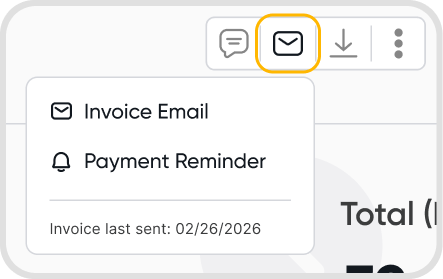
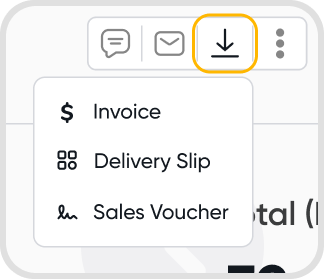
Yes. Open the invoice in edit mode and click the email icon (or press E) to preview the email.
To preview the PDF attachment, click the Preview PDF icon (or press P).
Yes. To send invoices in bulk:
Select the invoices you want to send by ticking their checkboxes.
Click Send Email from the bulk actions menu.
Note: Sending time depends on the number of invoices selected: larger batches take longer to process, but most bulk sends complete within a few minutes.
Yes. You can CC other users within your organization or manually enter external email addresses.
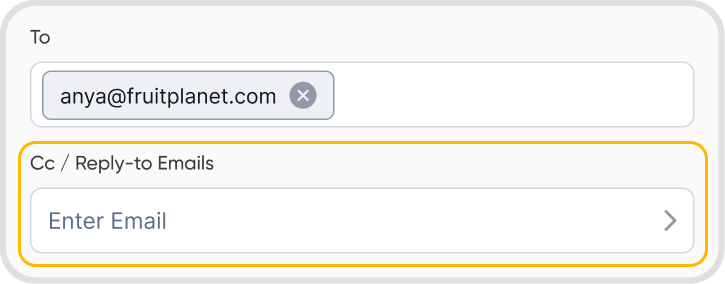
Yes. Open the invoice and click the email icon again to resend it.
Yes. You can customize your invoice by editing your invoice template. Refer to the PDF Templates for details.
You cannot set a specific future send time for a one-time invoice.
However, you can create a recurring invoice, which automatically sends invoices based on a set schedule.
Bulk sending of invoices is not currently supported. To automate sending, set up recurring invoices or subscription schedulers.
Yes. Enable online payments to allow customers to pay directly from the invoice.
File attachments cannot be added directly within the invoice email. Instead, you can download the invoice PDF and send it using your own email provider with attachments.
Alternatively, you may include a file link in the invoice before sending.
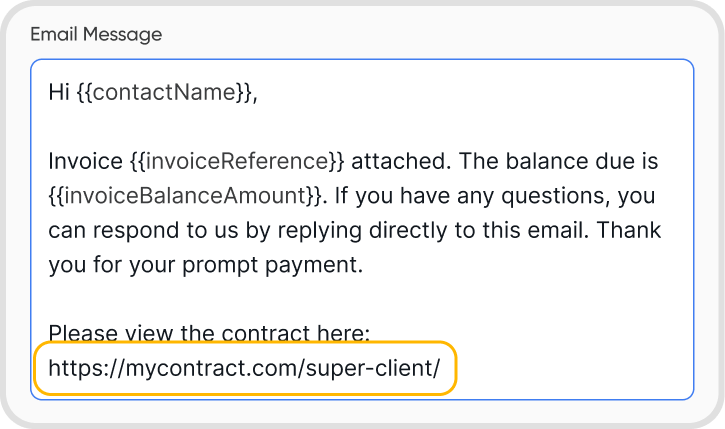
Yes. You can edit a sent invoice.
Customers will not be automatically notified of the changes, so you must resend the invoice email.
If online payments are enabled and you change the invoice amount after sending, the updated amount will reflect when the customer clicks the Pay Online button.
Yes. You can void a sent invoice.
The customer will not be automatically notified, so you should manually inform them and send a new invoice if necessary.
Sending invoice emails directly from the mobile app is not currently supported.
You can download the invoice PDF and send it using your mobile email app.