E-Sign lets you send sales quotes for digital signing by internal and external parties. It includes built-in email reminders, signing progress tracking, and automated actions when a quote is signed or expires.
E-Sign is available on Sales Quotes and Purchase Requests.
Before sending, set up an e-sign template first. See E-Sign Templates for setup details.
To send a quote for e-signing:
Go to Sales → Orders → Quotes → Pending
Open a pending quote and click the E-Sign icon
Complete the following steps:

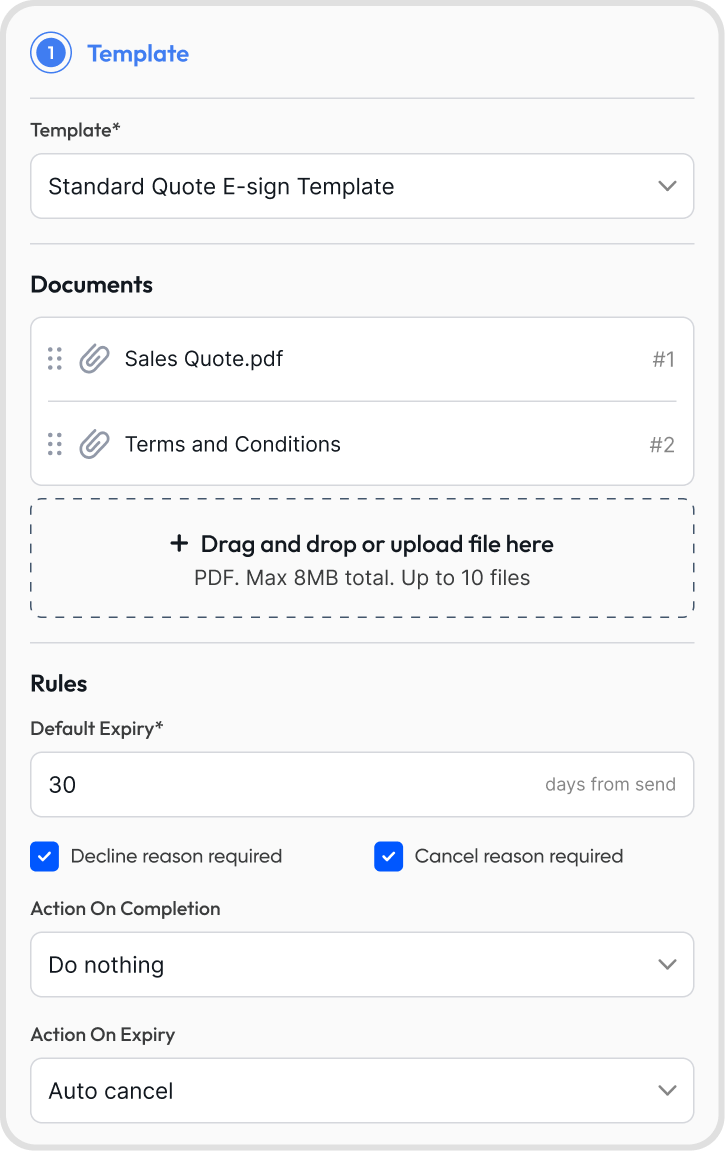
Choose an e-sign template
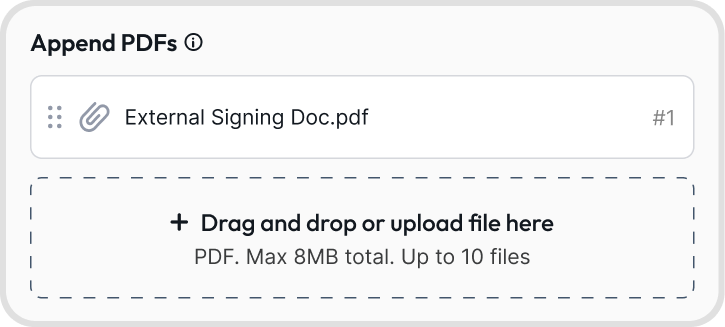
Attach additional PDFs if needed (signing fields can be added to these in Step 3)
Set the default expiry date
Enable decline and cancel reasons if needed
Set the action on completion:
Do nothing: no automated action
Auto-accept quote: the quote is accepted
Auto-accept & invoice: the quote is accepted and an active invoice is created
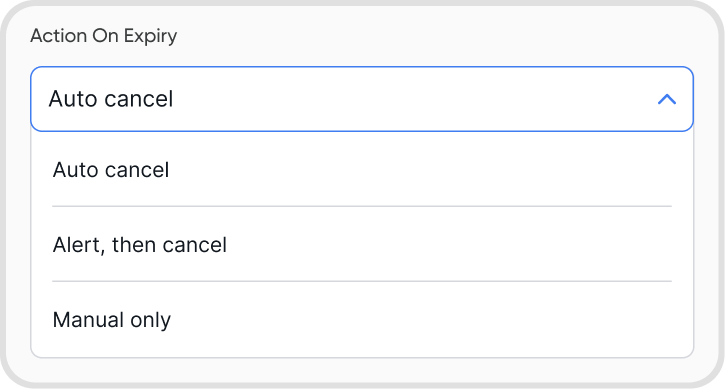
Set the action on expiry:
Auto-cancel: cancels the quote
Alert, then cancel: notifies all parties, then cancels the quote
Manual only: no automated action; quote must be edited manually
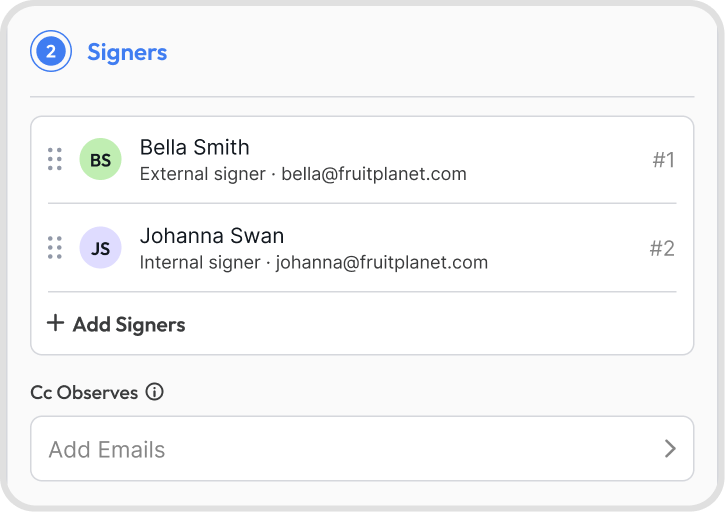
Add external and internal signers
Drag signer names to set the signing order; signing is sequential, so each signer is notified only after the previous signer completes their signature
Add CC observers to notify them of the outcome without requiring them to sign
Signers are limited to 50 total (external and internal combined)
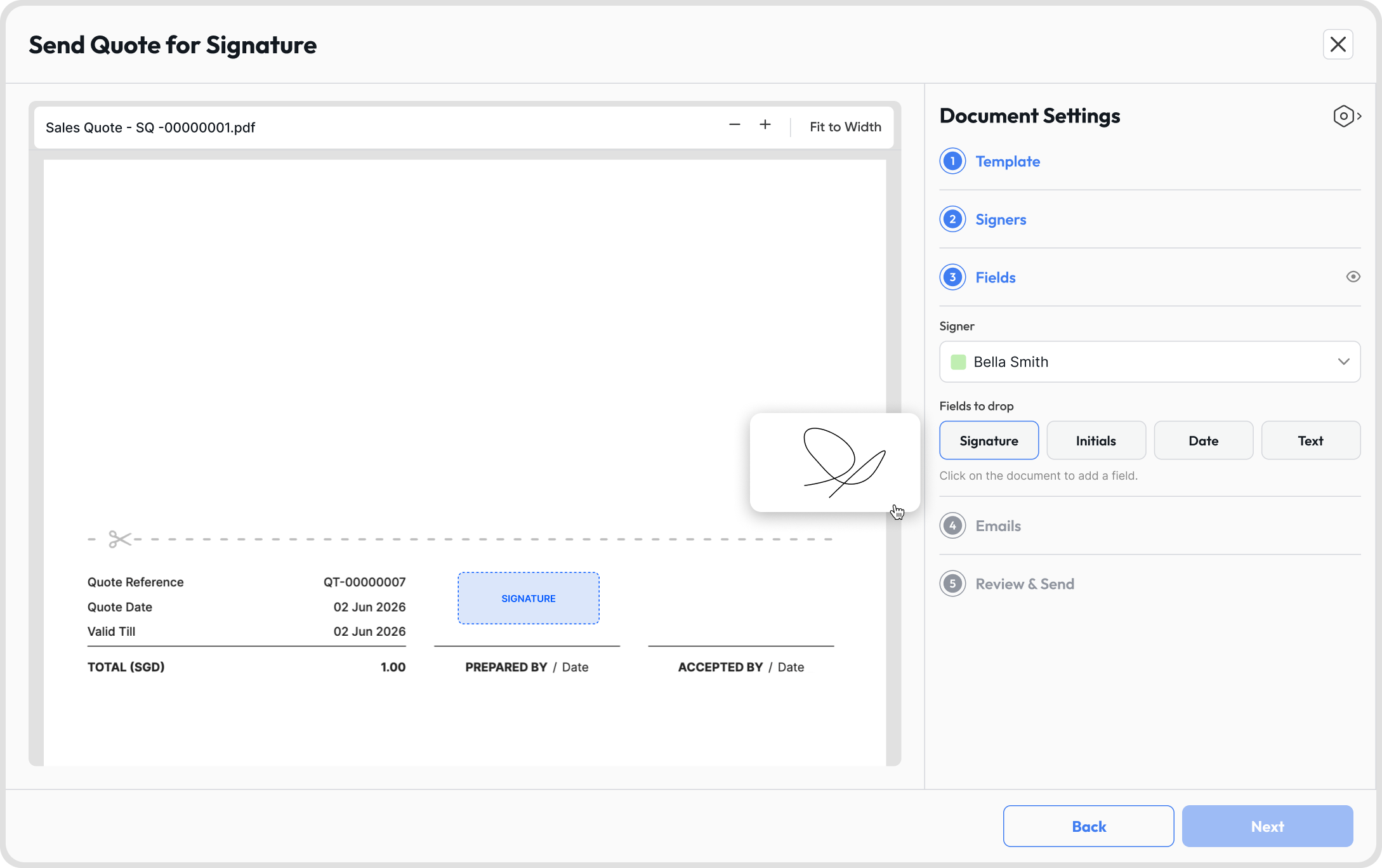
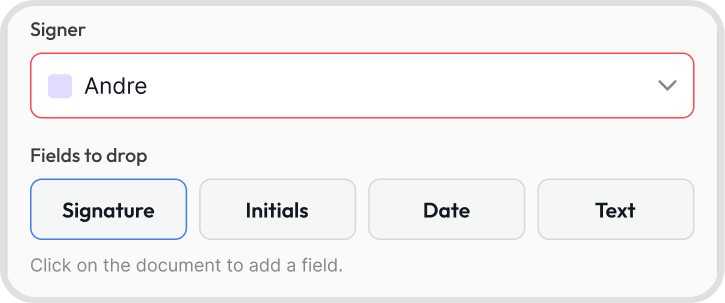
Drag and drop fields onto the quote or attached PDFs, or click a field and draw it directly on the document
Resize fields by dragging the bottom-right corner
All signers must have at least one Signature field assigned
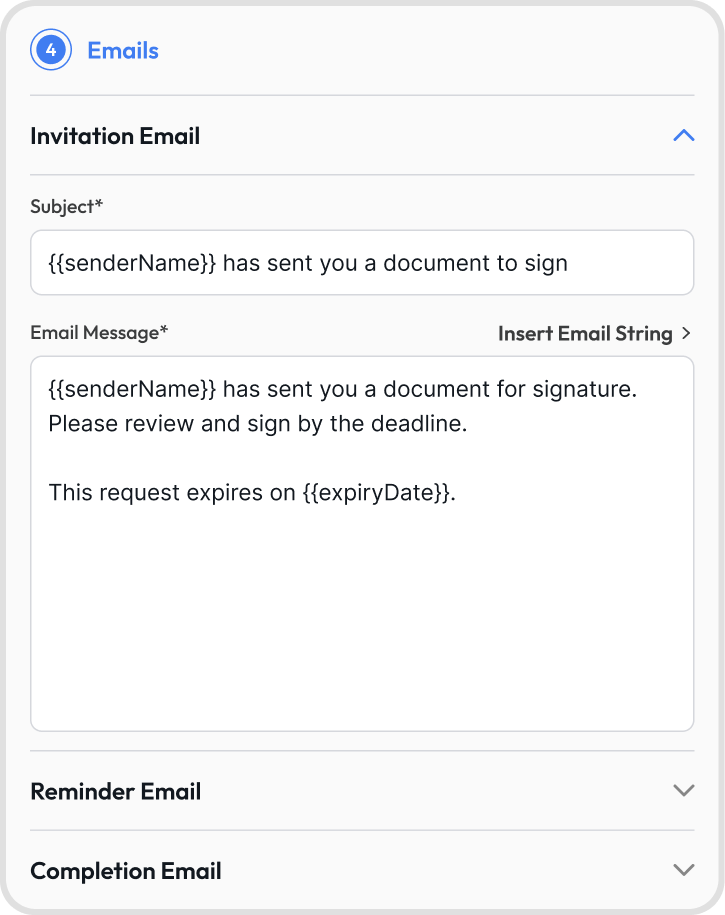
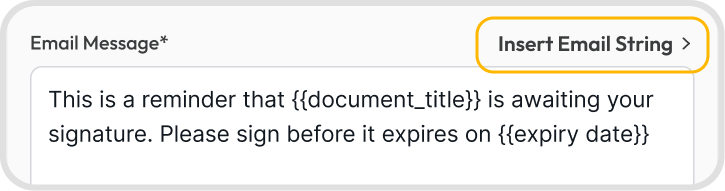
Edit the content for invitation, reminder, and completion emails
Use email strings for dynamic values (e.g., {{expiryDate}} )
Set a reminder schedule for all signers; set to 0 to send reminders until the document expires
Choose a delivery mode (all modes send an email to signers)
Review all details and send
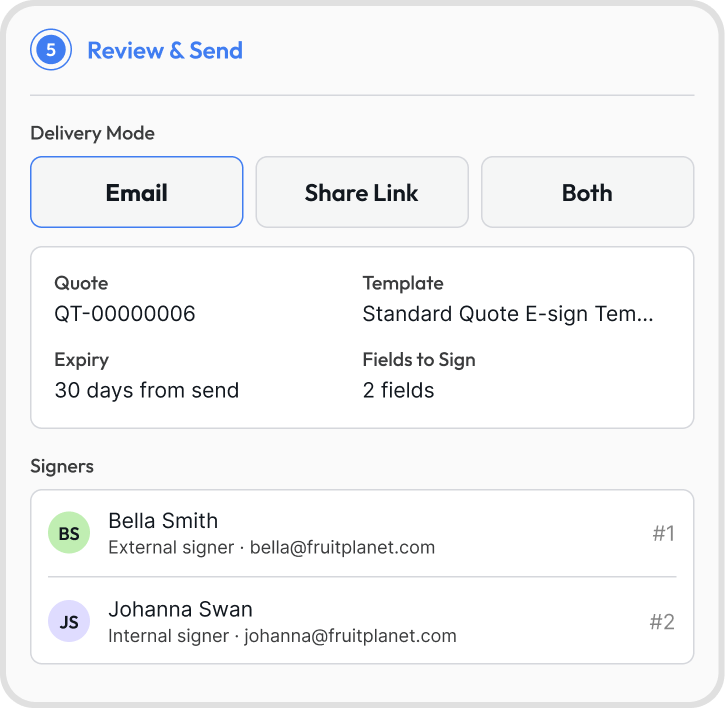
Note: The Next button will remain gray if required fields in the current step are incomplete.
External signers: outside the organization; receive an email to sign the document; no account or sign-in required, they access the request directly via the emailed link
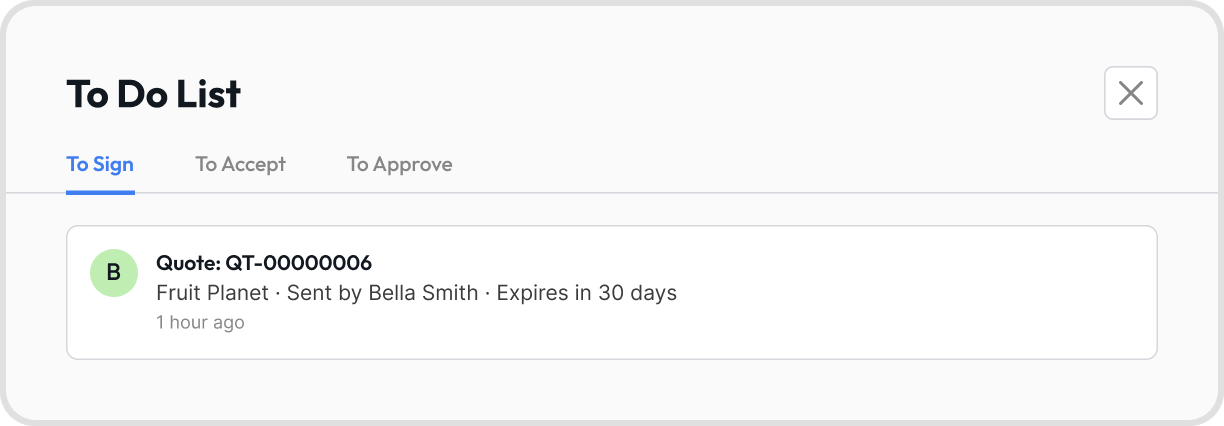
Internal signers: inside the organization; do not receive an email; they sign via To Do List (upper right icon, beside notification icon) → To Sign
Note: If you want an organization member to receive the signing email, add them as an external signer instead.
Internal signers go to To Do List (upper right icon, beside notification icon) → To Sign to access and sign the document.
Signature: signer can type or draw a signature
Initial: signer can type or draw initials
Date: auto-fills with today's date when clicked
Text: signer can enter free-form text
Note:
Fields can be added to both the quote and any attached PDFs, and resized by dragging the bottom-right corner.
A red signer field means that a signer hasn't been assigned a signing field yet. All signers must have at least 1 field to sign.
Yes. Click on the field and uncheck the required checkbox.
Click on the field and select Remove Field.
Yes. Up to 10 PDF attachments are supported, with a maximum of 8MB total for all attached documents. Signing fields can also be added to attached PDFs in Step 3.
Yes. In Step 4: Emails, you can edit the invitation, reminder, and completion email content.
Use email strings for dynamic values such as {{expiryDate}}.
CC observers are notified based on the template's Reminders and Sender Notification Cadence setting.
This can be configured to notify observers on every event, milestones only, completion only, or not at all. See What can I set up under Reminders? in E-Sign Templates.
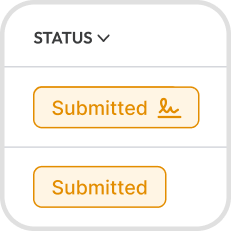
Go to Sales → Orders → Quotes → Pending → open a pending quote → click the E-Sign icon to view details and activity.

The action taken depends on what is set under Action on Expiry in Step 1:
Auto-cancel: cancels the quote
Alert, then cancel: notifies all parties, then cancels the quote
Manual only: no automated action; quote must be edited manually
The sender is notified of the decline. The document is not completed, even if all other signers have already signed.
Since signing is sequential, any signers after the declining signer are not asked to sign.
Once the quote is edited based on the decline reason, you can resend it for e-signing.
Resending invalidates the previous signing link, and a new link is sent to all signers via email.
No. E-sign details are final once sent.
No. Attempting to edit the quote while e-signing is underway will return an error.
Yes. Resending cancels the current signing request and sends all signers a new link. The previous link will stop working.
Yes. Go to Sales → Orders → Quotes → Pending → open the quote → click the E-Sign icon → click the 3-dot icon → select Cancel. This cancels the signing request for all signers.
After cancelling, the quote remains in Pending status and can be resent for e-signing.
Yes, but edits will not affect the signed PDF. If changes are needed, create a new quote and resend for e-signing.
Once all signers have completed signing, a copy is sent to all external signers via email.
Organization members with orders access can also download it directly: go to Sales → Orders → Quotes → Pending → open the quote → click the E-Sign icon → click the Download icon.
If the quote has a pending e-sign request, voiding the quote disables that request and it can no longer be sent for signing.
If the quote was already successfully e-signed, voiding the quote permanently removes access to download the signed document.
E-Sign is part of the Orders add-on. Usage limits depend on your subscription plan.
The E-Sign icon is only available on quotes with Pending status. Draft quotes cannot be sent for e-signing.