Payment collection profiles enable you to collect online payments from invoices. This also activates online payment footer in your Invoice PDF template.
Connect payment services then go to Settings → Digital Payments → Profiles → Collection and fill in the required fields:
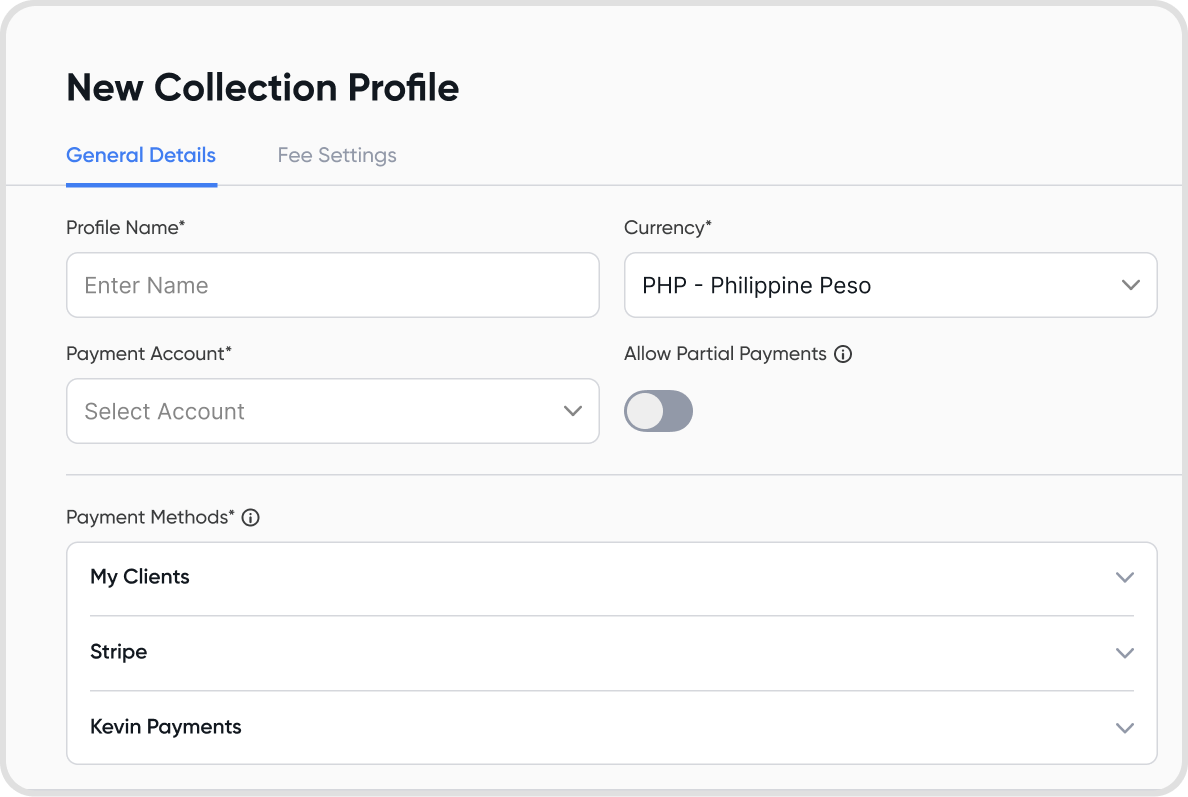
Fill in the general details
Profile Name
Currency
Payment Account
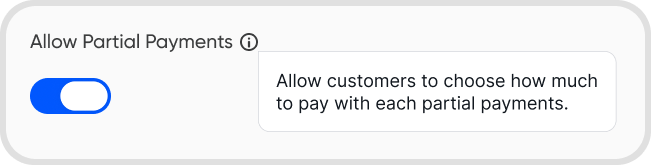
Allow Partial Payments
Lets your customers choose how much to partially pay
Payment Methods
You can choose several payment methods from different payment services you connected.
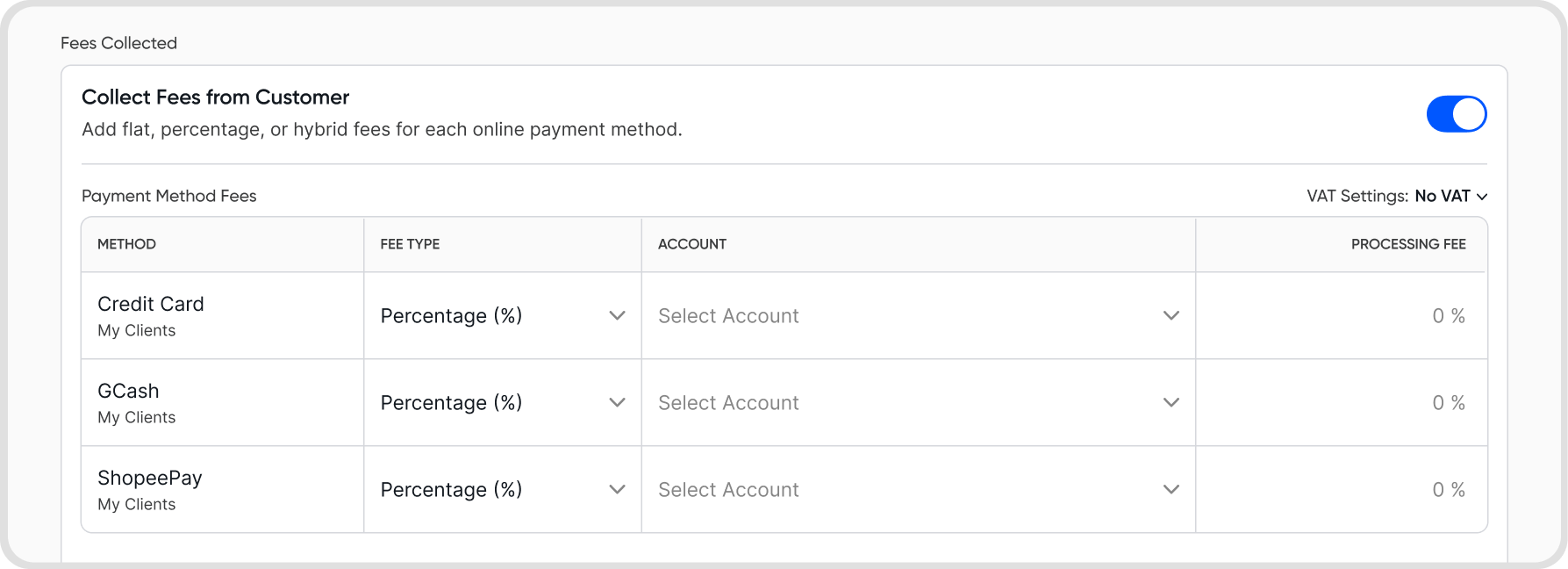
Adjust Fee Settings
Track Payment Service Fees
Automatically records gateway processing fees
Choose COA for the fees and fill in description
Enable collection of fees from customers
Choose the fee type: percentage, flat amount, or both
Choose the COA
Input the percentage or flat amount
Enable VAT
Enable Allow Partial Payments during setup or you can also edit the payment profile.
Refer to collecting payments from invoices.
Invoices, subscription schedulers, and invoice schedulers.
Yes. Create multiple collection profiles for different use cases.
You can also use a single digital payment connection to create multiple collection profiles.
Hover over or click a payment collection profile → 3-dot icon → edit
Deletion is not supported. However, you can turn the profile inactive instead. Hover over a collection profile → Make Inactive.
Go to Settings → Digital Payments → Profiles → Collections → Inactive → 3-dot icon → Make Active
Yes. Enable recording of processing fees in your payment profile under Fees Setting → select the Chart of Account → add a description.
Yes. In your collection profile, go to Fee Settings and enable Fees Collected and set fees by percentage, flat amount, or both.
You can assign different COA per method and include VAT in the fees.
Make sure you’re using a business account (APIs are usually only available for business accounts) and that your payment connection is active.