The Email Agent works through email: send a task to your agent's email address, and it performs that task in the organization the agent is assigned to.
Each agent is set up for one organization, so the tasks sent to it are always applied to that organization's books.
Your agent is shared across the organization. Other users and whitelisted external senders can send it tasks, and each action follows the permissions of the person who sent the email.
All actions are recorded in Juan under the user who sent the email.
Head over to Settings → Email Agent and set the following according to your preferences:
Name
Create an agent's email using letters (a-z), numbers (0-9), and the plus (+) symbol.
Using the plus (+) symbol is a good way to differentiate agents per organization, for example: [email protected]
Tone
Friendly
Formal
Focused
Skill Level
Assistant
Analyst (Growth Plan only)
Associate (Coming soon)
Memory
Predefined
Progressive (Growth Plan only)
Preferred Language
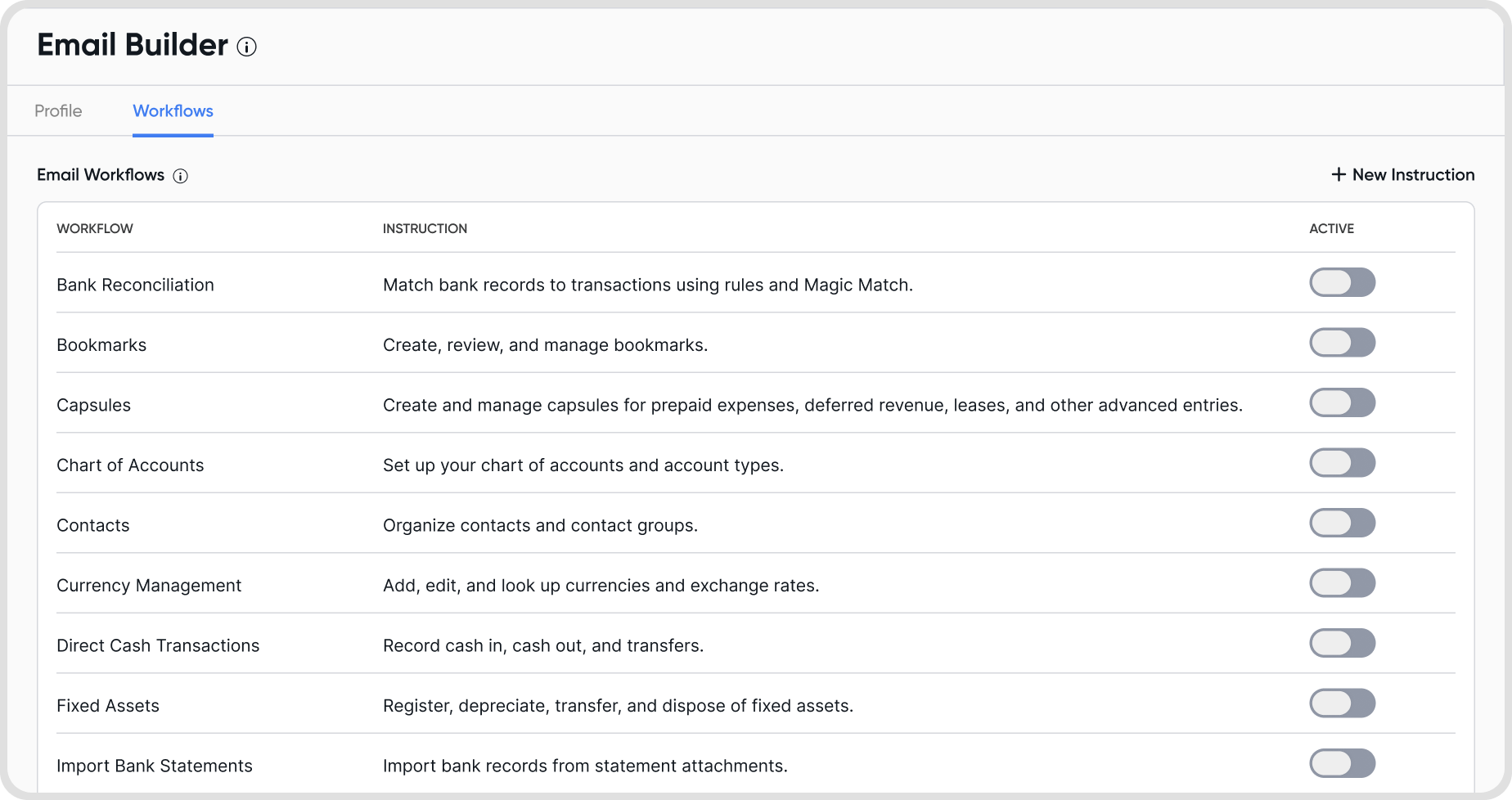
The Email Agent supports 20 workflows. Go to Settings → Email Agent → Workflows to review them and turn each one on or off:
Bank Reconciliation: match bank records to transactions using rules and Magic Match.
Bookmarks: create, review, and manage bookmarks.
Capsules: create and manage capsules for prepaid expenses, deferred revenue, leases, and other advanced entries.
Chart of Accounts: set up your chart of accounts and account types.
Contacts: organize contacts and contact groups.
Currency Management: add, edit, and look up currencies and exchange rates.
Direct Cash Transactions: record cash in, cash out, and transfers.
Fixed Assets: register, depreciate, transfer, and dispose of fixed assets.
Import Bank Statements: import bank records from statement attachments.
Invoices, Bills & Credit Notes: create and manage invoices, bills, and credit notes.
Items & Inventory: create and edit items and manage stock levels.
Journals: create and manage journal entries.
Juan Magic: create and autofill draft invoices, bills, and credit notes from email details or file attachments.
Payments: record, apply, and reverse invoice and bill payments.
Reports & Data Exports: generate balance sheets, P&L, cash flow, trial balance, and other reports and data exports.
Sales & Purchase Orders: create, track, and convert sales and purchase orders.
Scheduled & Recurring: schedule recurring invoices, bills, journals, and subscriptions.
Tags, Classifiers & Custom Fields: create and manage tracking tags, classifiers, and custom fields.
Tax Profiles: configure tax profiles and rates.
User Management: invite, update, and remove organization users.
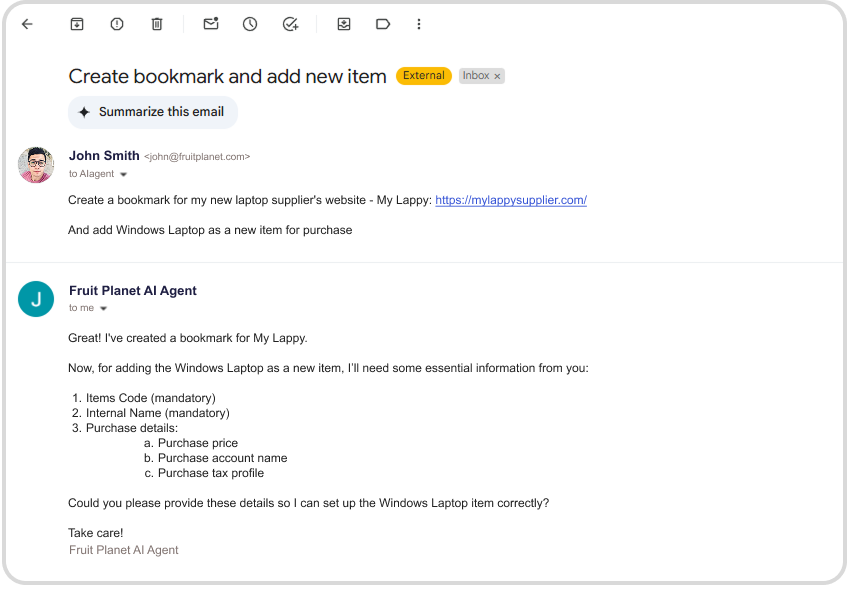
Send tasks by email to your agent's assigned email address.
Use the To field for direct actions and replies.
Use Cc to keep your agent informed.
Only users in your organization and addresses added to the External Email Whitelist can instruct your agent.
Yes. Any user in your organization can send tasks to your agent using their own email address in Juan.
Actions follow the permissions of the user who sent the email, so each user can only invoke the workflows they already have access to in Juan.
The workflow must also be enabled under Settings → Email Agent → Workflows. If a workflow is turned off, no one can invoke it, regardless of their permissions.
Example: a staff member with access to Bills only can invoke Bills-related workflows, and only while that workflow is enabled.
The same applies to whitelisted external senders. See Q11.
Your agent replies to the sender's email address.
It can also reply to external senders and recipients added to the External Email Whitelist. See Q11.
Emails from addresses that are neither organization users nor whitelisted are ignored for security reasons.
Go to Agent Suite → Judgement in the main sidebar to review your agent's activity.
Updating your agent's email cancels all ongoing actions, and the previous email will be unavailable for up to 72 hours.
Your agent will be deactivated and its email will be released.
Make sure you included instructions in the To field and in the email body.
Make sure your agent's email is saved in your email contacts.
Whitelist @sendjuan.com, then check your spam and other folders.
Make sure the workflow you are trying to use is enabled under Settings → Email Agent → Workflows.
Make sure your user permissions cover the task you are requesting.
If you are emailing from an address outside the organization, make sure it is added to the External Email Whitelist.
Only organizations under the Growth Plan can add new instructions and turn off specific workflows.
Yes. Go to Settings → Email Agent→ External Email Whitelist and add specific email addresses or domains.
Whitelisted senders can interact with your agent, receive replies, and perform actions on your behalf.
Whitelisting is the only way an external sender can instruct your agent, so this is how you let clients send documents such as receipts directly to your agent.
Actions requested by whitelisted senders follow your user permissions and are recorded as your own in Juan.
Only one per organization.