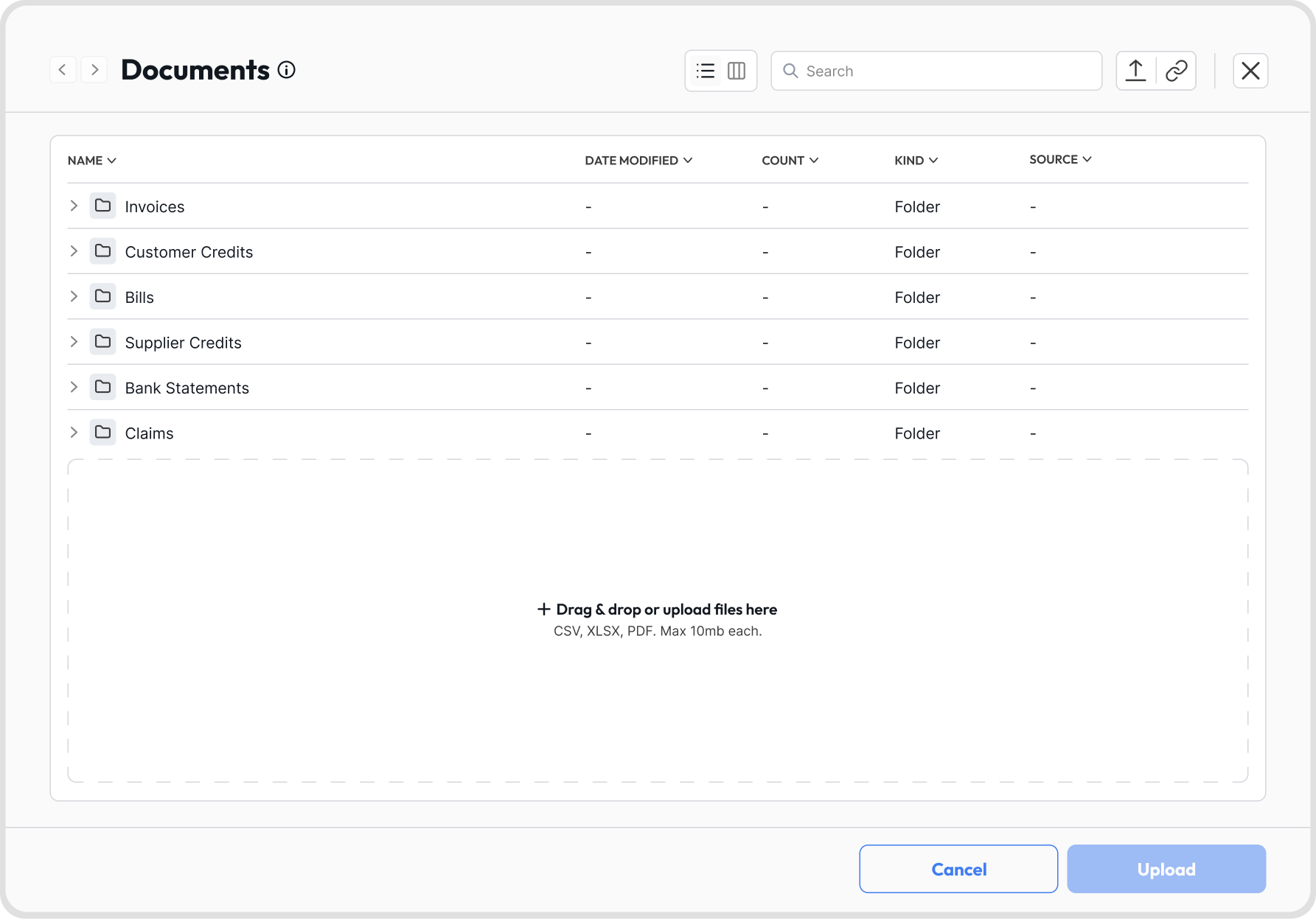
Magic Documents is one place to upload every file you want Juan Magic to process: invoices, customer credits, bills, supplier credits, bank statements, and claims.
Instead of uploading attachments inside each module or each bank account, drop everything here and move each file to the right folder.
Note: Template imports (CSV or Excel templates) aren’t done in Magic Documents.
Click the Magic Documents icon located below the menu bar.
Use the view toggle at the top of the modal to switch between list view and column view.


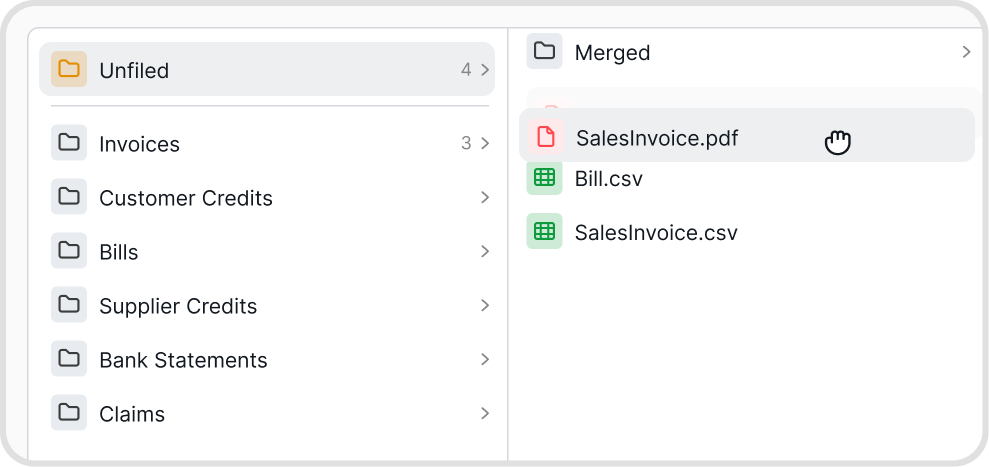
Unfiled: files you’ve added but haven’t moved to a folder yet
Invoices, Customer Credits, Bills, and Supplier Credits: accept PDF and image files
Bank Statements: accepts CSV, Excel, and PDF files, with a folder for each bank account
Claims: accepts image files
Invoices, Customer Credits, Bills, and Supplier Credits each have a Merged folder. Use it for files that contain several transactions, such as a multi-page PDF with several invoices. Files outside the Merged folder are treated as one transaction each.
Each file can be up to 10MB.
Magic Documents is available on all plans. Your plan’s limits still apply.
You can only upload to folders for the features your user access covers. For example, a custom user with only Sales and Purchases access can upload to Invoices and Bills, but not to Bank Statements or Claims.
Drag and drop files into the Magic Documents modal.
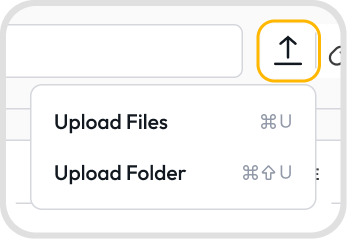
Or click the upload icon and select Upload Files or Upload Folder to add files from your computer.
Files are added to whichever folder is open. If no folder is open, they go to Unfiled.
Yes. Click the link icon, paste the shared link, and click Import.
Everything in the link is imported, including subfolders.
The link must be set so anyone with the link can view it.
This is useful if your clients or team save receipts to a shared Google Drive, Dropbox, or OneDrive folder.


There’s no upload limit, but we recommend uploading up to 50 files at a time.
The number of invoices you can process each month depends on your plan.
Drag the file to a folder.
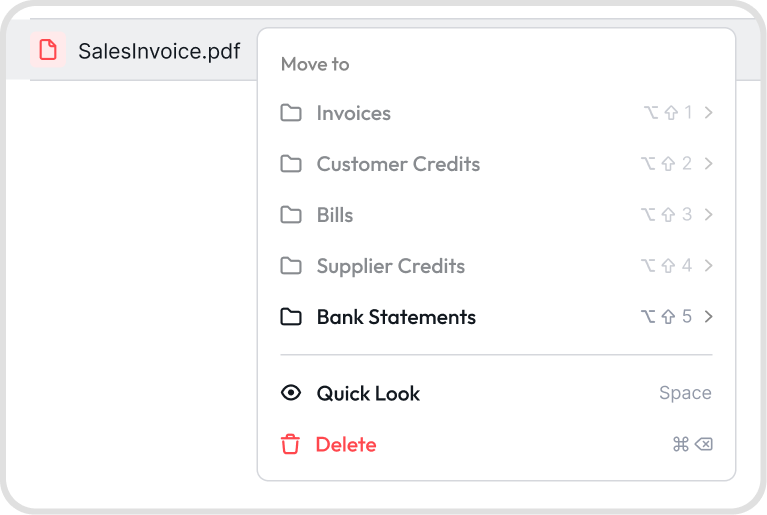
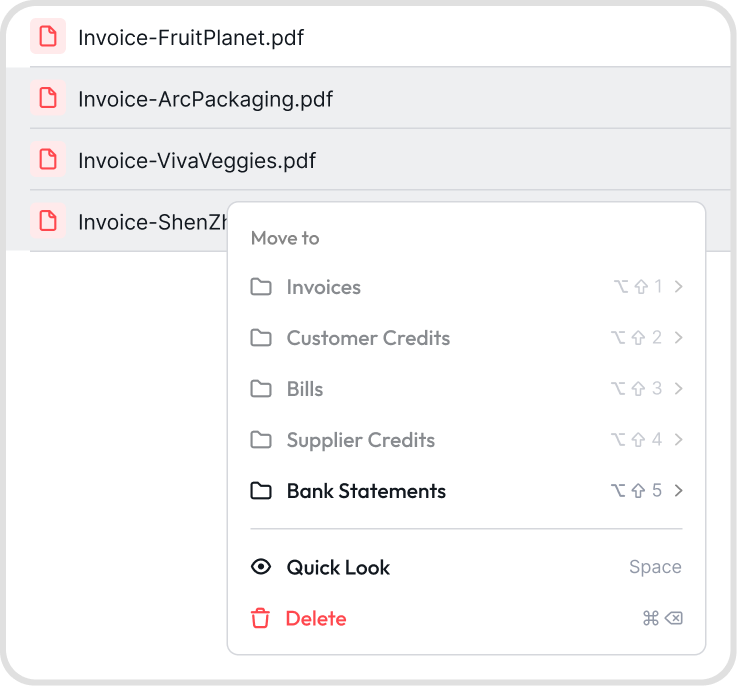
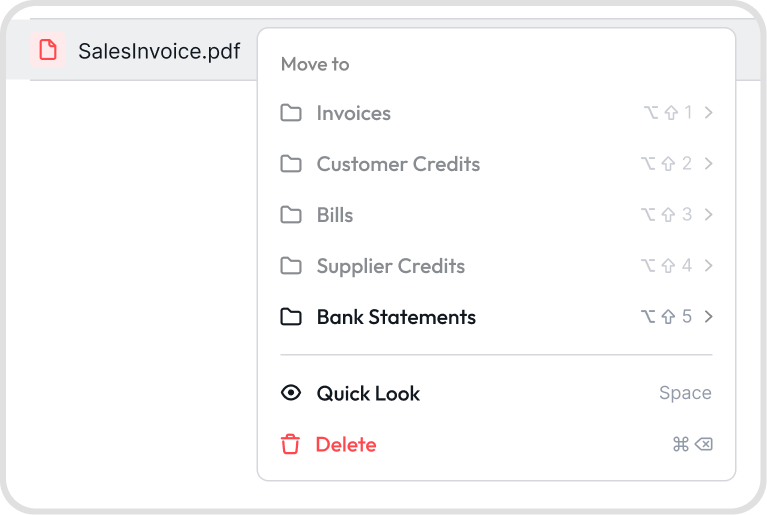
Or right-click the file, select Move to, then choose the folder. You can also use the shortcuts shown in the Move to menu.
To move several files in bulk, Cmd/Ctrl + click to select them, then right-click and choose Move to.
For bank statements, move each file into the folder of the bank account it belongs to.
Note: Folders that don’t support the file type are grayed out. For example, an image file can’t be moved to Bank Statements.
Once your files are in the right folders, click Upload.
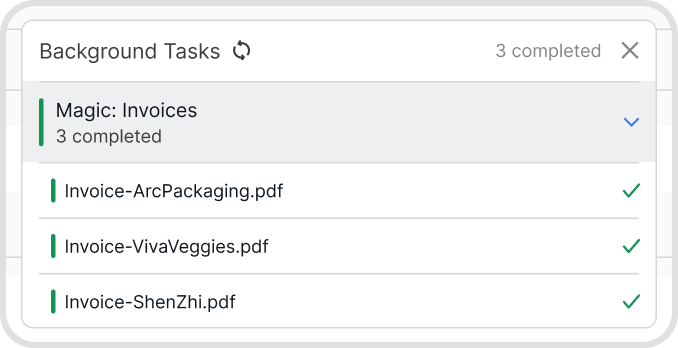
Juan Magic processes the files as a background task, so you can keep working while it runs. See Background Task.
Invoices, customer credits, bills, and supplier credits are created as drafts for you to review. See [Juan Magic (Import Attachments)].
Claims are created as draft claims for you to review.
Bank statements are added as bank statement lines to the bank account you selected. Go to Reconciliations, open the bank account, and review the statement before reconciling.
Note: Moving files between folders doesn’t start processing. Processing only starts when you click Upload.
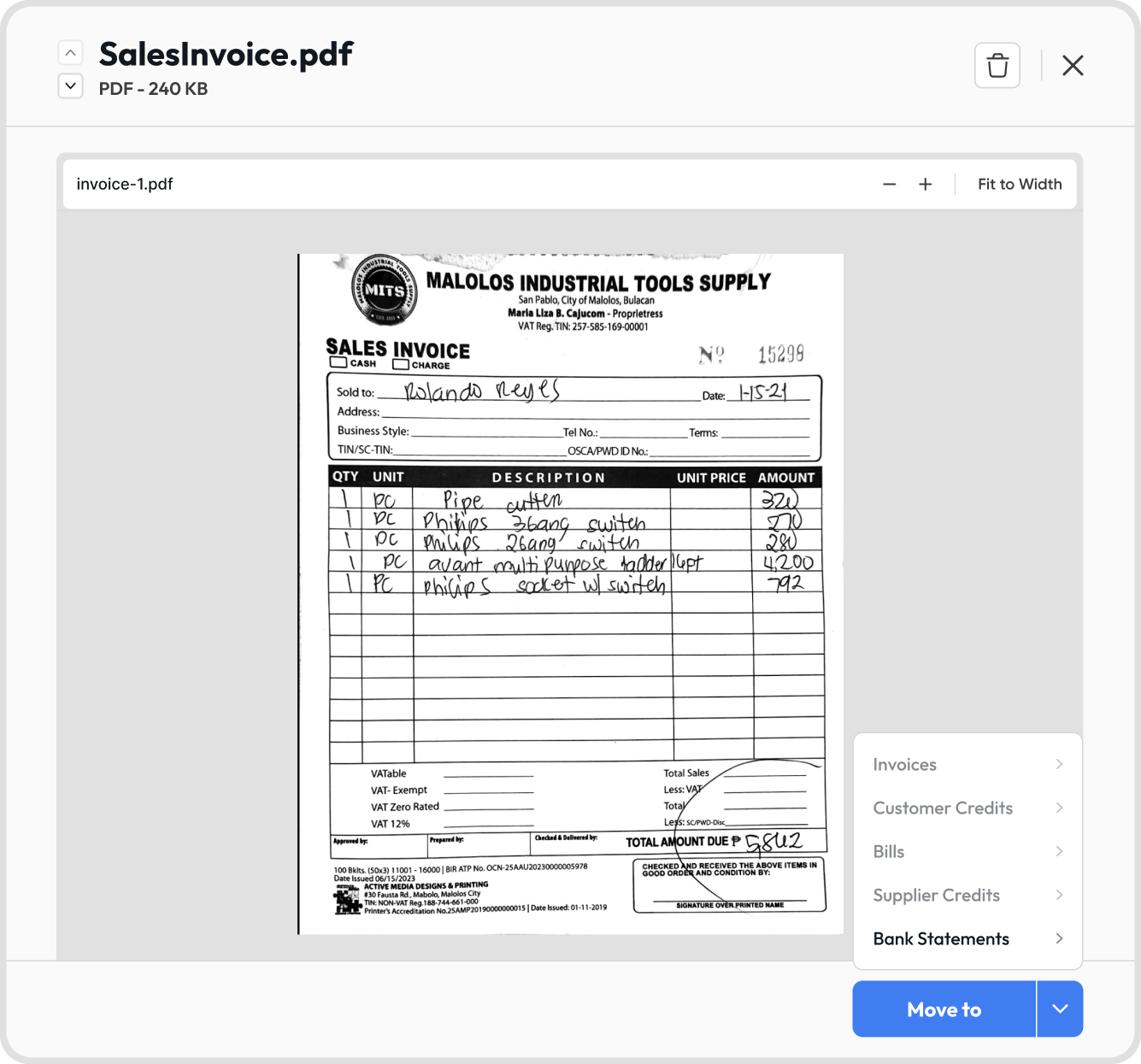
Right-click the file and select Quick Look, or select it and press Space.
Quick Look works for PDFs, images, and CSV files.
From Quick Look, you can zoom in or out, use Fit to Width, move the file with Move to, or delete it.
Right-click the file and select Delete, or click the trash icon in Quick Look.
Deleting a file doesn’t affect transactions already created from it.