Field Defaults automatically fill in transaction fields when you create a new transaction.
If you select a contact, and that contact has its own defaults assigned, the contact's defaults are used instead.
Go to Settings → Templates → Fields: manage them directly.
Set them while creating or editing a transaction; Invoices, Bills, Customer Credits, and Supplier Credits.
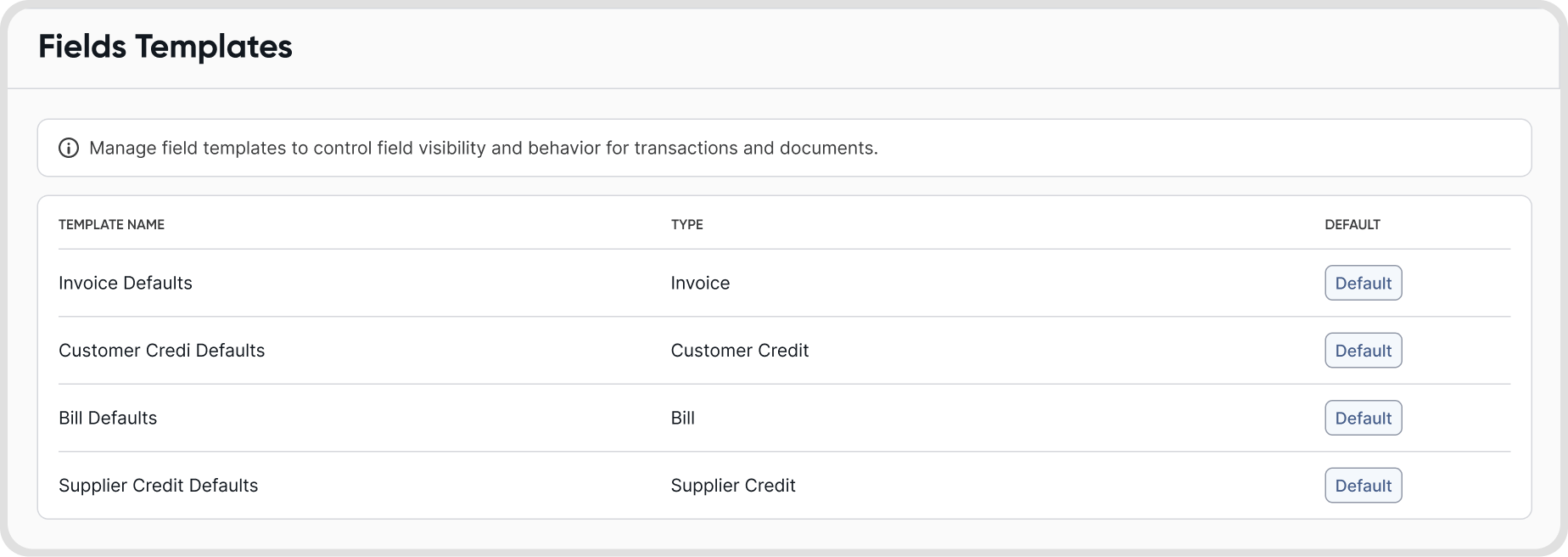
Field Defaults apply organization-wide and are used automatically for any new transaction.
If a contact has no defaults assigned: your Field Defaults are applied.
If a contact has specific defaults assigned: those contact defaults are used instead of your Field Defaults.
Field Defaults don't override a contact's own default settings, including currency.
Accounting
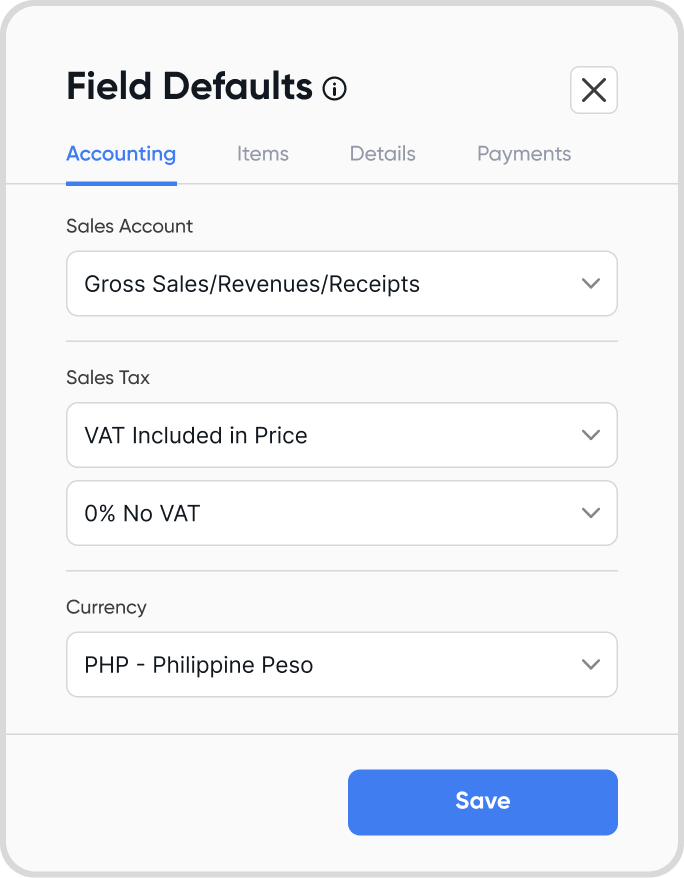
Sales Account: autofills the sales account used when you create an invoice.
Sales Tax: autofills your tax settings when you create an invoice.
Currency: autofills the currency when you create an invoice.
Items
Item Discounts: shows the discount column when you create an invoice.
Quantity & Unit: shows the quantity column when you create an invoice.
Details
Reference: set the prefix, separator, date, series start/end, and series offset.
Note: Series offset reduces the next reference. Formula: (Series Start + Next Invoice Count) - Series Offset. For example, if Series Start is 1000, the next invoice count is 5, and the Series Offset is 3, the next reference number is 1002 (1000 + 5 - 3).
Invoice Notes: set custom invoice notes.
Payments
Payment Method: autofills the payment method when you record an invoice payment.
Payment Account: autofills the payment account when you record an invoice payment.
Accounting
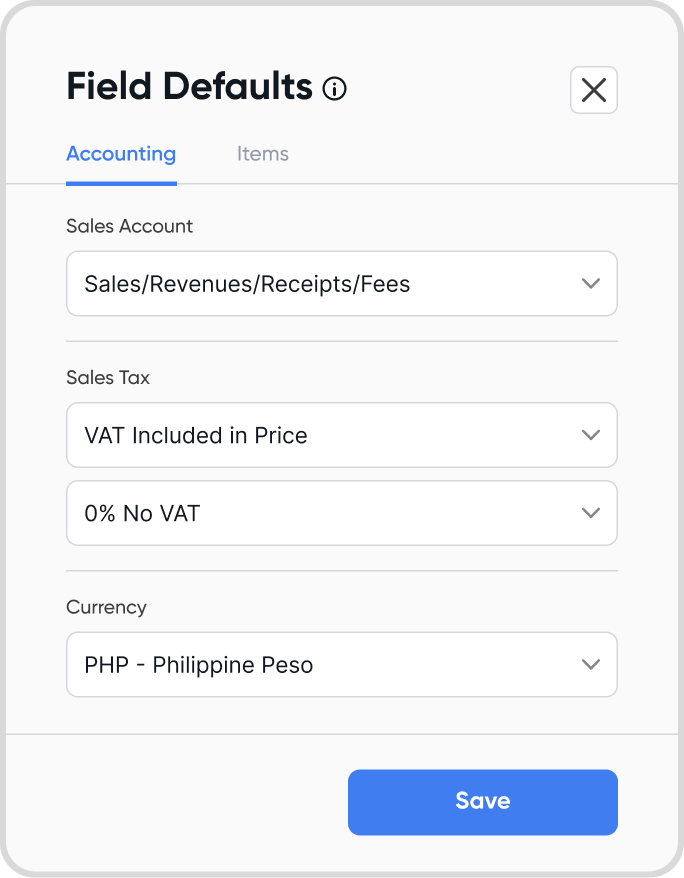
Sales Account: autofills the sales account used when you create a Customer Credit.
Sales Tax: autofills your tax settings when you create a Customer Credit.
Currency: autofills the currency when you create a Customer Credit.
Items
Item Discounts: shows the discount column when you create a Customer Credit.
Quantity & Unit: shows the quantity column when you create a Customer Credit.
Accounting
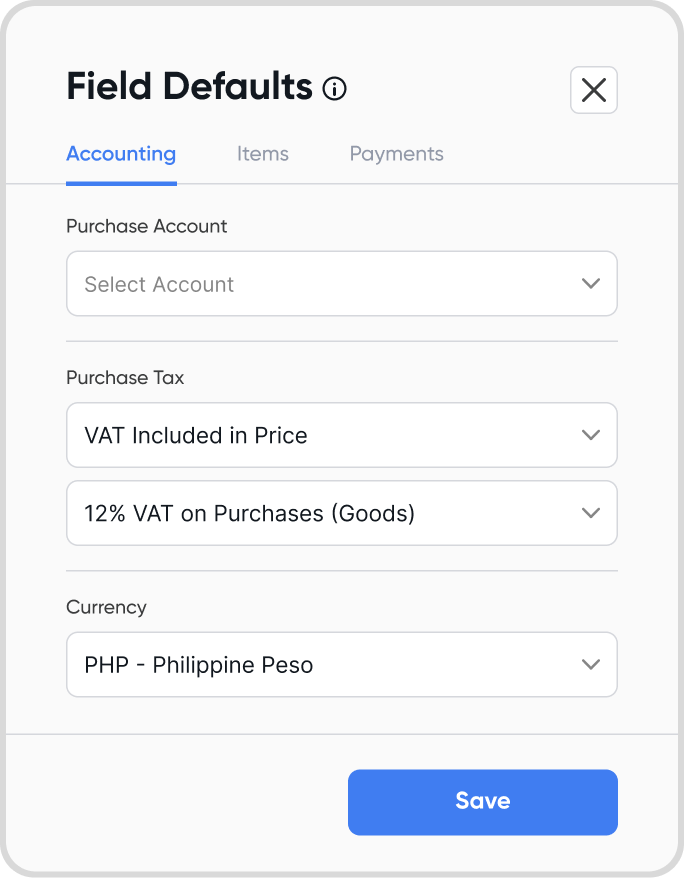
Purchase Account: autofills the purchase account used when you create a bill.
Purchase Tax: autofills your tax settings when you create a bill.
Currency: autofills the currency when you create a bill.
Items
Item Discounts: shows the discount column when you create a bill.
Quantity & Unit: shows the quantity column when you create a bill.
Payments
Payment Method: autofills the payment method when you record a bill payment.
Payment Account: autofills the payment account when you record a bill payment.
Accounting
Purchase Account: autofills the purchase account used when you create a Supplier Credit.
Purchase Tax: autofills your tax settings when you create a Supplier Credit.
Currency: autofills the currency when you create a Supplier Credit.
Items
Item Discounts: shows the discount column when you create a Supplier Credit.
Quantity & Unit: shows the quantity column when you create a Supplier Credit.
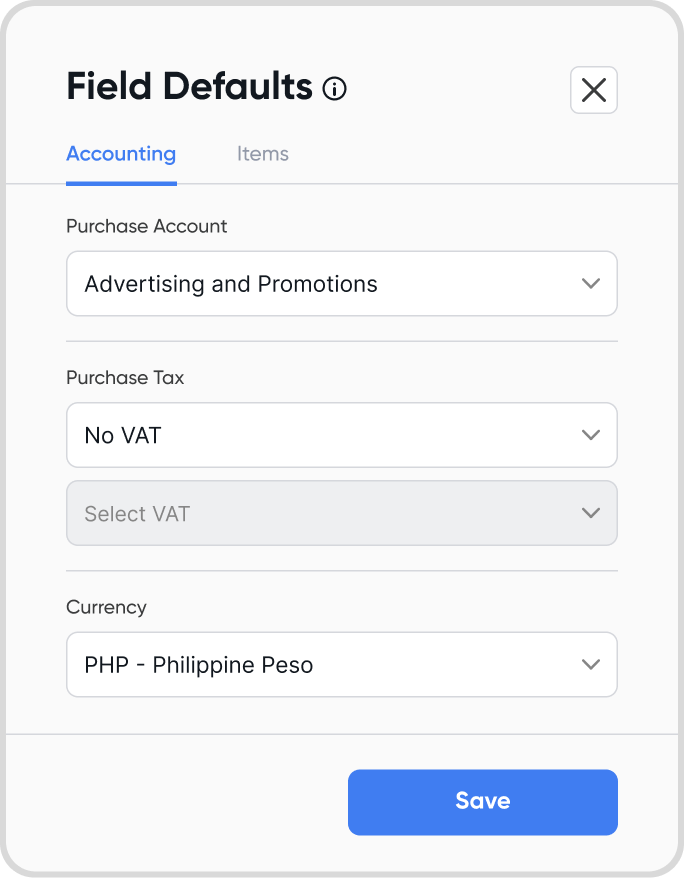
Yes, you can change Field Defaults at any time, either from Settings → Templates → Fields or directly while creating or editing a transaction.
Field Defaults are proactive: changes only apply to new transactions going forward and don't affect transactions already recorded.
No, the Currency default only autofills the currency shown when creating a transaction.
It doesn't change your organization's base currency, and it doesn't override a contact's own currency default.