Yes. You can assign different organizations to different billing accounts.
Common use cases include:
Managing multiple companies or subsidiaries under separate billing accounts
Separating internal organizations from client or partner organizations
Using different payment methods for different organizations
Assigning billing responsibility to different teams or cost centers
Go to Billing Accounts > Choose a Billing Account > Account Activity.
This page shows all activity related to the selected billing account.
Transactions tab: Shows the history of balance recharges made to the billing account.
Invoices tab: Shows consolidated invoices for all organizations paid for by the billing account. You can view, download, and download receipts for reference.
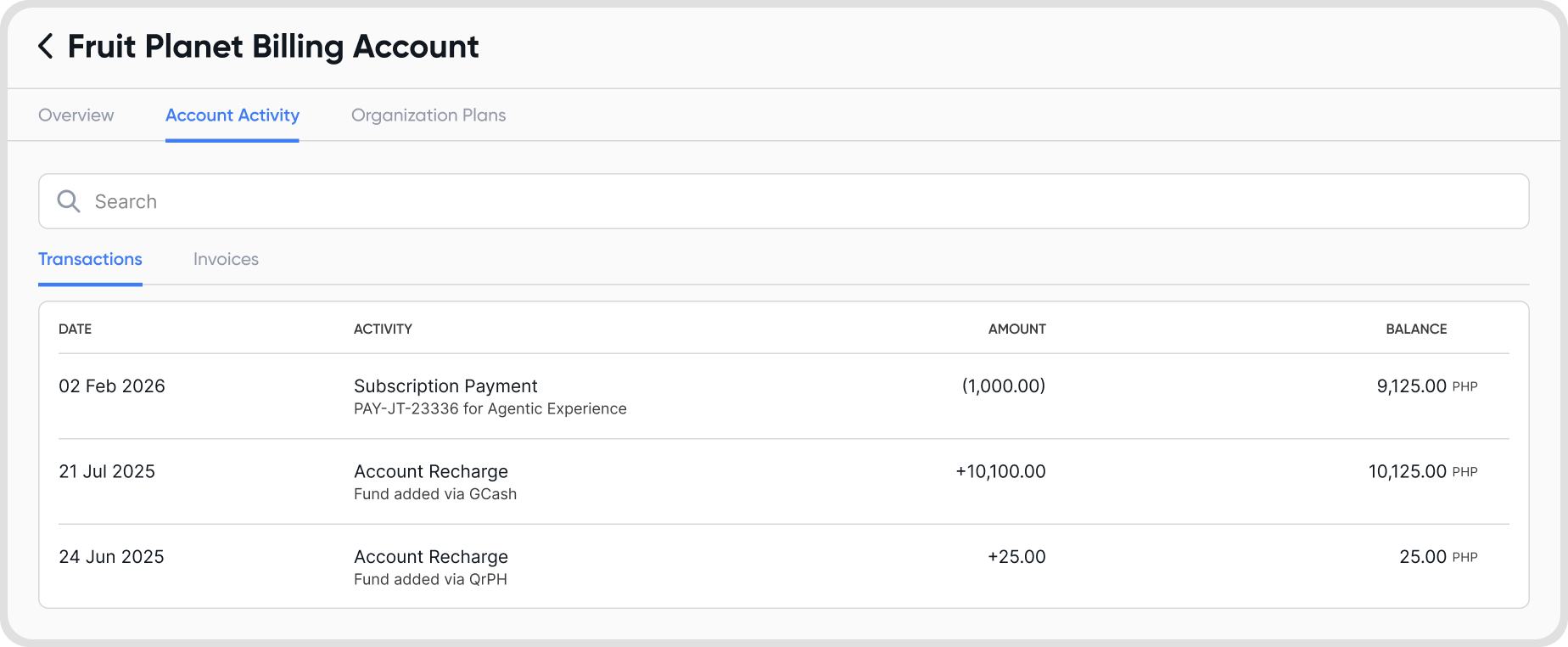
Go to Billing Accounts > Choose a Billing Account > Account Activity.
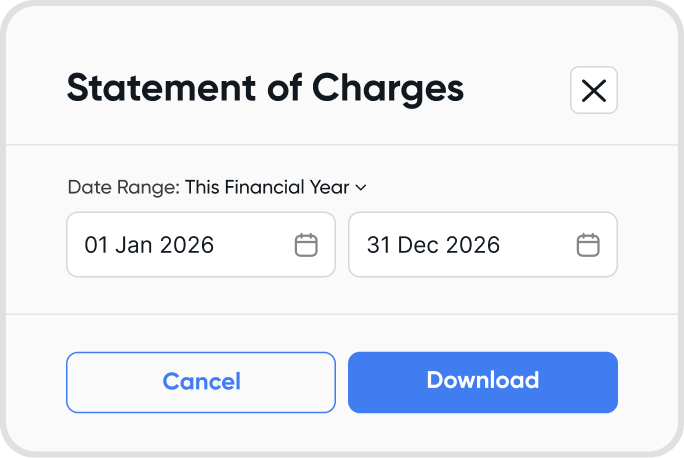
Click the download icon located at the right side of the screen. Choose a date range and download your statement of charges.
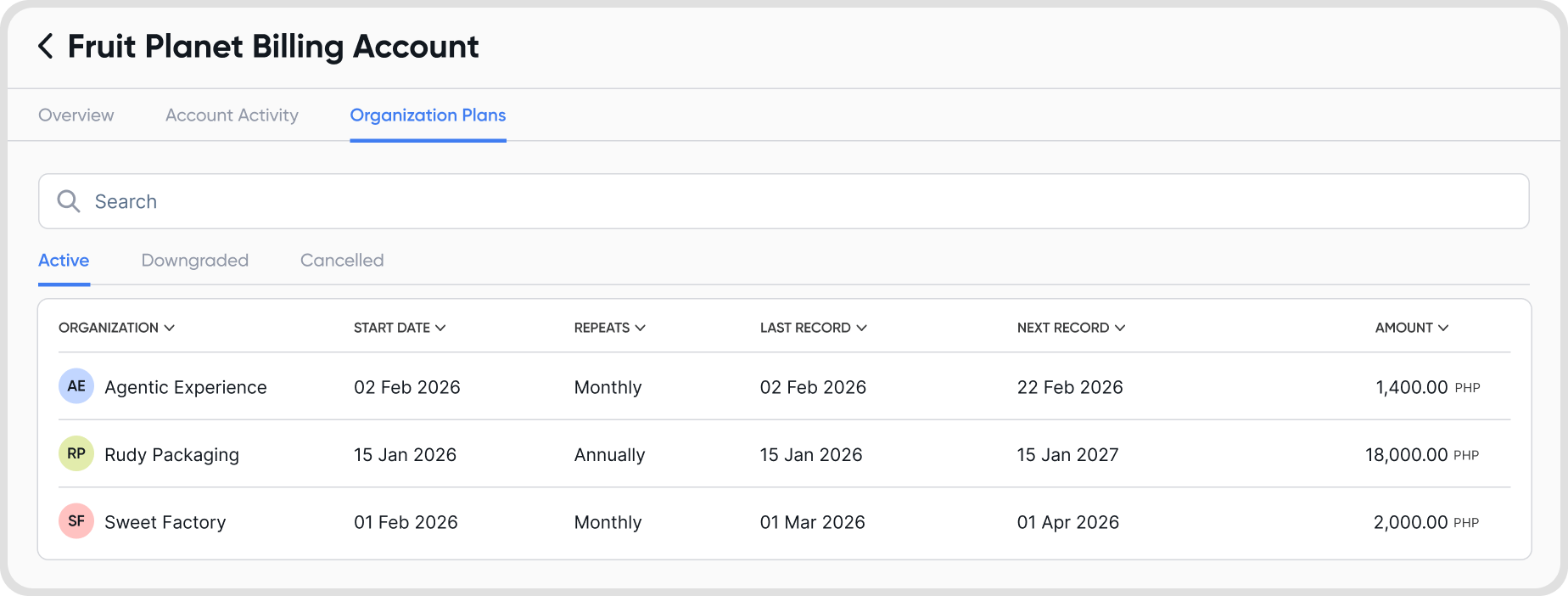
Go to Billing Accounts > Choose a Billing Account > Organization Plans. Under Organization Plans, you’ll see the following tabs:
Active tab: Lists organizations that are currently subscribed and paid for by the billing account.
Downgraded tab: Lists organizations that were automatically downgraded due to unpaid subscriptions and may still be eligible for reinstatement.
Cancelled tab: Lists organizations that were manually cancelled or automatically ended after the reinstatement period lapsed following a downgrade, and is no longer eligible for reinstatement.
Before downgrading or canceling an organization, keep the following in mind:
Cancelling does not immediately remove access.
Billing cycles do not reset when a subscription is cancelled.
No refunds or credits are issued for unused time. Check our terms and conditions here.
Cancelling only affects future renewals, not the current billing period.
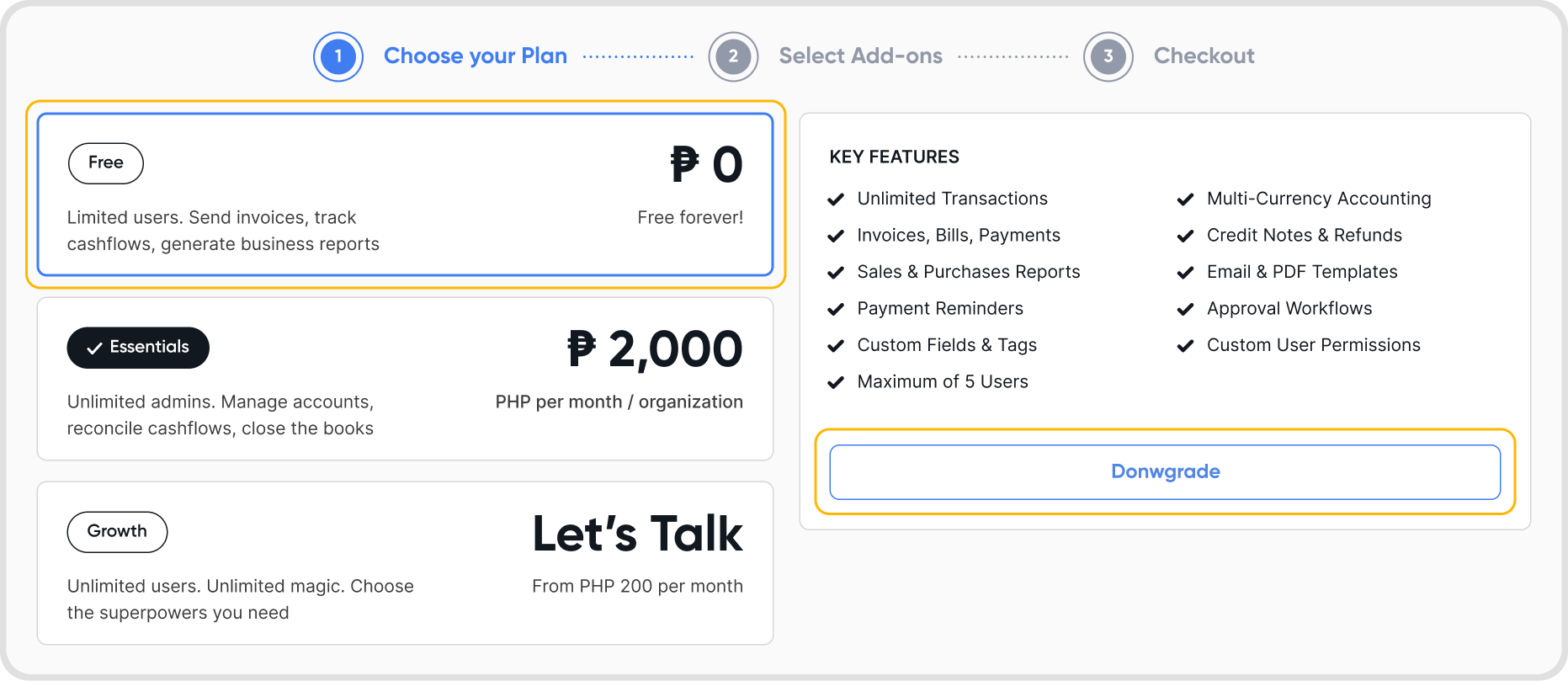
After selecting an organization go to Settings > Plans & Add-ons > Manage Plan
Choose the downgraded plan, such as Essentials to Free, Growth to Essentials, or Growth to Free. After confirming, a downgrade schedule confirmation will appear.
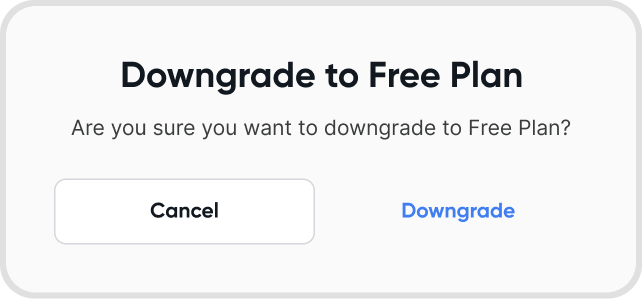

No. Cancelling a subscription does not reset the current billing cycle. Example:
A monthly subscription starts on January 1 and runs until January 30, renewing on February 1 at 00:00.
If cancelled on January 10, access continues until January 30.
Note: Once the billing cycle ends and the organization is subscribed again, the new subscription will follow the preferred billing date of the billing account used for the new subscription.
Go to Plans & Add-ons and select Manage.
During checkout, choose a different billing account to pay for the subscription.
The organization’s billing will move to the new billing account with no downtime.
Existing discounts continue to apply, and charges are pro-rated based on the new billing account’s billing date.
If no discount applies, billing will reflect the standard price.
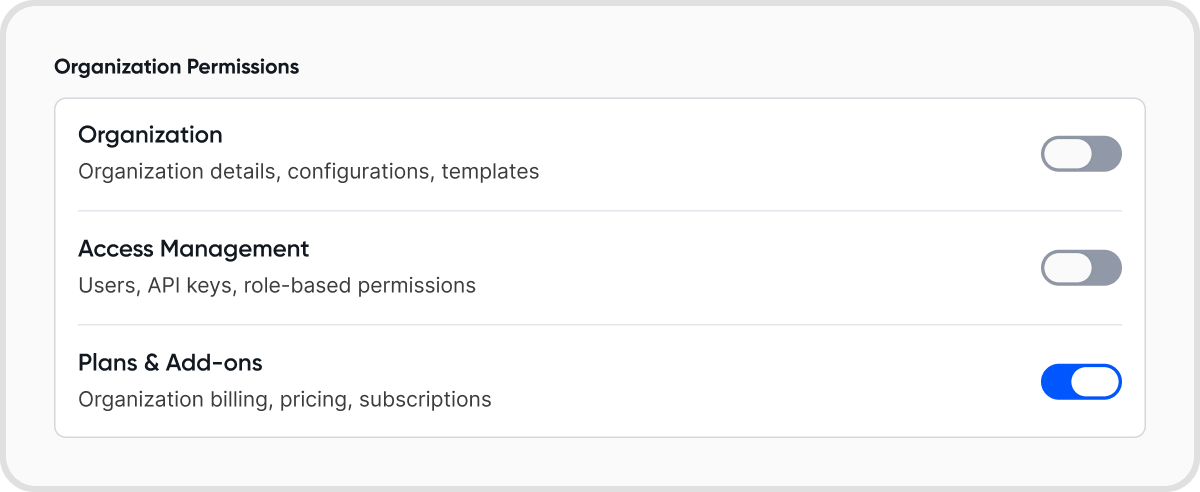
Yes. You can share your billing account with another user by granting them billing access. Go to Settings > Access Management.
Select an admin member of your organization and under Organization Permissions enable Plans & Add-ons access.
If your billing account does not have enough balance, your organizations will downgrade on their due date.
If the recharge funds are not enough to cover the total amount due, no organizations will be charged and all will be downgraded, since billing is processed as a single payment. Example:
Balance: ₱3,000
Total due: ₱4,000 (Org A: ₱2,000, Org B: ₱2,000)
Result: Payment fails and both organizations are downgraded.
To prevent your organizations from being downgraded, make sure to turn on auto-recharge. You will also receive a notice to recharge a few days prior to your due date to remind you of the upcoming billing.
Only users with the appropriate billing or administrative permissions can manage organization subscriptions.
Organization data is preserved during downgrade or cancellation.
Access and features depend on the subscription status.
Contact your account manager, use in-app chat, or email [email protected].
Include the following details:
Subject as “Request to transfer credits”
Source billing account email and name
Amount of credits to transfer
Target billing account email and name
Example:
“Request to transfer credits. See details: [email protected] | My Billing Account | PHP 5,000 → [email protected] | Company Billing”
Note: transfer of credits might take several minutes depending on the availability of the team.