Go to Settings > Templates > Reports > Accounting Tab, then click New Template (Balance Sheet).
Alternatively, in Reports > Balance Sheet, click the template selector (top right) and choose New Template.
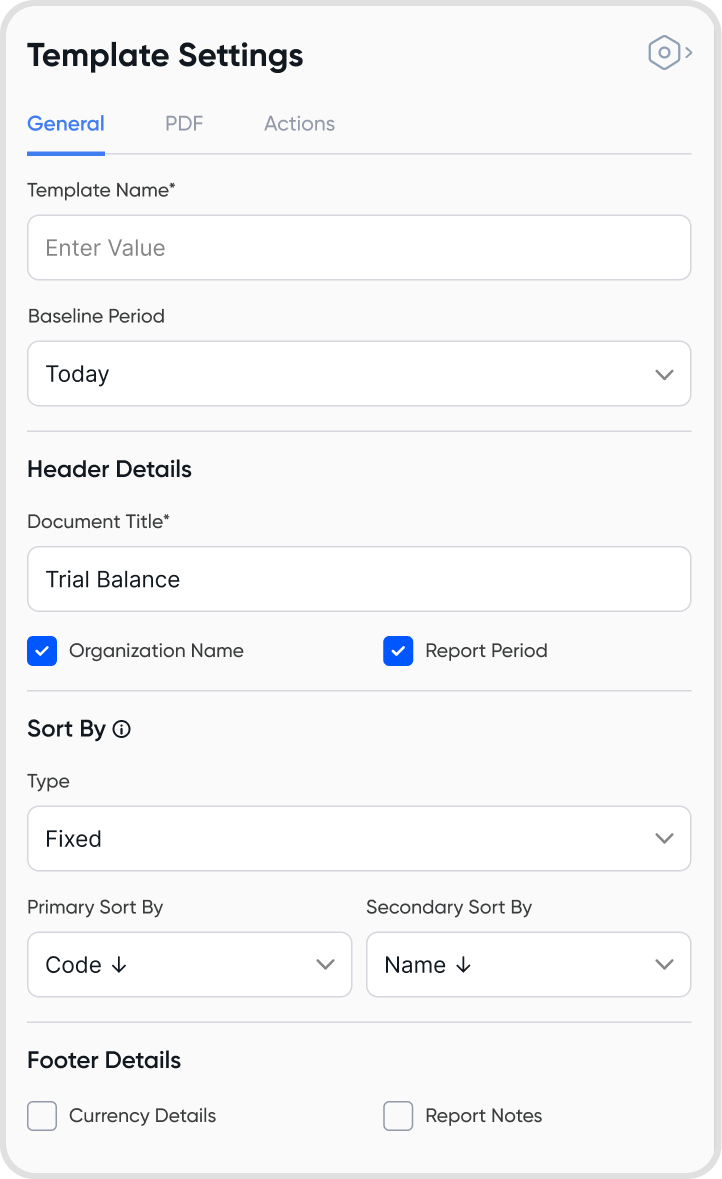
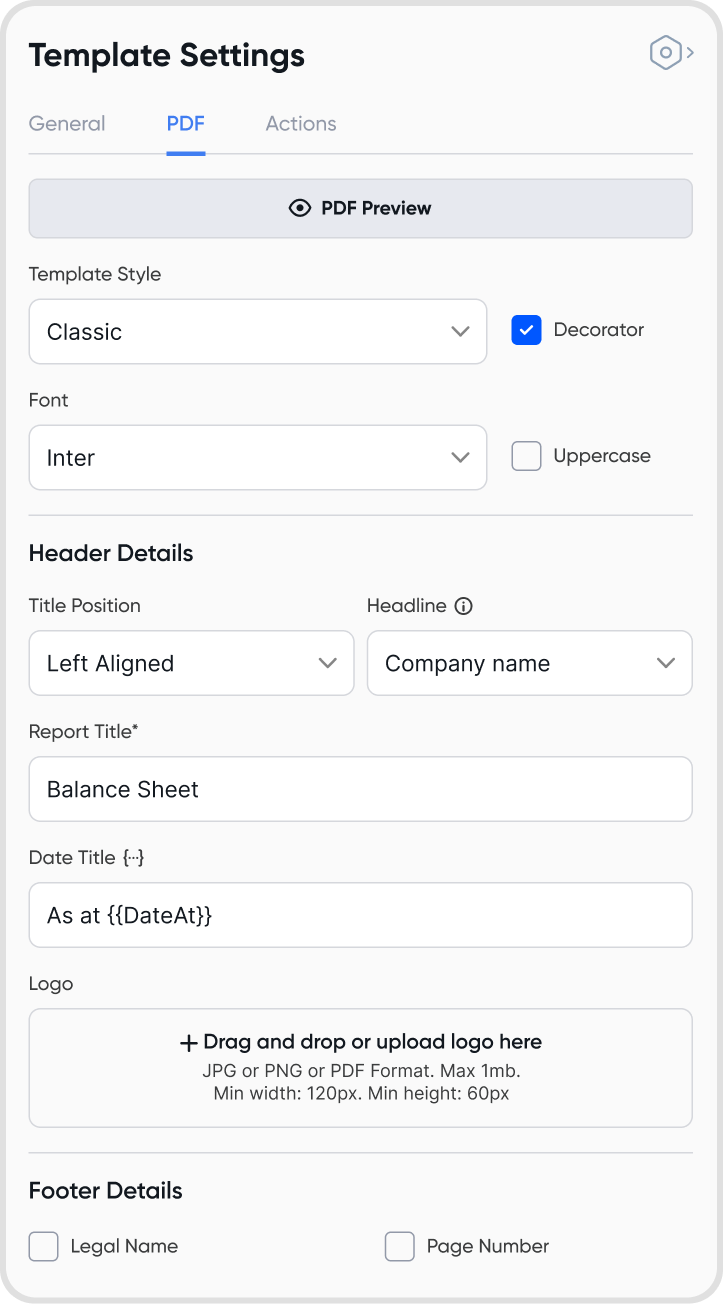
Balance Sheet template has three tabs: General, PDF, and Actions.
General: Edit template name, baseline period, header, sorting, and footer.
PDF: Customize layout, header, and footer for PDF version of the report.
Note: PDF preview and export are only supported for up to 8 columns.
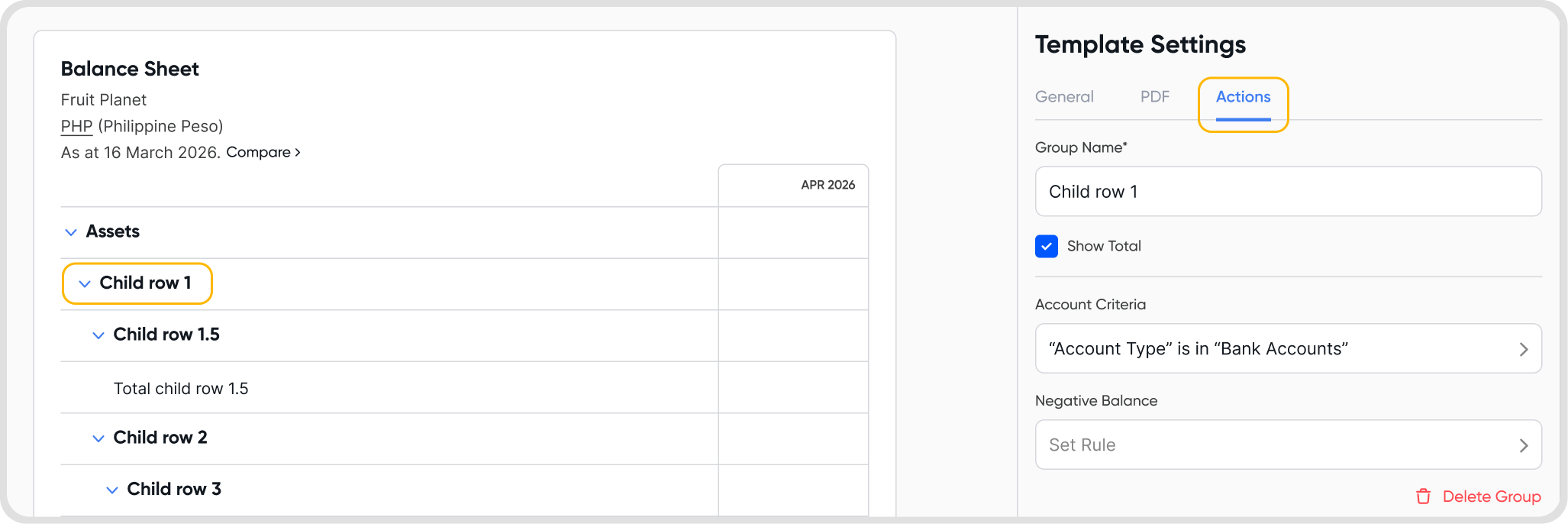
Actions: Perform specific functions on a selected column or row.
Comparative Periods: Choose date range, comparison type (day/month/quarter/year), and display order.
Variance: Show changes between two columns (amount or %). Multiple allowed.
Year-to-Date: Show totals from start of year to selected period. Multiple allowed.
Account Code: Display COA codes. Only one allowed.
By default, only the baseline period column is shown.
To add columns:
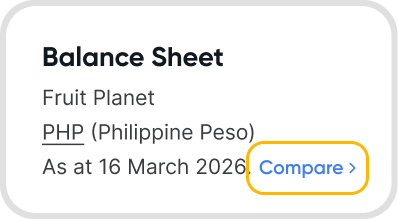
Click Compare to add additional period columns.
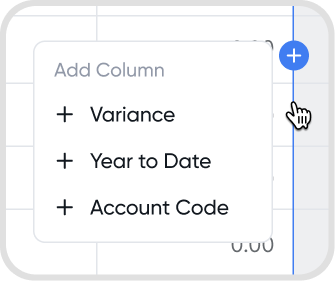
Hover over a column line to add Year-to-Date or Account Code columns.
Hover over a column line and add Variance once at least two comparison periods are available.
To delete a column, click the column, then under Actions, select Delete Column.
Accounts that are included in the Balance Sheet template are grouped into Group-level Rows (bold texts) and Child-level Rows.
Group-level Rows represent a group of accounts where you can:
Rename the group.
Show or hide group totals.
Hide the group if all child rows are hidden.
Set account criteria to define which accounts are included.
Set negative balance rules.
Child-level Rows represent individual account rows where you can:
Create new account groups.
Set negative balance rules.
Group selected accounts together by choosing Create New Account Group (accounts below will be grouped under it).
Text Rows allow you to insert custom text and can be added to both group and child levels.
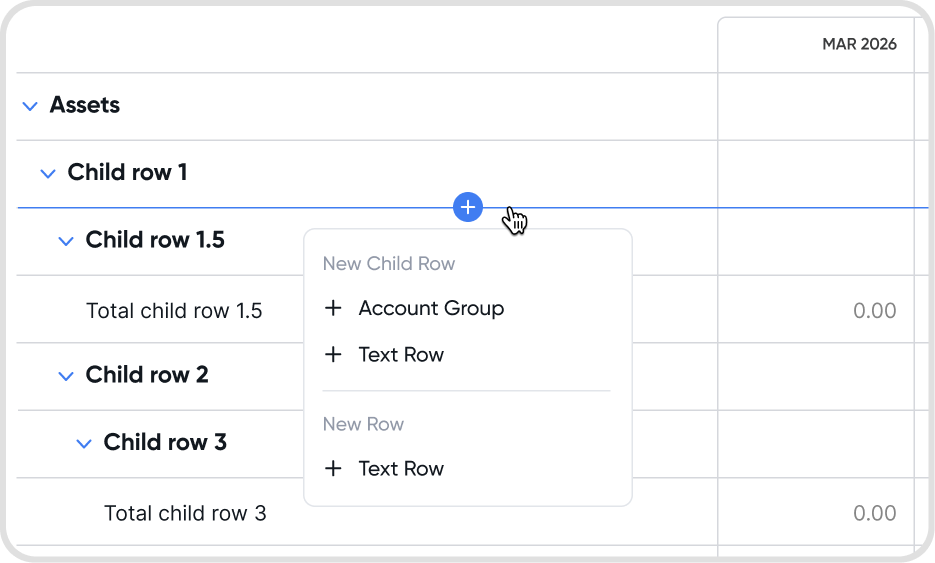
To add a Group Row, hover over a row line and click +Account Group. Enter the group name and account criteria.
To add a Text Row, hover and select +Text Row (available for both group and child levels).
Yes, click on the group row and rename accordingly.
Turning on decorators for Template styles adds a horizontal line on top of the report.
Turning on uppercase converts all text in the report to uppercase.
Yes, go to Template Settings > PDF > Add a logo
Logo file should only be up to 1mb with min width: 120px and min height: 60px
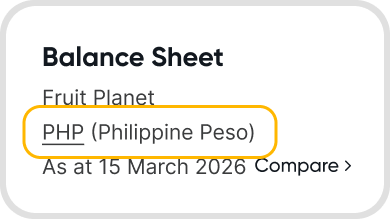
Yes, to change the display currency, click the base currency.
The report will be converted from base currency to display currency at the exchange rate on report date. If there're multiple periods, all periods will be converted at the same exchange rate.
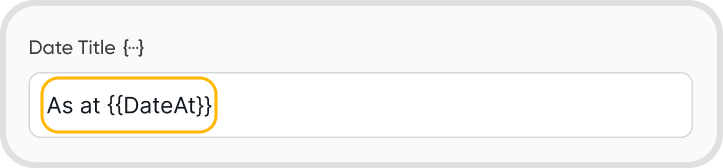
You can use the dynamic string for dates to configure your date title according to your preferred format.
Yes, you can add sub-groups within a group row.
Check your COA to ensure the account type is included in the Balance Sheet report.
The Negative Balance rule defines what happens when an account amount falls below zero. Rules can be applied at both the Group-level Row and Child-level Row.
Group Row Rules
Choose conditions such as “if accounts are negative” or “if the entire group is negative.”
Move negative balances to another group or convert them to positive values.
Child Row Rules
When an individual account is negative, you can move it to a selected group.
Note: Account-level (child row) rules take precedence over group-level rules. Check for conflicts when both are applied.
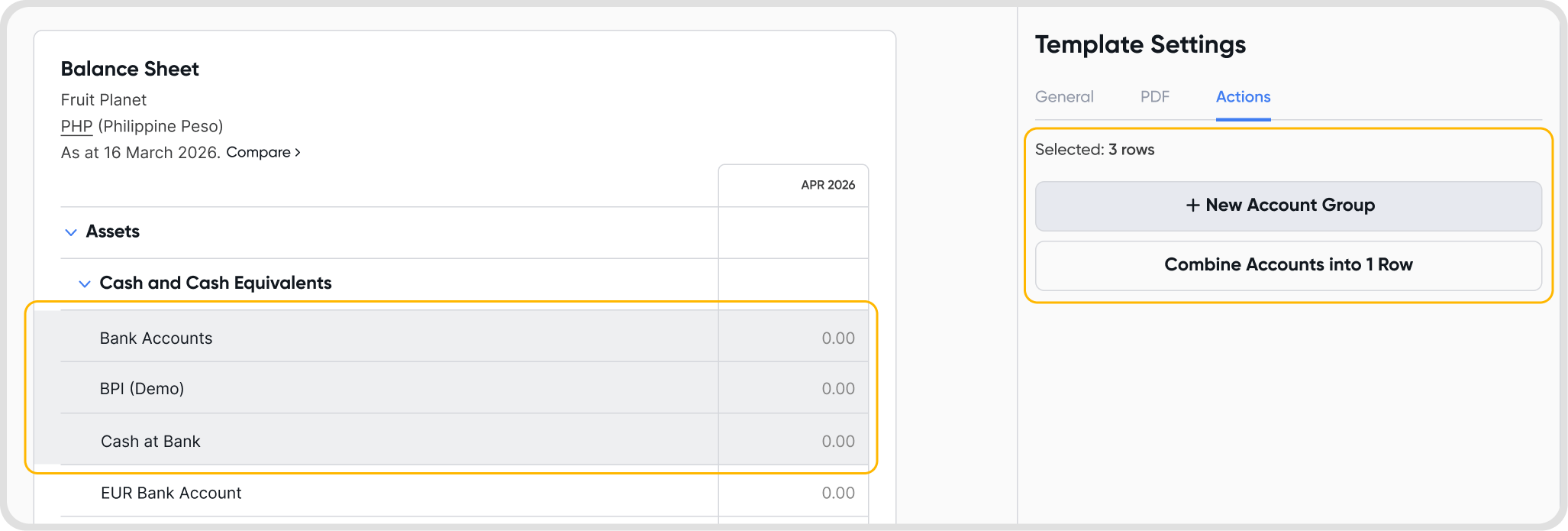
You can combine multiple accounts into a single group row or group.
To select multiple accounts:
Press Cmd/Ctrl + Left Click: Select specific accounts individually.
Press Shift + Left Click: Select a range of accounts.
Then from the action tab, choose to combine into a single row or a group.
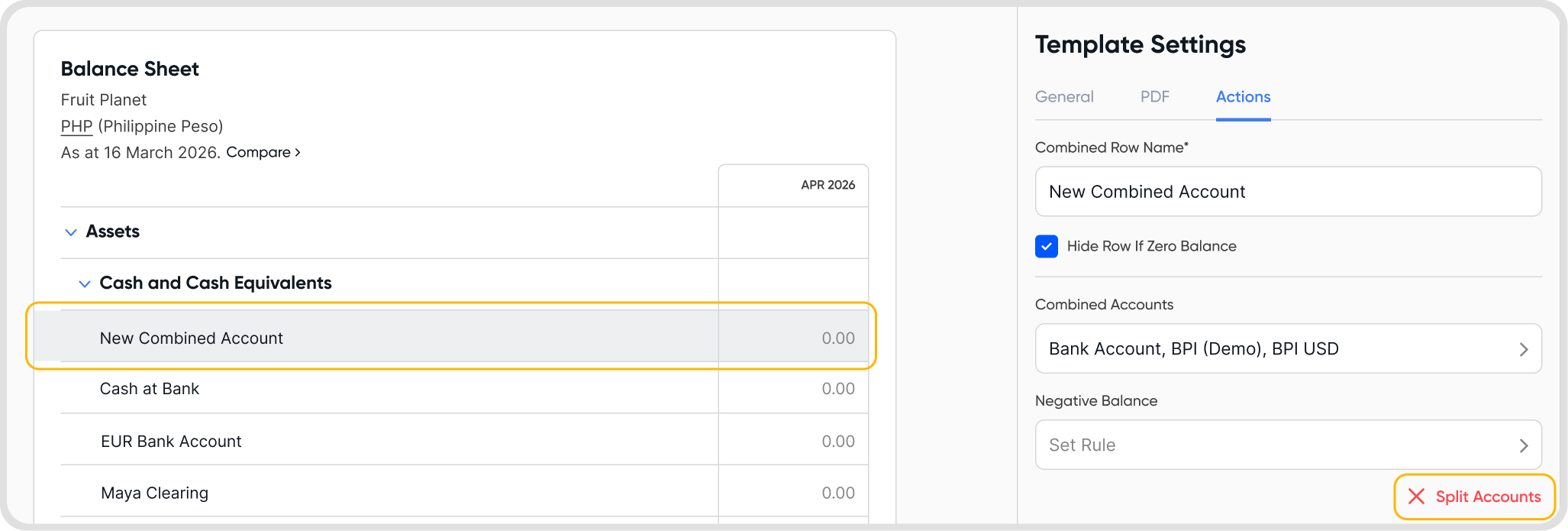
You can split a combined account row or group by selecting the row and from the action tab, select split accounts or remove group.
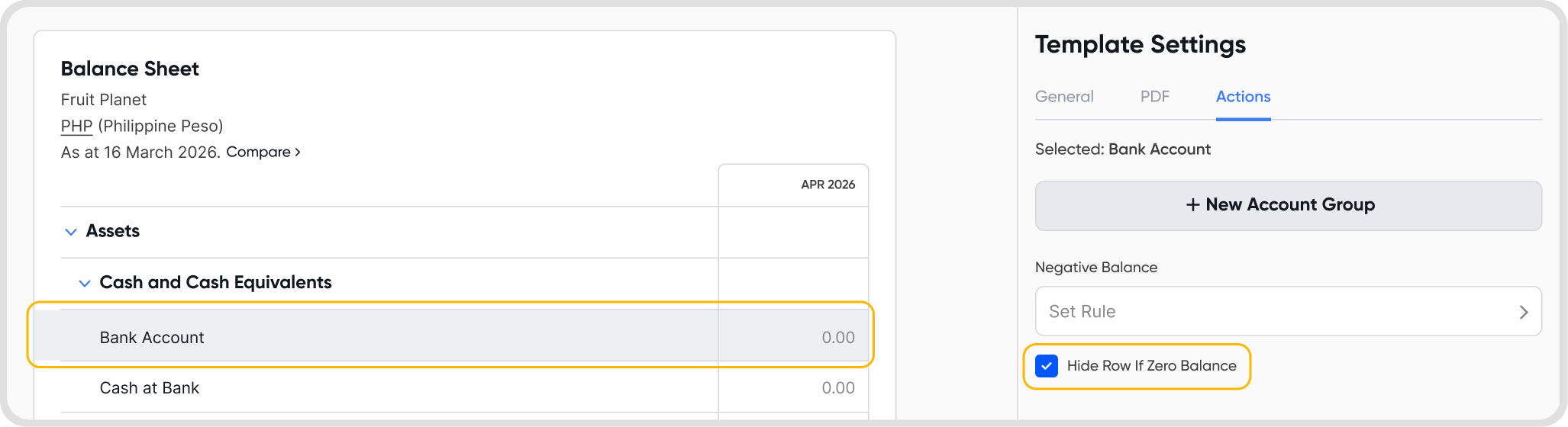
Yes. Select the row and check Hide Row if Zero Balance.
Go to Settings > Templates > Reports, hover over the template, click the three-dot icon, and select Duplicate.
Changes apply automatically. For previously downloaded reports, redownload them to apply updates.
Yes, you can create multiple Balance Sheet Templates to cover different report situations.
Yes, any new account added to your COA will automatically appear in your Balance Sheet template based on the criteria you’ve set for your groups.