You can’t save a new item when creating a supplier credit note. You need to go to Items List to create a new item. Afterwards, the item will appear when creating a supplier credit note. See Items List for more information.
However, you can create a new custom item. Refer to Items List for more information.
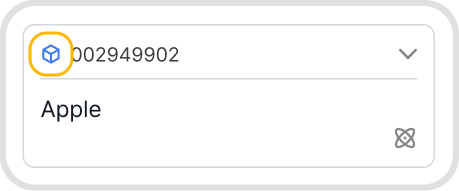
Inventory items are marked with a cube icon, making them easy to identify. Track the quantity movements in Inventory.
Their quantity decreases.
The QTY field supports up to 4 decimal places.
Ensure that a VAT setting has been selected (VAT included in price or VAT excluded in price) via the Supplier Credit Settings.
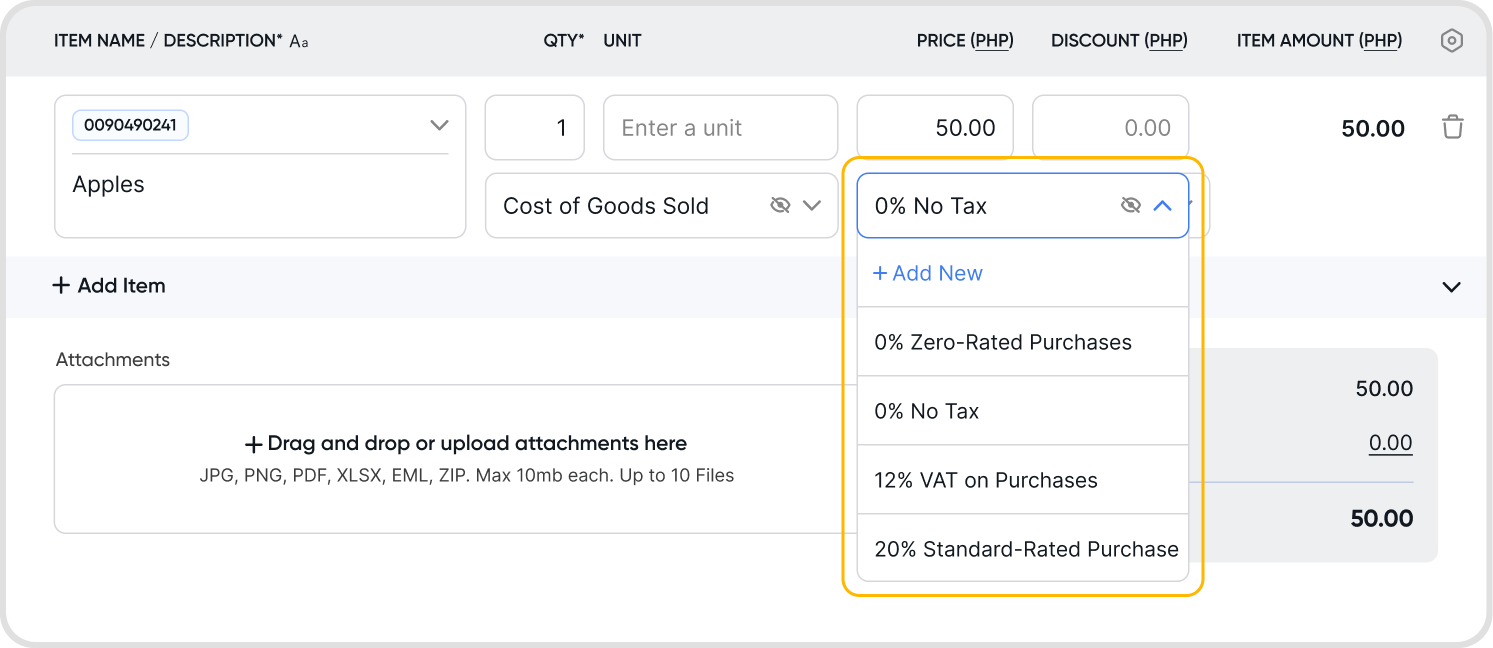
Afterwards, you will be able to select a VAT profile for the line item.
To update the VAT profile for a line item, choose from one of your organization's existing VAT profiles, or Add New to add a new VAT profile.
A custom item is an item that you create at the point of supplier credit note creation. The item is not created via the Items List and does not appear in the drop-down list of items that you can select from.
You can create one if you think that this item will only be used in the current transaction. Otherwise, we would recommend creating an item in the Items List. See Items List for more information on using Items.
While there are no strict restrictions on the type of account you can select for an item in a supplier credit note, Juan will warn you if you have selected an account that is not an Expense or Asset Account.

Some of your previously created VAT Tax profiles may only apply to other business transactions such as invoices or customer credits. As such, you may not be able to select them for your supplier credit note.
The bulk edit option only appears when the supplier credit note has 2 or more line items.
Select the checkboxes for the line items you want to edit, or select the header checkbox to select all items.
Click Bulk Edit to update any field on the selected line items, including account, VAT profile, description, and quantity.