The Loans Register tracks money you borrowed, such as a bank loan or an advance from a director, and posts the loan’s accounting entries for you.
How it works:
Enter the loan terms once: drawdown date, principal, term, interest rate, and repayment method.
Juan builds the repayment schedule and posts the monthly interest, fee amortization, and the move between current and non-current liability.
You record the drawdown and every repayment yourself, as usual. Juan doesn’t post cash or link payments to the loan.
Like Leases, a loan doesn’t start from a bill or journal line item. You enter its terms in the loan form.
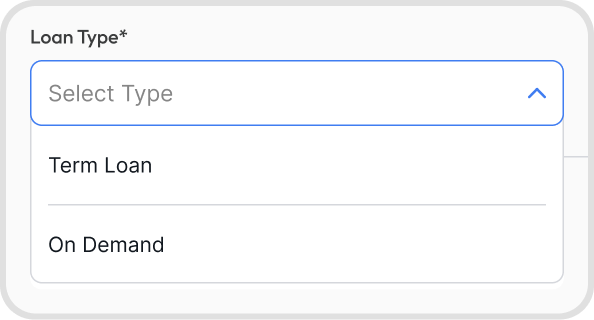
Term Loan | On Demand | |
|---|---|---|
How it’s repaid | On a fixed schedule | Whenever you and the lender agree, with no schedule |
Typical use | Bank, government-assisted, mortgage, and fintech loans | Director, shareholder, related-party, intercompany, and private lender loans, such as advances from stockholders |
What Juan posts | Monthly interest, fee amortization, and current portion moves | Nothing. You record the advances, repayments, and any interest yourself. |
Each loan also has a Loan Category: Bank Loan, Government-assisted Loan, Mortgage, Fintech Loan, Director Loan, Shareholder Loan, Related Party Loan, Intercompany Loan, Private Lender Loan, or Other.
Go to Registers → Loans.
Loans is available on yearly billing. On other billing frequencies, the Loans page is locked.
The register has two tabs:
Register: your Active loans and your Drafts
Inactive: loans that are Fully Repaid, Settled, or Closed Out
Filter the list by Loan Type or Loan Category.
Each loan has a status, and the status decides which actions appear when you click its 3-dot icon:
Status | What it means | 3-dot menu |
|---|---|---|
Draft | Saved, with nothing posted | Edit, Delete, Activity Log |
Repayment Incomplete | Active and still being repaid | Edit, Duplicate, Record Event, Close Out, End Loan, Delete, Activity Log, See Ledger |
Fully Repaid | A term loan past its end date | Edit, Duplicate, Record Event, End Loan, Delete, Activity Log, See Ledger |
Settled | Settled, refinanced, forgiven, converted to shares, or substantially restructured | Undo Settlement, Delete, Activity Log, See Ledger |
Closed Out | Entries stopped at a month-end | Undo Close Out, Delete, Activity Log, See Ledger |
Admins can activate loans, edit active loans, record events, close out, undo, and delete.
Other users with Registers access can save and edit drafts.
Tip: When a loan is open, use the arrow keys to move to the next or previous loan.
Create these accounts in your chart of accounts. Each account appears on the loan form only when the loan needs it.
Account | What it’s for | Account type |
|---|---|---|
Current Loan Liability Account | Holds the principal due within the next 12 months, plus interest accrued but not yet paid. Your repayments go to this account. Every loan needs one. | Current Liability |
Non-current Loan Liability Account | Holds the principal due after the next 12 months. Your drawdown goes to this account, and each month Juan moves the portion coming due into the current account. It’s needed for a term loan with principal due more than 12 months away. | Non-current Liability |
Interest Expense Account | Records the monthly interest in your profit and loss. It’s needed for a term loan with interest. | Finance Cost |
Unamortized Transaction Costs Account | Holds fees spread over the loan until Juan moves them to interest expense each month. It’s needed when a fee is spread over the loan. | Current Asset, Current Liability, or Non-current Liability |
Gain or Loss Account | Records the gain or loss from a restructure, forgiveness, or conversion to shares. It’s needed only when an event has a gain or loss. | Finance Cost, financing income, operating expense, or investing income or expense |
Asset Under Construction Account | Receives interest you capitalize while an asset is being built. You select it in Additional Loan Terms. | Fixed Asset |
Each account on a loan must be different, and none can be a deferral account.
Loans can share accounts with each other and with leases. A lender’s On Demand loan and term loan can share one account. Using one set of accounts for each loan is still recommended, so each balance is easy to check.
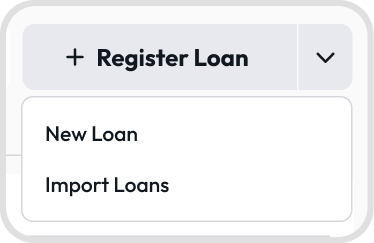
Go to Registers → Loans, click + Register Loan, and choose New Loan.
Fill in the loan details:
Loan Type: choose Term Loan
Loan Category: the kind of loan, such as Bank Loan
Lender: optional. Pick a contact, or add a new one.
Loan Name: a name you’ll recognize, such as BDO Term Loan 2026
Loan Reference: Juan suggests the next number, such as LN-000001
Repayment Method: how the principal is repaid
Custom Fields, if you use them
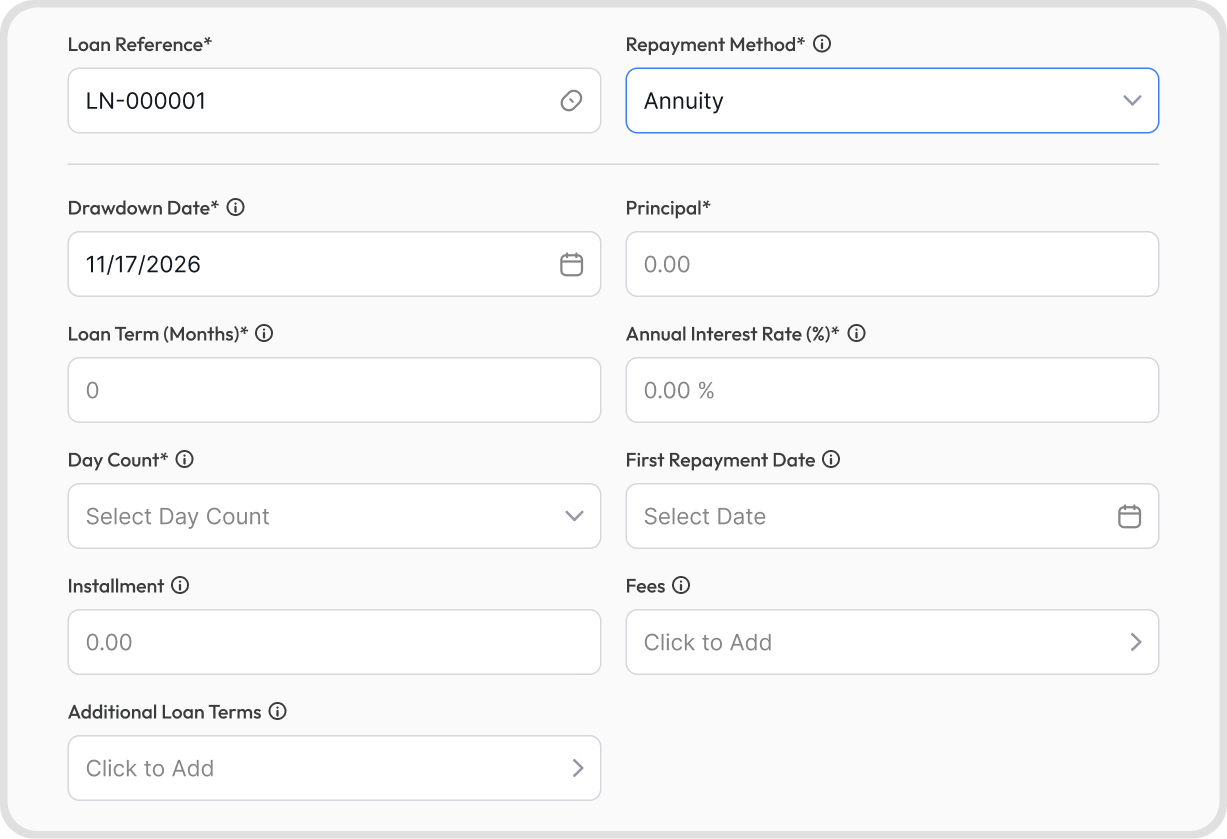
Fill in the loan terms:
Drawdown Date: the date you receive the money. Interest runs from this date.
Principal: the amount borrowed
Loan Term (Months): the number of monthly installments
Annual Interest Rate (%): the yearly rate in your loan agreement. Enter 0 for an interest-free loan.
Day Count: how interest is counted
First Repayment Date: optional. If you leave it blank, the first installment is due one month after the drawdown.
Installment: optional. Enter it only if your lender’s installment differs by a few cents.
Fees and Additional Loan Terms: optional
Pick the loan accounts.
Optionally, add Internal Notes and Attachments.
Click Save to activate the loan, or turn on Save as Draft to finish it later. Only Admins can activate a loan.
When the loan is activated, Juan posts every scheduled entry from the Drawdown Date.
Choose the method in your loan agreement:
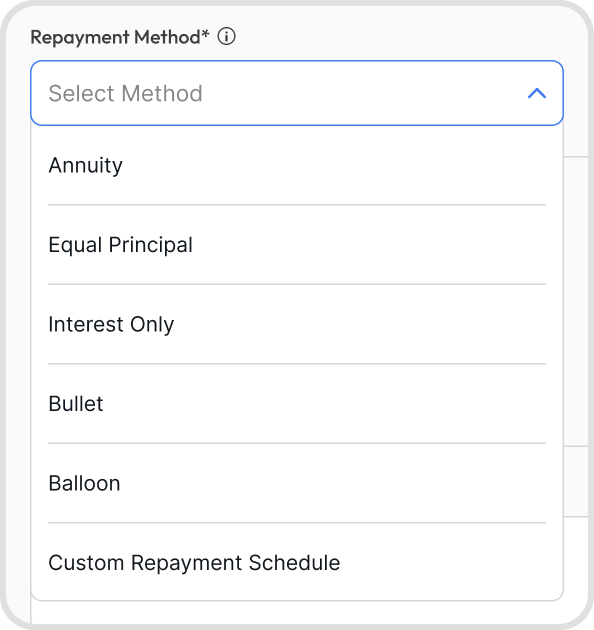
Method | How the principal is repaid | Rules |
|---|---|---|
Annuity | The same installment every month, with interest falling and principal rising over time | You can enter the lender’s Installment |
Equal Principal | The same principal every month, with interest on top, so installments go down over time | No Installment field |
Interest Only | Interest only for the first months, then annuity installments | The Interest-only Period (Months) must be at least 1 and less than the Loan Term |
Bullet | All the principal at the end of the term | No Installment field |
Balloon | Regular installments, plus a large final payment | The Balloon Amount must be more than 0 and less than the Principal |
Custom Repayment Schedule | Your lender’s own schedule, entered month by month | Available in the form only, not in import |
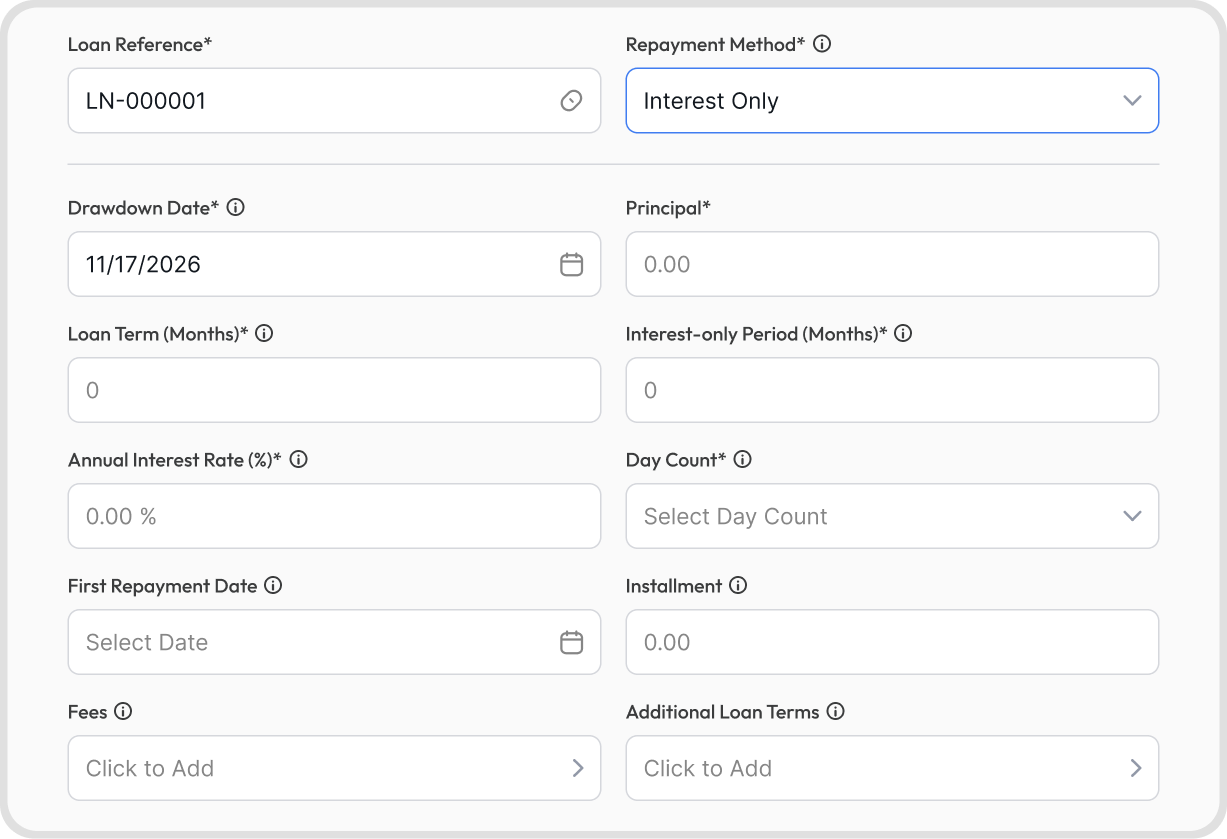
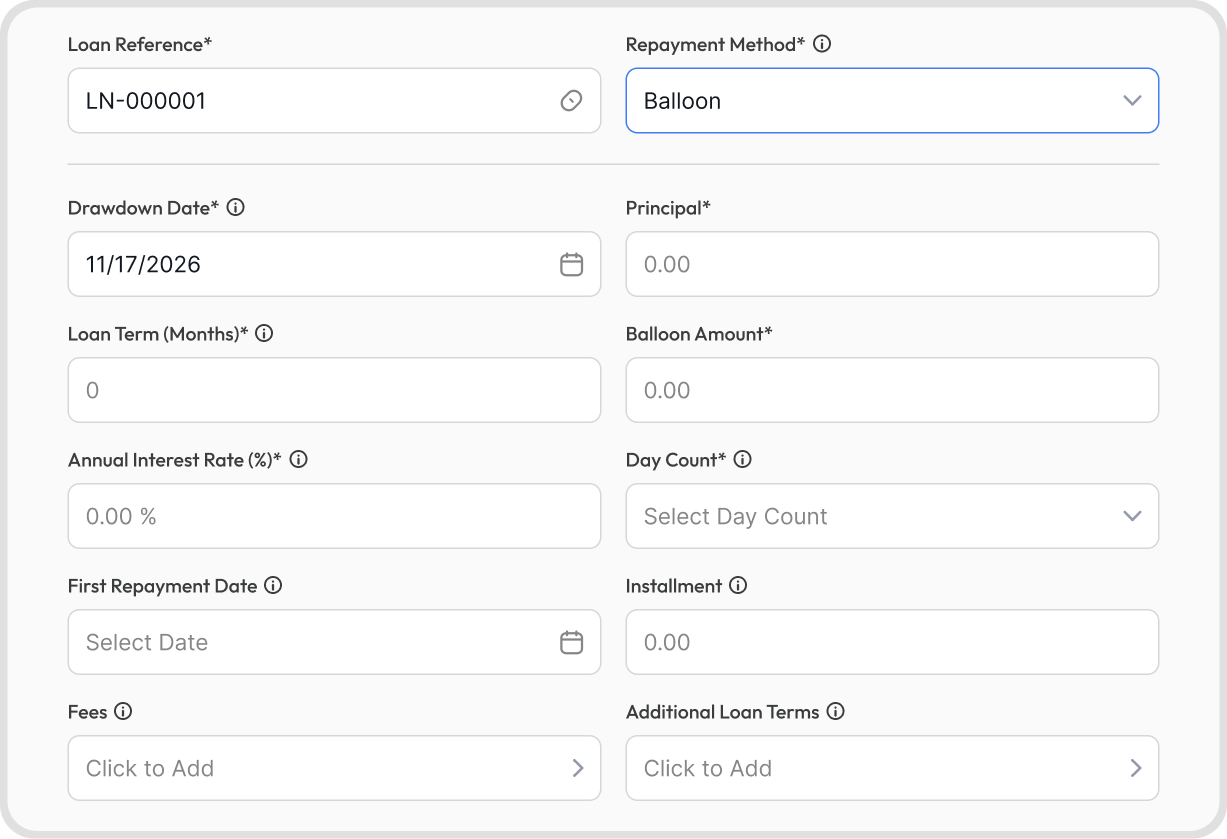
If your lender’s installment differs from Juan’s by rounding, enter the lender’s figure in Installment. The last installment absorbs the difference.
Juan won’t accept an installment that changes the number of installments.
Use the Day Count in your loan agreement, or ask your lender:
Day Count | How interest is counted |
|---|---|
Daily, 365-day year | The annual rate divided by 365, for each day |
Daily, 360-day year | The annual rate divided by 360, for each day. This gives slightly more interest. |
Monthly, 30-day months | The annual rate divided by 12, for each month. Part months count as 30 days. |
Monthly, actual days | The annual rate divided by 12, for each month. Part months count the actual days. |
Interest posts at each month-end, for the interest built up since the last entry.
Installments are due monthly on the First Repayment Date’s day. In shorter months, they fall on the last day of the month.
The schedule assumes you pay every installment on its due date.
Choose Custom Repayment Schedule as the Repayment Method. The Annual Interest Rate, Day Count, and Installment fields are removed, since you enter the lender’s interest in the schedule.
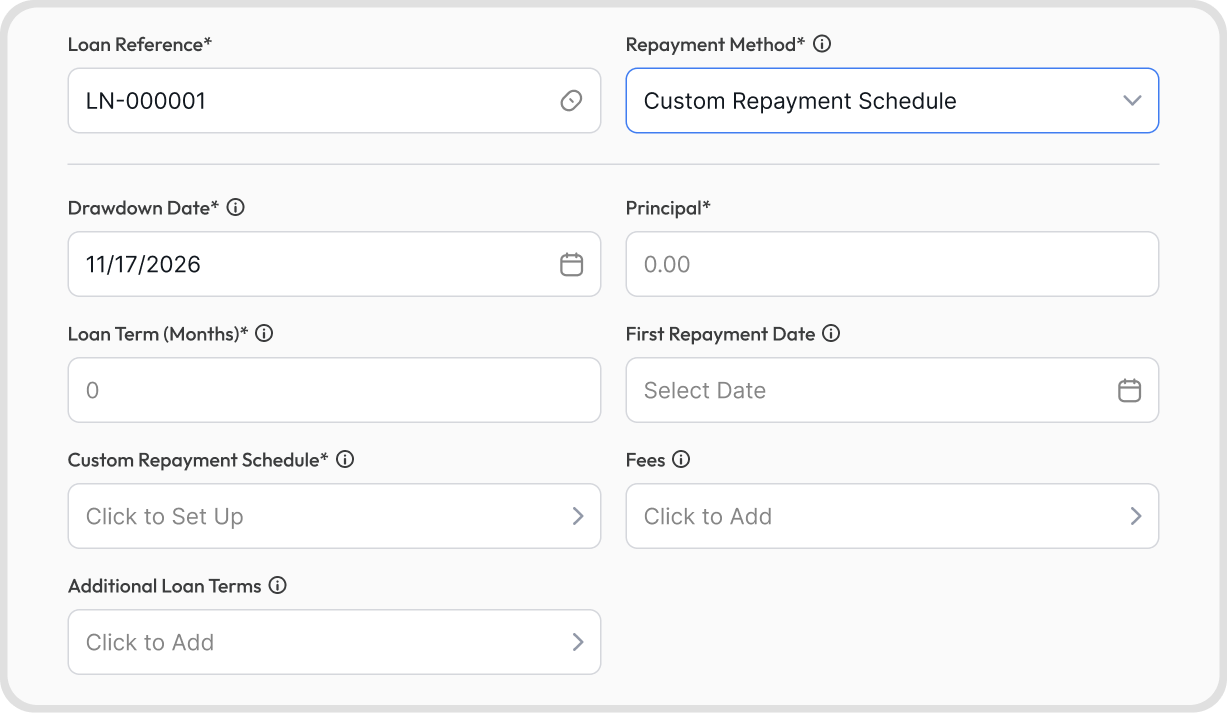
Under Custom Repayment Schedule, click Click to Set Up.
For each period, enter the From month, the To month, the Monthly Principal, and the Monthly Interest. Click Add Period to add another row.
The schedule opens with the principal spread evenly as a starting point, with any remainder in the last month. For example, PHP 100.00 over 3 months opens as PHP 33.33, PHP 33.33, and PHP 33.34. You can save it as is.
Each installment falls on the First Repayment Date’s day in that month, or on the last day of a shorter month.
The Resolved Timeline shows each period’s principal, interest, and installment. Months no period covers show as Unscheduled at 0.00.
You can’t save until:
The monthly principal adds up exactly to the Principal, or to the Opening Principal for a loan that started before you used Juan
The schedule has as many monthly rows as the Loan Term (Months)
Interest posts exactly as you enter it.
A loan on a custom schedule can only use Reclassify as Current. For any other change, edit the loan and enter the lender’s revised schedule.
Under Fees on the loan form, click Click to Add. Fill in a row for each fee, and click + Add Fee for more.
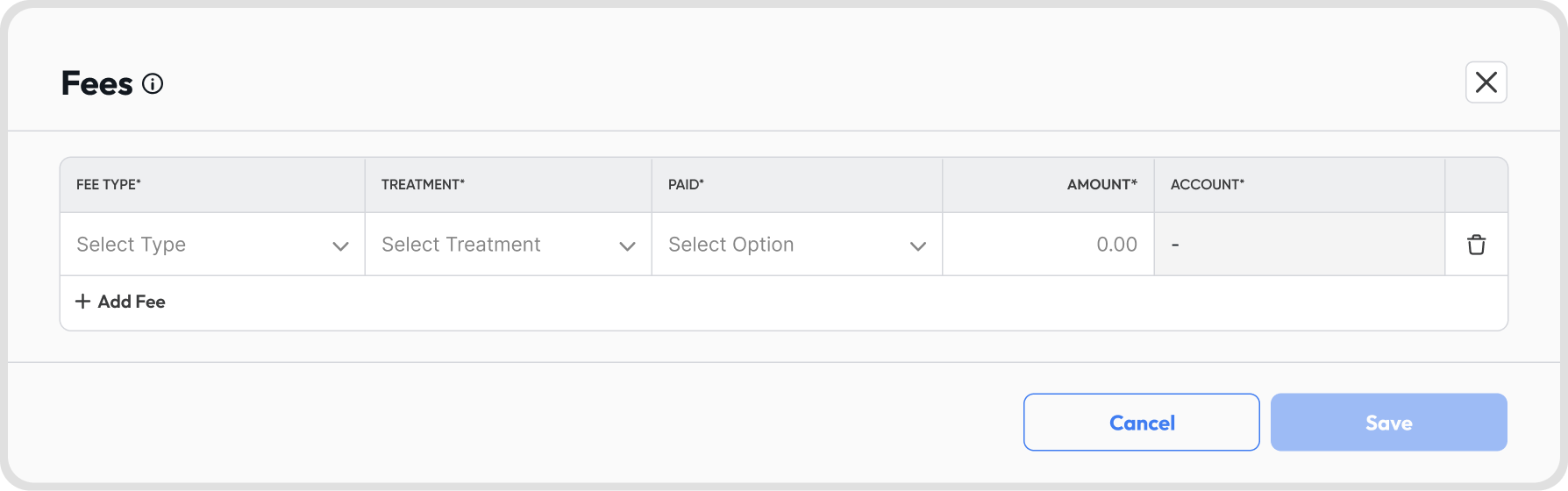
Fee Type: Arrangement, Legal, Stamp Duty (such as documentary stamp tax), Valuation, Guarantee, or Other
Treatment: how the fee is recorded. The Account column depends on your choice:
Treatment | What happens | Account |
|---|---|---|
Spread Over the Loan | The fee is spread over the life of the loan as extra interest, using the effective rate | Set to amortized cost. The fee is held in your Unamortized Transaction Costs Account. |
Expense | The fee is recorded in full as an expense | Choose the account |
On Settlement | The fee is added to the payoff total when you settle the loan. Nothing is posted before then. | Not applicable |
Paid:
Deducted at Drawdown: the lender takes the fee from the amount you receive
Paid Separately: you pay the fee yourself
Amount: the fee amount. Fees spread over the loan must add up to less than the Principal.
Once fees are added, the form shows the net proceeds and the effective rate a year, which is higher than the Annual Interest Rate when fees are spread.
Fees are available on term loans only.
Under Additional Loan Terms on the loan form, click Click to Add.
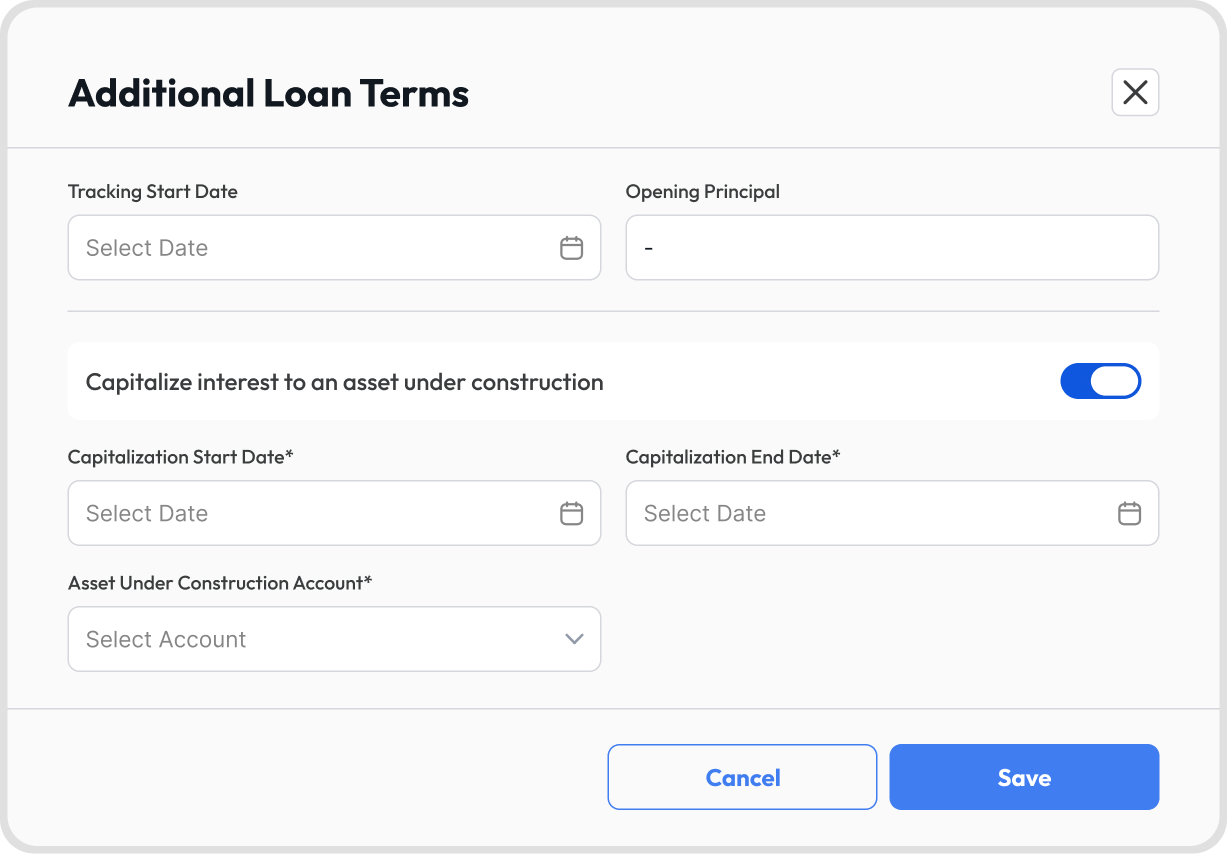
For a loan that started before you used Juan:
Set the Tracking Start Date to the date you started using Juan.
Enter the Opening Principal: the principal still owed on that date.
Juan’s entries start from that date and that balance. The opening principal should already be in your loan accounts, such as through your opening balances.
On the Tracking Start Date, Juan checks both loan accounts and posts only the move needed to reach the right non-current balance.
Post your opening balances before activating the loan. Balances posted after activation aren’t picked up until the loan is next recalculated.
To capitalize interest to an asset under construction:
Turn on “Capitalize interest to an asset under construction”.
Enter the Capitalization Start Date and Capitalization End Date, and pick the Asset Under Construction Account.
Interest between those dates goes to the asset instead of interest expense.
This is available on term loans only.
To create one, choose On Demand as the Loan Type. You enter only the Drawdown Date, Principal, Annual Interest Rate (%), and Additional Loan Terms. There’s no repayment method, term, or schedule.
Juan doesn’t post interest on On Demand loans, because the future balance isn’t known. If interest is charged, record it with a journal.
Juan reads the balance from your Current Loan Liability Account: credits less debits. On an account shared with other lenders, only this lender’s rows count.
Record every advance and repayment yourself, with the lender as the contact on each line.
For example, a director loan:
Date | What happens | You record | Balance |
|---|---|---|---|
January 5 | The director lends cash | Debit Bank PHP 500,000, credit Director Loan | PHP 500,000.00 |
February 20 | The director pays a supplier for the company | Debit Accounts Payable PHP 40,000, credit Director Loan | PHP 540,000.00 |
April 30 | The company repays | Debit Director Loan PHP 300,000, credit Bank | PHP 240,000.00 |
June 30 | The company repays too much | Debit Director Loan PHP 260,000, credit Bank | PHP (20,000.00), shown as Owed to You |
If you repay more than you borrowed, the loan shows Owed to You. Juan keeps it on the loan account. To show it as a receivable, post a journal at your reporting date.
The loan’s ledger view, Loan Movements, shows Advances, Repayments, a running balance, and Balance by Contact. Rows with no contact show as Unallocated.
A lender’s On Demand loans on the same account combine into one line in the register.
If a lender’s On Demand loan and term loan share an account, a missed term loan repayment shows as a higher On Demand balance.
On Demand loans can only be settled, forgiven, or converted to shares. These are disabled when “Nothing is owed on this loan.”
Juan posts these entries, with the lender as the contact on every line:
Entry | When | Debit | Credit |
|---|---|---|---|
Interest | Each month-end | Interest Expense | Current Loan Liability |
Interest to an asset | Each month-end between the capitalization dates | Asset Under Construction | Current Loan Liability |
Fee amortization | Each month-end | Interest Expense | Unamortized Transaction Costs |
Current portion | At the start, each month-end, and the end | Non-current Loan Liability | Current Loan Liability |
Fee deducted at drawdown | On activation, or on Record Drawdown | Unamortized Transaction Costs, or the fee’s account | Non-current Loan Liability |
Settle or Refinance | Event date | Interest Expense, for unamortized fees | Unamortized Transaction Costs |
Forgive | Event date | Current Loan Liability | Gain or Loss, or a capital contribution account |
Convert to Shares | Event date | Current Loan Liability | Share Capital at fair value, with the difference to Gain or Loss |
Reclassify as Current | Event date, reversed at the waiver date | Non-current Loan Liability | Current Loan Liability |
The current portion is the principal due in the next 12 months, assuming every installment is paid on time.
For example, a PHP 1,200,000 loan at 5.50%, 36 months, Annuity, Daily 365-day year, drawn January 15, 2026, with installments on the 15th from February 15:
Installment: PHP 36,235.08, with a final installment of PHP 36,127.30
Total interest: PHP 104,355.10
First installment: PHP 5,605.48 interest (PHP 1,200,000 × 5.50% × 31 ÷ 365) and PHP 30,629.60 principal
Date | Entry | Amount |
|---|---|---|
January 15 | Current portion: the principal due in the next 12 months | PHP 378,315.16 |
January 31 | Interest for 16 days | PHP 2,893.15 |
February 28 | Interest | PHP 5,003.01 |
February 28 | Current portion | PHP 32,396.80 |
March 31 | Interest | PHP 5,386.94 |
There’s no current portion entry on January 31, because the same 12 installments still fall within the next 12 months.
To see a loan’s schedule, entries, and events, open the loan and use the Schedule, Ledger, Events, and Details tabs. You can also click the 3-dot icon and choose See Ledger.
Juan posts the loan entries, but not the cash. Here’s what you record and what Juan posts:
What happens | You record | Juan posts |
|---|---|---|
Drawdown | Debit Bank, credit Non-current Loan Liability | The current portion move, and any fees deducted at drawdown |
Each installment | Debit Current Loan Liability for the full installment, credit Bank | Nothing |
Each month-end | Nothing | Interest, fee amortization, and current portion moves |
Prepayment or payoff | The cash to the Current Loan Liability, then the event | A rebuilt schedule. On Settle, interest to date, the move to current, and the fee write-off. |
On Demand advances, repayments, and interest | All of them, with the lender as the contact | Nothing |
Record the cash from a bank line, cash out, bill, or journal, coded to the loan accounts.
For a term loan, code the drawdown to the Non-current Loan Liability Account. If the whole loan is due within 12 months, use the Current Loan Liability Account.
If a fee is deducted at drawdown, record only the amount you received. Juan adds the fee to the loan liability.
If a fee is paid separately, record the payment yourself: to the Unamortized Transaction Costs Account for a spread fee, or to the fee’s account for an expensed fee.
Code the whole installment to the Current Loan Liability Account, including the interest part. Juan already split the interest when it posted interest expense.
Record penalties and withholding tax on their own lines, not on the loan account. The loan has no withholding tax rate.
Juan doesn’t track whether each installment is paid. The Reconciliation Summary shows any gaps.
Click the 3-dot icon on the loan, choose Record Event, and pick the event. Every event shows a preview before you save.
Event | When to use it | What to know |
|---|---|---|
Record Drawdown | You draw a further amount on the loan | Choose Keep Term or Keep Installment |
Prepay | You pay off part of the principal early | Up to the outstanding principal. Choose Keep Term or Keep Installment. |
Change Rate | The lender changes your interest rate | Enter the New Rate and Effective Date. Choose Keep Term or Keep Installment. |
Capitalize Interest | An installment’s interest is added to the principal | Must be on a due date |
Payment Holiday | The lender lets you skip installments | Choose Add Interest to Balance or Extend Term |
Restructure | The lender changes the rate, term, installment, or fees | Under a 10% change, the loan is modified with a gain or loss. At 10% or more, Juan settles it and creates a replacement loan. |
Reclassify as Current | The whole loan becomes due now, such as after a covenant breach | The outstanding balance moves to current. Add a Waiver Date if the lender later waives it. |
Keep Term: the end date stays the same, and the installment changes
Keep Installment: the installment stays the same, and the number of installments changes
For a prepayment, code the cash to the Current Loan Liability Account first. Then record Prepay with the same amount and date.
Events apply in date order. You can’t record an event dated earlier than the loan’s latest event.
The same event sent twice within 2 minutes is refused.
Juan checks lock dates at the event date. The preview still shows, but Juan refuses the event when you save.
To undo an event, open the loan’s Events tab and click Undo event. Only the latest event can be undone, so undo later events first.
Click the 3-dot icon on the loan, choose End Loan, and pick how it ends:
Option | When to use it | What happens |
|---|---|---|
Settle | You pay off the loan early | The preview shows the Payoff Total. Juan posts interest up to the date, moves the rest of the loan to current, writes off unamortized fees, and removes later entries. |
Refinance | A new loan replaces this one | Juan settles this loan and creates the new one, with its Drawdown Date and Principal taken from the payoff |
Forgive | The lender or shareholder forgives the loan | Covers the full outstanding principal only. A shareholder forgiveness needs an Equity Account. |
Convert to Shares | The loan becomes equity | Enter the Conversion Date, Fair Value, and Share Capital Account |
Settle doesn’t record the payoff. Code the payoff to your Current Loan Liability Account, and both loan accounts end at 0.00.
Record any prepayment penalty to a finance cost account, not the loan account.
For an On Demand loan, record the repayment of the balance first, dated on or before the Settlement Date, then settle the loan.
For example, an On Demand director loan with PHP 240,000 outstanding:
Forgive: Juan debits Director Loan PHP 240,000 and credits Gain or Loss PHP 240,000.
Convert to Shares at a fair value of PHP 200,000: Juan debits Director Loan PHP 240,000, credits Share Capital PHP 200,000, and credits Gain or Loss PHP 40,000.
The loan moves to the Inactive tab as Settled. To reverse it, click the 3-dot icon and choose Undo Settlement.
Use Close Out when you stop tracking a loan in Juan.
Click the 3-dot icon on the loan, choose Close Out, and pick the month-end to stop at.
Juan stops posting interest from that month-end, removes later entries, and posts nothing new. Entries before the date stay posted.
Close Out stops interest in Juan even if your lender still charges it. To end a loan you paid off, use Settle instead.
Close Out isn’t available on Fully Repaid loans.
To reverse it, click the 3-dot icon and choose Undo Close Out. Juan brings back the removed entries.
Go to Registers → Loans, click the arrow next to + Register Loan, and choose Import Loans.
Download the template, and fill in one row for each active loan.
Upload the file, check the review screen, and finish the import.
Each import can have up to 1,000 rows. For more, split the file and import again.
Import doesn’t include fees, custom repayment schedules, or capitalized interest. Add them to each loan after import.
Go to Reports → Summaries → Loans.
Two reports are available:
Loans Register, in Excel or PDF
Reconciliation Summary, in Excel: where your loan account balances and the register don’t match
The Excel file has these sheets:
Loans Register: one row per loan
Loans Details: each loan’s terms and accounts
Financing Roll-forward: opening balance, drawdowns, interest, repayments, and closing balance
Maturity Analysis: principal due Within 1 Year, in 1-2 Years, in 2-5 Years, and in More than 5 Years. On Demand balances fall under Within 1 Year.
Related-party Loans: loans from directors, shareholders, related parties, and group companies
Interest by Loan: interest for each loan
A difference usually comes from one of these:
Cause | What you’ll see |
|---|---|
Installment coded to the Non-current Loan Liability Account | The total is right, but there are equal and opposite differences on the two loan accounts |
Installment missed, late, or partly paid | A difference on the Current Loan Liability Account |
Payoff not recorded after Settle | A difference on the Current Loan Liability Account |
Opening balances posted after activating a loan with a Tracking Start Date | A difference until the loan is next recalculated |
If a loan and a lease share an account, your balance sheet shows one combined balance. Each register’s reconciliation leaves out what the other register expects.
Balance sheet: the loan appears under Current Liabilities and Non-current Liabilities. Unamortized Transaction Costs appear in the section for their account type.
Profit and loss: interest, including fee amortization, appears under Other Expense, or under Finance Costs if you use the IFRS 18 template. Gains or losses appear under their account type.
Cash flow: entries that move no cash are taken out. The drawdown and the principal part of repayments appear under Financing, in Borrowings & Leases. Interest stays in Operating.
For example, for the PHP 1,200,000 loan in Q12, from January to March 2026:
Interest expense: PHP 13,283.10
Loan balance on March 31: PHP 1,140,812.94, which is PHP 1,200,000 plus PHP 13,283.10 interest less PHP 72,470.16 repaid
Cash flow: Borrowings & Leases PHP 1,140,812.94, Operating (PHP 13,283.10), net cash PHP 1,127,529.84
To edit, click the 3-dot icon on the loan and choose Edit.
You can change these at any time, and every entry updates: name, reference, lender, category, notes, custom fields, attachments, and tags.
Changing the loan terms recalculates every entry from the start and replays the events. Juan won’t save a terms change once a month is locked.
To edit a closed-out or settled loan, undo the close-out or settlement first.
To create a similar loan, click the 3-dot icon and choose Duplicate.
To see the loan’s change history, click the 3-dot icon and choose Activity Log.
To delete, click the 3-dot icon and choose Delete. Juan removes the loan’s own entries only. Payments you recorded on the loan’s accounts stay, so delete or recode them yourself.
Find the message you see and its fix:
Message | What to do |
|---|---|
Installment isn’t used on an Equal Principal or Bullet loan. Leave it blank. | Clear the Installment field. |
The lender’s schedule must have as many rows as the Loan Term (Months). Add or remove rows, or change the Loan Term. | Make the schedule rows match the Loan Term. |
This loan follows the lender’s schedule. Enter the lender’s revised schedule instead. | Edit the loan and update the Custom Repayment Schedule. |
The date must be on or after the loan’s latest event | Undo the later event, then record the earlier one. |
Transaction date is earlier than account lock date | Ask an Admin to move the lock date, or date the event after it. |
Record the repayment of the balance owed, dated on or before the Settlement Date, then settle the loan. | Record the repayment first, then settle. |
Nothing is owed on this loan. | No action is needed. There’s no balance to settle, forgive, or convert. |
Import at most 1,000 loans at a time. Split the file and import again. | Split your file into files of 1,000 rows or fewer. |
Loans are in base currency only.
Juan doesn’t post cash or link payments to a loan, and doesn’t track whether each installment is paid.
On Demand loans don’t post interest.
Only the latest event can be undone.
Forgive covers the full outstanding principal only.
A loan on a custom schedule can only use Reclassify as Current.
Import doesn’t include fees, custom repayment schedules, or capitalized interest.
An Owed to You balance stays on the loan account until you journal it to a receivable.
The loan has no withholding tax rate. Record withholding tax on the payment line.