The Leases register records assets you rent from a lessor, such as an office, warehouse, vehicle, or equipment, and posts the lease’s accounting entries for you.
How it works:
Enter the lease terms once: start date, term, monthly rent, and discount rate.
Juan calculates the right-of-use asset and the lease liability, and schedules every monthly entry when you save.
At each month-end, Juan posts the interest, the depreciation, and the move between current and non-current liability.
You record your rent payments as usual, against the lease liability.
You’ll see two terms in Leases:
Right-of-use asset: your right to use the rented asset over the lease term, shown under your fixed assets
Lease liability: the rent you still owe, measured at its present value
Unlike Fixed Assets and Deferrals, a lease doesn’t start from a bill or journal line item. You enter its terms in the lease form.
Register a lease when you rent an asset for more than 12 months and pay rent over that period, such as an office lease, a warehouse lease, or a multi-year equipment rental.
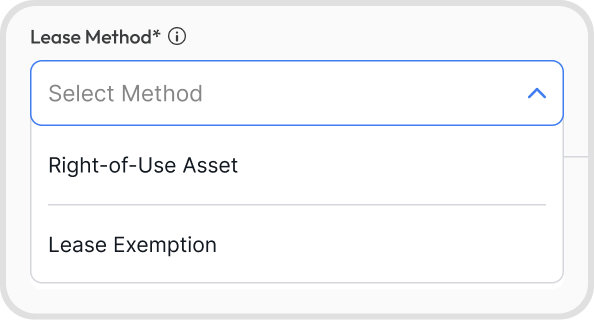
Choose a Lease Method:
Right-of-Use Asset: Juan records the asset and liability and posts monthly interest and depreciation. Use this for most leases.
Lease Exemption: Juan lists the lease but posts nothing. Use this for leases of 12 months or less, or for low-value assets such as laptops, phones, or small office furniture. Record the rent through bills to your rent expense account as usual.
Right-of-Use Asset follows IFRS 16. If your business follows a different reporting framework, check with your accountant which method fits.
If you buy an asset outright, use Fixed Assets instead. To spread rent you paid in advance on a short-term lease, use Deferrals.
Go to Registers → Leases.
Leases is available on yearly billing. On other billing frequencies, you’ll see Upgrade for Access.
The register has two tabs:
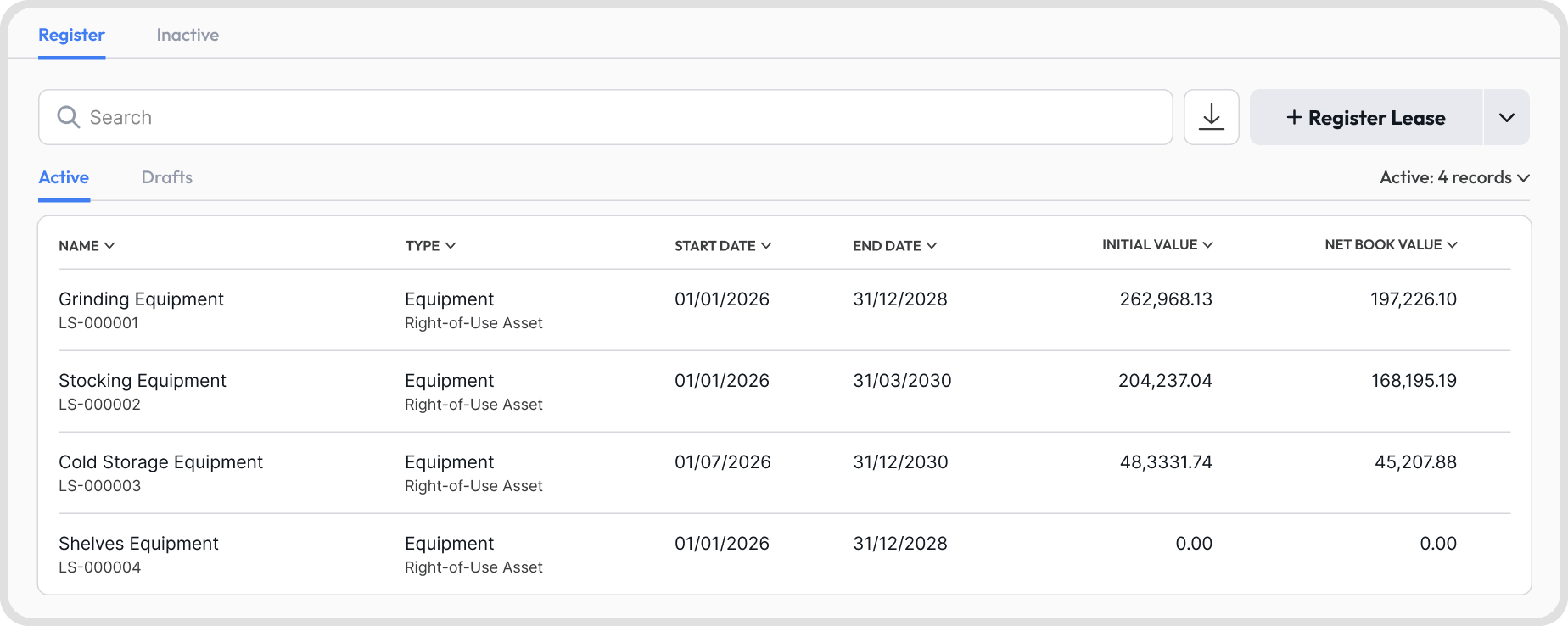
Register: your Active leases and your Drafts
Inactive: leases that are Closed Out or Terminated
Each lease shows its type, method, start and end dates, initial value, and net book value.
To see each lease as it stood on a past date, set the as-at date.
Each lease has a status, and the status decides which actions appear when you click its 3-dot icon:
Status | What it means | 3-dot menu |
|---|---|---|
Draft | Saved, with nothing posted | Edit, Delete, Activity Log |
Depreciation Incomplete | Active, with entries still to post | Edit, Duplicate, Close Out, Terminate, Delete, Activity Log, See Ledger |
Lease Exemption | Listed, with nothing posted | Edit, Duplicate, Delete, Activity Log |
Fully Depreciated | Past its end date | Edit, Duplicate, Delete, Activity Log, See Ledger |
Closed Out | Stopped at a month-end, with its balances kept | Undo Close Out, Delete, Activity Log, See Ledger |
Terminated | Ended early, with its balances removed | Undo Termination, Delete, Activity Log, See Ledger |
Admins can activate leases, edit active leases, close out, terminate, undo, and delete.
Other users with Registers access can view leases, save and edit drafts, add attachments to active leases, and use the Flat Rate Helper.
Tip: When a lease is open, use the arrow keys to move to the next or previous lease.
Before registering your first lease, create these accounts in your chart of accounts. You’ll select them in the accounts section of the lease form.
Account | What it’s for | Account type |
|---|---|---|
Right-of-Use Asset Account | Holds the value of your right to use the rented asset for the lease term, such as your office space for 3 years. You don’t own the asset, but you control its use, so it’s recorded like a fixed asset. | Fixed Asset |
Accumulated Depreciation Account | Tracks how much of the right-of-use asset has been used up so far. The asset’s value less this balance is its net book value. | Fixed Asset |
Current Lease Liability Account | Holds the rent you owe over the next 12 months. Your rent bills and payments go to this account. | Current Liability |
Non-current Lease Liability Account | Holds the rent you owe beyond the next 12 months. Each month, Juan moves the portion coming due into the current account. It’s needed when any rent is due more than 12 months after the Lease Start Date. | Non-current Liability |
Depreciation Expense Account | Records the monthly cost of using the asset in your profit and loss | Expense |
Interest Expense Account | Records the financing cost of paying for the lease over time instead of up front | Finance Cost |
Depending on your lease, you may also need these accounts. You select them in Additional Lease Terms, next to the amount they relate to.
Account | What it’s for | Account type |
|---|---|---|
Prepaid Rent Account | Holds rent you paid before the Lease Start Date. On the Lease Start Date, Juan moves the Prepaid Rent amount from this account into the right-of-use asset. It can’t be a deferral account. | Current Asset |
Restoration Cost Account | Holds the expected cost of restoring the space or asset at the end of the lease | Current or Non-current Liability |
Together, depreciation and interest replace rent expense for the lease in your profit and loss.
Each account on a lease must be different. None can be a bank, cash, or control account.
Several leases can use the same accounts, and leases can share accounts with Fixed Assets and Loans.
Juan sets each account’s cash flow classification based on its role in the lease, unless you already set one.
Go to Registers → Leases → + Register Lease. The New Lease form opens.
Fill in the lease details:
Lease Type: Office, Retail, Warehouse, Land, Vehicle, Equipment, IT Equipment, Residential, Industrial, Machinery, Hire Purchase, or Other
Lessor: optional. Pick the contact you rent from.
Lease Name: a name you’ll recognize, such as Makati Office Lease, up to 500 characters
Lease Reference: Juan suggests the next number, such as LS-000001. It can be up to 200 characters, and each reference must be unique.
Lease Method: Right-of-Use Asset or Lease Exemption
Lease Start Date: the date you start using the asset
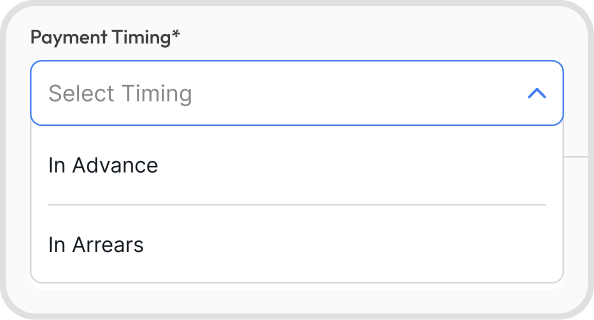
Payment Timing: In Advance if rent is due at the start of each month, or In Arrears if it’s due at the end. It changes the lease liability and interest.
Lease Term (Months): from 1 to 600. Include any renewal you’re reasonably sure you’ll use.
Discount Rate (% per month): the interest rate used to measure the lease liability
Rent Periods: the monthly rent over the term
Optionally, under Additional Lease Terms, click Click to Add for prepaid rent, restoration cost, or ownership at the end.
Pick the lease accounts.
Optionally, add custom fields, tags, notes, attachments, or a Capsule.
Click Save to activate the lease. Only Admins can activate a lease. Other users can save it as a draft for an Admin to activate.
A draft needs only a Lease Reference. An active lease needs every required field and account.
The lock date of every lease account must be before the Lease Start Date.
A Lease Exemption needs only the Lease Type, Lease Name, Lease Reference, Lease Start Date, and Lease Term. The other fields are cleared.
Use the interest rate stated in your lease agreement. If there isn’t one, use the rate you’d pay to borrow a similar amount over a similar term.
Enter it as a monthly rate, with up to 4 decimals. For example, enter 0.50 for 6% a year.
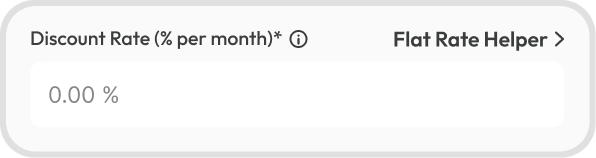
If your lessor or financing company quotes a flat rate, click Flat Rate Helper beside the field instead of entering the rate yourself.
Fill in the Lease Start Date and Lease Term first. Rent Periods stays greyed out until you do.
Under Rent Periods, click Click to Set Up, then add one row for each rent level, with the From month, To month, and monthly amount.
Enter the rent before VAT.
Rows must start at month 1 and run to the last month of the term, with no gaps or overlaps. At least one amount must be more than 0.
Month 1 runs from the Lease Start Date to the end of that month. Every later month is a full calendar month.
The editor shows a timeline of your rows and flags errors as you type.
For example, a 36-month lease with 5% yearly escalation:
Months 1 to 12: PHP 30,000.00
Months 13 to 24: PHP 31,500.00
Months 25 to 36: PHP 33,075.00
For rent paid quarterly or yearly, enter the rent in the months it’s due and 0.00 in the other months.
If your last row stops before the end of the term, the remaining months save as rent-free and show as Unscheduled.
Under Additional Lease Terms on the lease form, click Click to Add to add any of these:
Field | What it does | Account needed |
|---|---|---|
Prepaid Rent | Rent you paid before the Lease Start Date. Juan adds it to the right-of-use asset. If Payment Timing is In Advance, leave out the first month’s rent. | Prepaid Rent Account |
Restoration Cost | The expected cost of restoring the space or asset at the end of the lease, such as removing fixtures. Juan adds its present value to the right-of-use asset as a provision. | Restoration Cost Account |
Do you expect to buy or own the asset at the end? | Adds an optional Purchase Price and a required Useful Life (Months), from 1 to 1,200. The asset depreciates over its useful life instead of the lease term. | None |
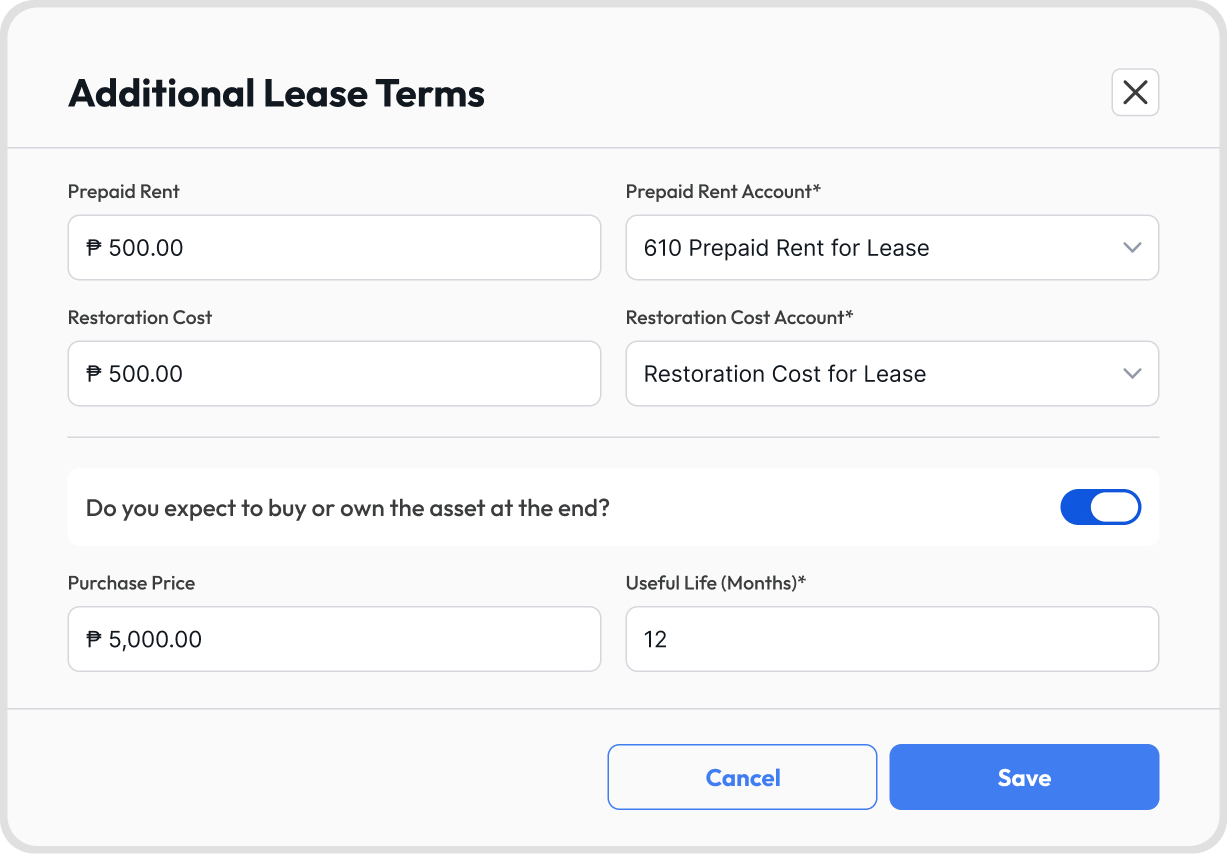
Each account field opens once you enter its amount, and it’s then required.
If your advance rent covers the last months of the lease, enter it as Prepaid Rent and enter 0.00 for those months in your rent periods.
A refundable security deposit isn’t rent. Record it separately in an asset account, such as Security Deposits, not as Prepaid Rent.
A hire purchase lets you pay for an asset, such as a vehicle or equipment, in installments, and you own it after the last payment.
To register one:
Choose Hire Purchase as the Lease Type.
Under Additional Lease Terms, click Click to Add, turn on “Do you expect to buy or own the asset at the end?”, and enter the Useful Life (Months).
Click Flat Rate Helper beside Discount Rate.
Enter the Cash Price, Down Payment, Flat Rate (% a year), and Lease Term (Months). Payment Timing comes from the lease form.
Click Apply. Juan fills in the Lease Term, the Discount Rate, and, if the Lease Start Date is set, the Rent Periods.
Enter the down payment as Prepaid Rent in Additional Lease Terms, so the asset is recorded at its cash price. The helper doesn’t do this for you.
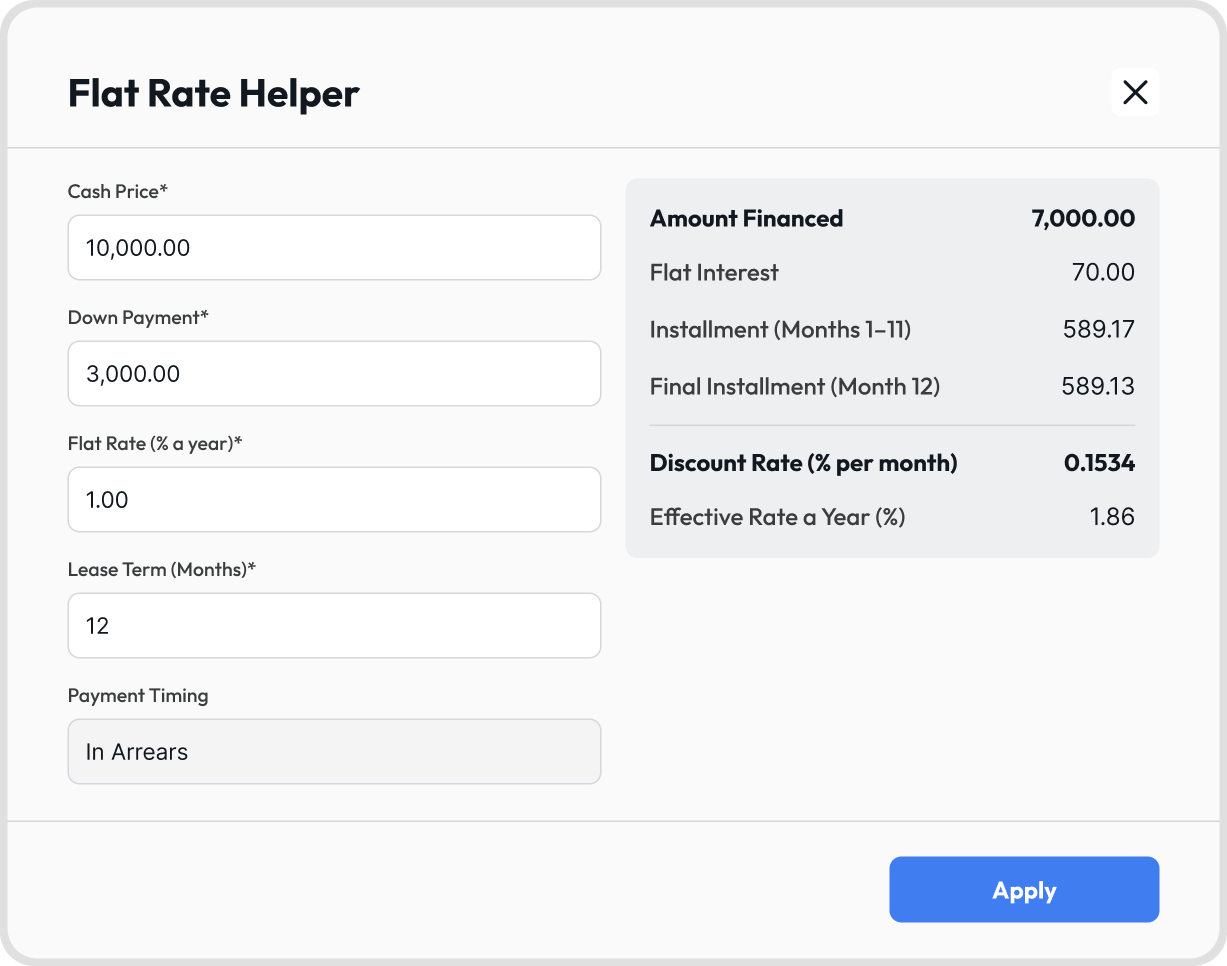
For example, a PHP 10,000 cash price with a PHP 3,000 down payment, at 1% flat a year for 12 months, In Arrears:
Amount Financed: PHP 7,000.00, with Flat Interest of PHP 70.00
Installments: PHP 589.17 for months 1 to 11, and PHP 589.13 for month 12
Discount Rate: 0.1534% per month, or 1.86% a year
Don’t divide a flat rate by 12. A flat rate, also called an add-on rate, charges interest on the full amount financed for the whole term, so dividing it understates the interest by almost half. In this example, 1% divided by 12 gives 0.0833% per month instead of 0.1534%.
Set the Lease Start Date to the date you started using Juan.
Set the Lease Term and Rent Periods to cover only the remaining months and rent.
Leave this lease’s right-of-use asset and lease liability out of your opening balances. Juan records them from the Lease Start Date.
For example, a 36-month lease that started January 1, 2025, for a business that moved to Juan on January 1, 2026:
Lease Start Date: January 1, 2026
Lease Term: 24 months
Rent Periods: the rent for the remaining 24 months
The lock date of every lease account must be before the Lease Start Date.
Juan posts these entries for every Right-of-Use Asset lease:
When | Debit | Credit |
|---|---|---|
Lease Start Date | Right-of-Use Asset | Current and Non-current Lease Liability |
Lease Start Date, with Prepaid Rent | Right-of-Use Asset | Prepaid Rent Account |
Lease Start Date, with Restoration Cost | Right-of-Use Asset | Restoration Cost Account |
Each month-end: interest | Interest Expense | Current Lease Liability |
Each month-end: depreciation | Depreciation Expense | Accumulated Depreciation |
Each month-end: restoration cost | Interest Expense | Restoration Cost Account |
Each month-end: current portion | Non-current Lease Liability | Current Lease Liability |
Termination Date | Lease liabilities and Accumulated Depreciation | Right-of-Use Asset, with the difference to gain or loss |
Each amount is calculated this way:
Amount | How it’s calculated |
|---|---|
Lease liability | The present value of your rent periods, plus any Purchase Price, at the discount rate |
Right-of-use asset | The lease liability, plus Prepaid Rent, plus the present value of the Restoration Cost |
Interest | The discount rate applied to the opening lease liability each month, after any rent paid in advance |
Depreciation | The right-of-use asset spread evenly over the lease term, or over the Useful Life if you expect to own the asset. The last month absorbs any rounding difference. |
Current Lease Liability | The amount the liability goes down by over the next 12 months |
Restoration Cost | Grows each month until it reaches the full cost at the end of the term |
Juan schedules every entry when the lease is activated. Reports pick up each entry from its date.
For an In Advance lease, the first month-end current portion entry runs the other way, from current to non-current. On the Lease Start Date, 13 rent payments are due within 12 months, and by the first month-end only 12 remain.
For example, a 36-month office lease starting January 1, 2026, at PHP 30,000 a month In Advance and 0.50% per month:
Lease liability and right-of-use asset on January 1: PHP 991,061.14
January interest: PHP 4,805.31, which is PHP 961,061.14 (the liability less the January rent) × 0.50%
Monthly depreciation: PHP 27,529.48
Total interest over the lease: PHP 88,938.86, the difference between the PHP 1,080,000.00 total rent and the starting liability
In the early months, depreciation plus interest is more than the rent you pay. In this example, January’s lease expense is PHP 32,334.79 against PHP 30,000 rent. Interest goes down each month, so later months cost less. Over the full lease, the two add up to your total rent.
To view a lease’s entries, open the lease:
Details: the lease settings and accounts, plus Termination Details on a terminated lease
Schedule: the Lease Start Date, Initial Value, Accumulated Depreciation, Net Book Value, and the monthly schedule
To see the entries in your ledger, click the 3-dot icon on the lease and choose See Ledger.
Juan posts the lease entries, but not the cash. Here’s what you record and what Juan posts:
What happens | You record | Juan posts |
|---|---|---|
Lease starts | Nothing | The right-of-use asset and lease liability |
Rent paid before the Lease Start Date | A payment to your Prepaid Rent Account | A transfer to the right-of-use asset on the Lease Start Date |
Monthly rent | A bill or payment to your Current Lease Liability Account, before VAT | Nothing |
Each month-end | Nothing | Interest, depreciation, restoration cost, and current portion entries |
Restoration paid | A payment to your Restoration Cost Account, with any difference to expense | Nothing |
Termination fee or refund | An entry to the gain or loss account you used on Terminate | The termination entry with its gain or loss |
Lease Exemption rent | Bills to your rent expense account | Nothing |
When the lessor bills you, create a bill and select your Current Lease Liability Account on the line item, not your rent expense account.
Enter the rent before VAT. VAT is recorded through the bill’s tax as usual.
Withholding tax doesn’t change how much your lease liability goes down. For example, for a monthly rent bill:
Rent: PHP 30,000
VAT: PHP 3,600
5% withholding tax: PHP 1,500
In this example, you pay the lessor PHP 32,100, and your lease liability still goes down by PHP 30,000.
If you pay without a bill, select the Current Lease Liability Account on the payment transaction, such as one created from bank reconciliation.
Don’t record lease rent to your rent expense account. Depreciation and interest already cover the cost, so the rent would be counted twice.
For a hire purchase, record each installment the same way.
Go to Reports → Summaries → Leases. You can also click the download button on the Leases register.
The report has two tabs:
Lease Register: one row per lease, with its type, lessor, dates, term, rate, book values, additions, depreciation, terminations, interest, scheduled payments, lease liabilities, and restoration cost
Lease Reconciliation Summary: where your lease account balances and the register don’t match
A difference usually comes from one of these:
Cause | What you’ll see |
|---|---|
Rent bill recorded to rent expense | Rent counted twice in your profit and loss, and a difference equal to the rent |
VAT recorded on the lease liability line item | The liability falls below the schedule by the VAT each month |
Manual journal to a lease account | A difference equal to the journal amount |
Rent recorded early in the month | A temporary difference that clears at month-end, when the register expects the rent |
If a lease and a loan share an account, your balance sheet shows one combined balance. Each register’s reconciliation leaves out what the other register expects, so neither shows a false difference.
Balance sheet:
The right-of-use asset and its accumulated depreciation appear under Fixed Assets.
The lease liability appears under Current Liabilities and Non-current Liabilities.
The restoration provision appears in the section for its account type.
Prepaid Rent appears under Current Assets until the Lease Start Date.
Profit and loss:
Depreciation appears as an expense.
Lease interest appears under Other Expense, or under Finance Costs if you use the IFRS 18 template.
A termination gain or loss appears under its account type.
Cash flow:
Entries that move no cash, such as the lease start entry and depreciation, are taken out.
Each rent payment is split. The principal part appears under Financing, in Borrowings & Leases. The interest part stays in Operating.
For example, in the office lease above, you pay PHP 90,000 in rent from January to March:
Operating: PHP 14,037.37, the interest part
Borrowings & Leases: PHP 75,962.63, the principal part
Total cash out: PHP 90,000.00
To edit, click the 3-dot icon on the lease and choose Edit.
You can change these at any time: Lease Name, Lessor, Lease Type, Lease Reference, notes, custom fields, tags, and attachments.
Changing a figure recalculates every entry from the Lease Start Date, including ones already posted. Figures include the dates, term, Payment Timing, Discount Rate, Rent Periods, Additional Lease Terms, Lease Method, and accounts.
Juan won’t save a figure change once any lease account is locked on or after the Lease Start Date.
There’s no option to modify a lease mid-term. If the rent or term changes after a locked period:
Terminate the lease at the month-end before the change.
Register a new lease starting from the date the change takes effect.
To create a similar lease, click the 3-dot icon and choose Duplicate. The lease details are copied, but not its schedule.
To see the lease’s change history, click the 3-dot icon and choose Activity Log.
To edit a closed-out or terminated lease, undo the close-out or termination first.
Close Out: use this when you stop tracking the lease in Juan but keep its balances on your books.
Terminate: use this when the lease ends early, such as when you move out before the end of the term.
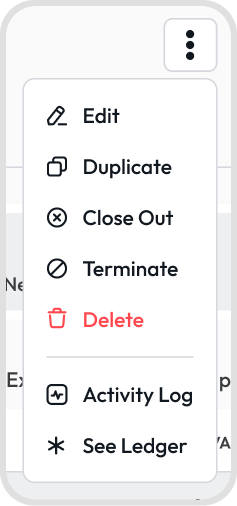
To close out a lease:
Click the 3-dot icon on the lease and choose Close Out.
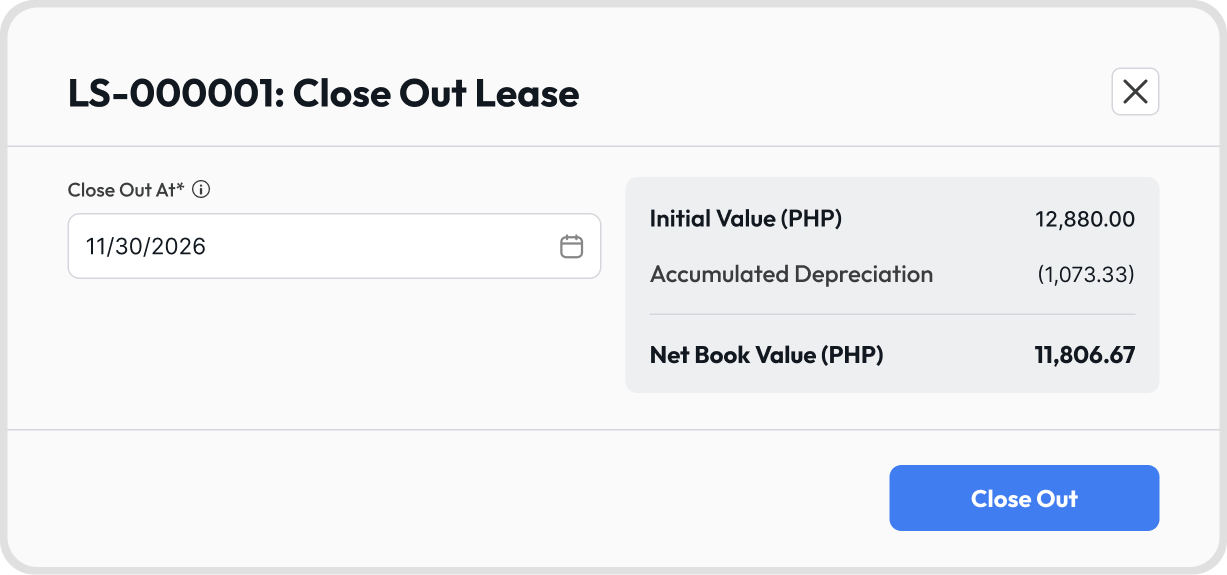
Under Close Out At, pick the date.
Check the Initial Value, Accumulated Depreciation, and Net Book Value, then click Close Out.
To terminate a lease:
Click the 3-dot icon on the lease and choose Terminate.
Pick the Termination Date and the account for the gain or loss.
Check the preview, then click Terminate.
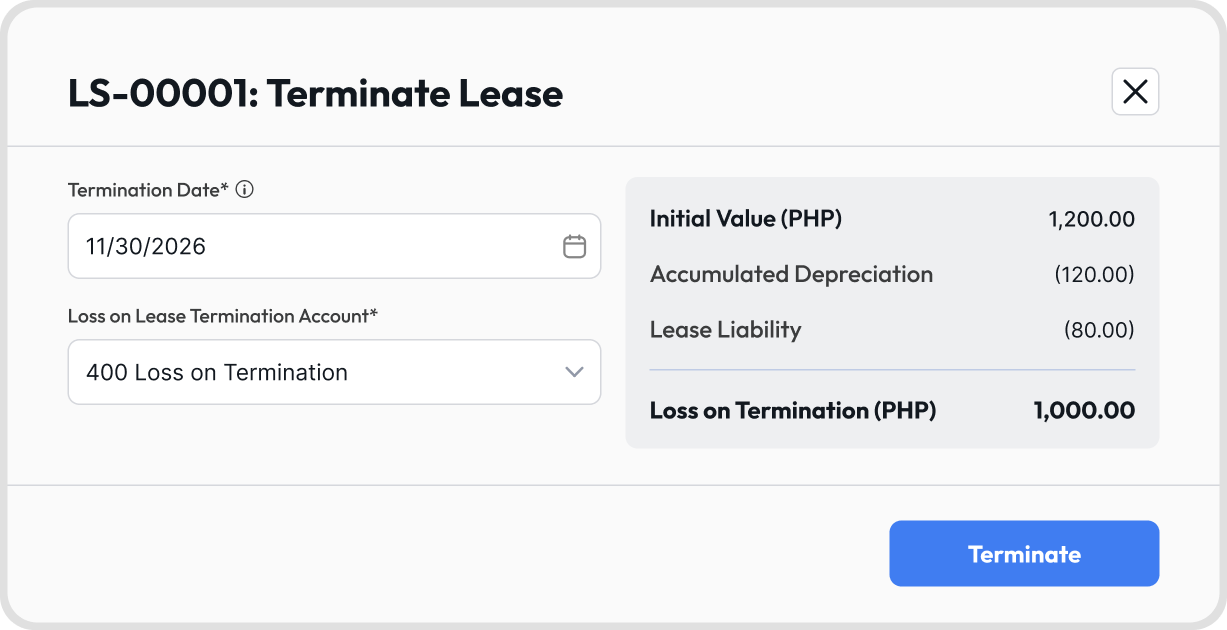
The date moves to the end of its month. It must be on or after the first month-end and before the lease’s last month. Future dates are allowed.
Every lease account and the gain or loss account must be unlocked on that date.
The gain or loss account must be an Expense account, or a Revenue account other than Operating Revenue.
Only active Right-of-Use Asset leases can be closed out or terminated. For a Lease Exemption, both options are greyed out with the message “This lease has no entries and cannot be closed out or terminated.”
Here’s how the two actions differ:
Close Out | Terminate | |
|---|---|---|
Entries up to the date | Stay posted | Stay posted |
Entries after the date | Removed | Removed |
Lease balances | The right-of-use asset, accumulated depreciation, and lease liability stay in your accounts | Removed in one entry, with the difference posted as a gain or loss |
Restoration Cost provision | Stays | Stays, and its monthly entries stop |
Status | Closed Out, on the Inactive tab | Terminated, on the Inactive tab |
Undo | Undo Close Out brings back the removed entries | Undo Termination deletes the termination entry and brings back the later entries |
After a termination, record the restoration payment yourself, against your Restoration Cost Account, with any difference to expense.
Record any termination fee you pay, or deposit the lessor refunds, to the same gain or loss account, so the full result of the termination is in one place.
Click the 3-dot icon on the lease and choose Undo Close Out or Undo Termination.
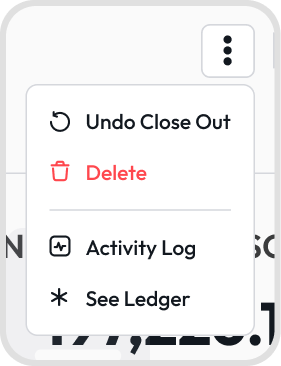
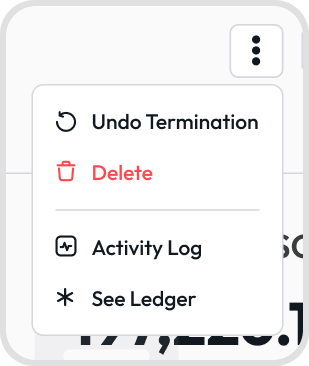
Only Admins can undo, and only when the period isn’t locked.
Undoing brings back past entries, so reports for those unlocked periods change.
Click the 3-dot icon on the lease, choose Delete, then confirm.
Juan removes the lease and all its entries, including past months. They no longer appear in your ledger or reports, and the Lease Reference can be used again.
Deleting can’t be undone.
You can’t delete a lease that has an entry in a locked period. Ask an Admin to move the account’s lock date first. See Lock Dates (COA).
Note: To keep the entries already posted, use Close Out instead.
Find the message you see and its fix:
Message | What to do |
|---|---|
Lease Term (months) must be between 1 and 600. | Enter a term from 1 to 600 months. |
Discount Rate (% per month) must be 0 or more and less than 100, with at most 4 decimal places. | Enter a monthly rate, such as 0.4322. |
Rent periods must run from month 1 with no gaps. | Fix the row named, so your rows cover every month of the term. |
The last Rent Period To Month must be (number) | Set the last row’s To month to the last month of the term. |
Lease Liability and Initial Value must be more than 0. | Check your rent amounts. |
When rent is paid in advance, Prepaid Rent must not include the first payment. | Remove the first month’s rent from Prepaid Rent. |
Non-current Lease Liability Account is required when a payment is due more than 12 months after the Start Date. | Pick a Non-current Liability account. |
Each lease account must be a different account. | Pick a different account for one of the fields named. |
Prepaid Rent Account must not be a deferral account. | Pick a Current Asset account that isn’t used for deferrals. |
Lease Reference already exists. Use a different reference. | Enter a different reference. |
Useful Life (months) is required when you expect to buy or own the asset at the end. | Enter 1 to 1,200 months, or turn the option off. |
A message saying the date is earlier than an account lock date | Ask an Admin to move the lock date, or pick a later date. |
Leases can’t be imported yet. Register each lease in the lease form, or use the API.
Leases can’t be modified, remeasured, or transferred mid-term.
Leases are in base currency only.
Leases are calculated by month, and entries post at month-end.
The Lease Term must be 1 to 600 months.
Juan doesn’t record rent payments, VAT, restoration payments, or the purchase price payment.
Close Out doesn’t remove the lease balances. Terminate does.