An unapplied sale payment is money you received from a customer before you know which invoices it covers.
You record the payment first, then apply it to invoices later.
This is the opposite of the usual flow, where you create the invoice first and then record a payment against it.
Note: For supplier payments, see Unapplied Payments (Purchases).
Payment with no reference: a customer pays, but nothing says which invoices the payment covers
Payment before the invoice: money arrives before you’ve issued the invoice
One payment for several invoices: a single payment covers multiple invoices, but you don’t know the split yet
Unapplied sale payments follow the batch payment flow. All payments applied from it are combined into a single cashflow record.
The difference is the order of steps:
Batch payment: select the invoices first, then record one payment for them
Unapplied payment: record the payment first, then apply it to invoices as they come in
Note: For the difference between bulk and batch payments, see Bulk and Batch Invoice Payments.
Open payments: go to Sales → Payments → Payments Due
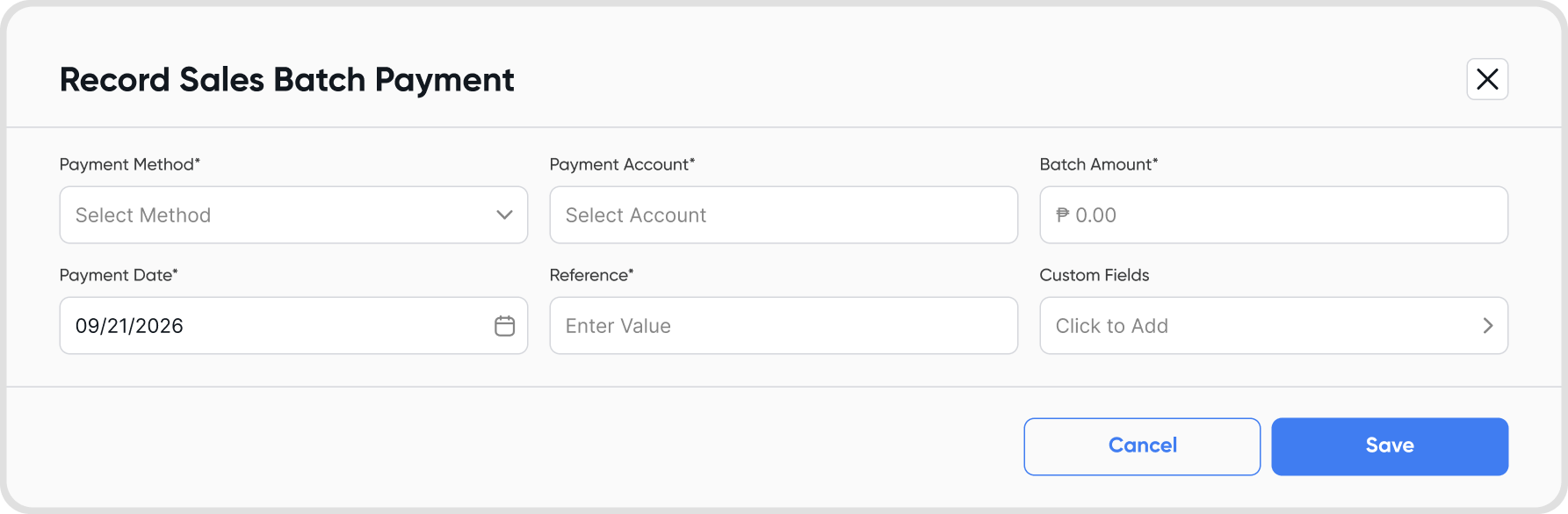
Start a new unapplied payment: click the arrow beside + New Payment, then select Unapplied Payment
Fill in the required fields:
Payment Method
Payment Account
Batch Amount
Payment Date
Reference
Add custom fields (optional): click Custom Fields to add more details
Save the payment: click Save
Note: Only cash and bank accounts can be selected as the payment account.
The payment is recorded in your ledger as soon as you save it, before it’s applied to any invoice.
It debits the payment account and credits Accounts Receivable.
The payment appears in your cashflow as one record for the full batch amount.
Applying the payment later doesn’t change the amount recorded. It only moves part of the amount from the unapplied payment to the invoice it pays.
You can apply an unapplied payment from either of these pages:
Invoices: go to Sales → Invoices
Payments Due: go to Sales → Payments → Payments Due
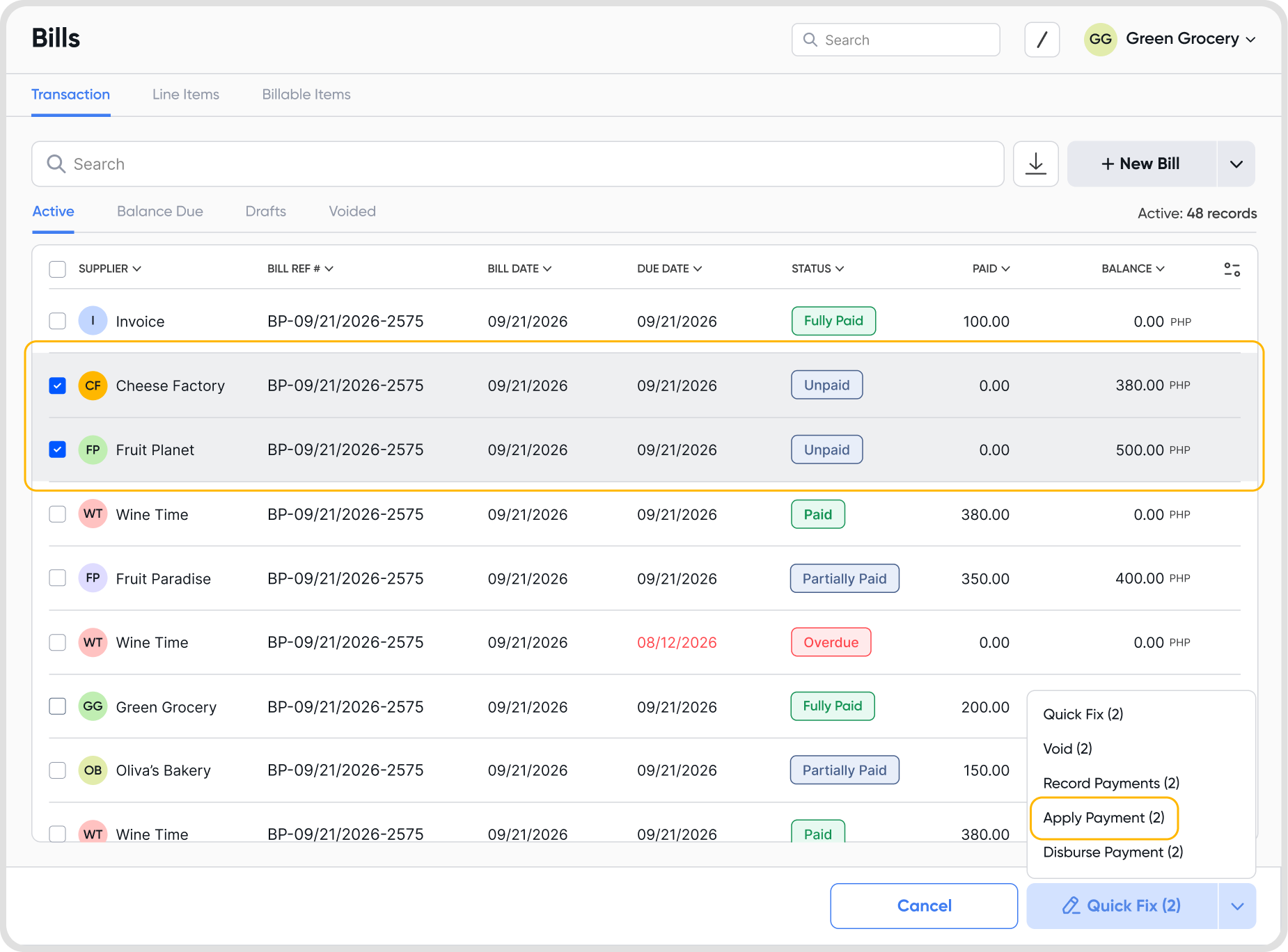
Select the invoices: select the invoices you want to pay
Open the actions menu: click the arrow beside the action button at the bottom of the page, then select Apply Payments
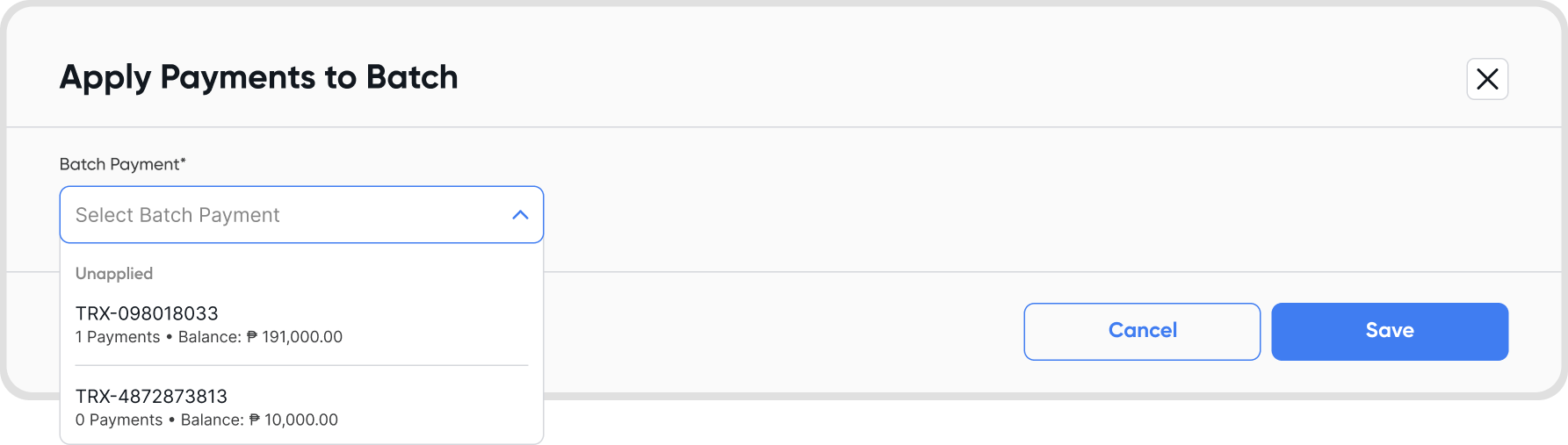
Choose the batch payment: select the unapplied payment from the Batch Payment dropdown. Each option shows its number of payments and remaining balance.
Review the amounts: the payment method, account, date, and reference come from the batch payment and can’t be changed
Apply the payment: click Save
Note: Only unapplied payments appear in the Batch Payment dropdown.
Yes. You can apply part of the payment now and apply the rest later.
To change how much goes to an invoice:
Open the payment amount: click the amount under the Cash Received column
Edit the amount: enter a new Invoice Payment Amount. You can’t pay more than the invoice’s balance due, which is shown as the maximum.
Save your changes: click Save
The payment stays under Unapplied until its full balance has been applied.
Go to Sales → Payments → Batch Payments and open the Unapplied tab.
Each row shows how much has been applied and the remaining balance.
Open a payment to see:
Basic details: contact, date, payment method, and account
Payments: every invoice the payment has been applied to
Totals: the batch amount, applied payments, and remaining balance
Note: Batch Payments also has Active and Drafts tabs. Active holds regular batch payments and fully applied unapplied payments.
It moves to the Active tab and becomes a regular batch payment.
This happens automatically and can’t be reversed.
Yes. If the amounts you apply are more than the remaining balance, the payment is fully applied and moves to the Active tab.
Its total then becomes the amount applied.
Yes. Removing an applied payment returns that amount to the unapplied balance.
The invoice goes back to its previous balance due.
Deleting an unapplied payment also deletes every payment applied from it.
Each invoice it paid goes back to its previous balance due, and the ledger entries are reversed.
If the payment was matched to a bank record, the bank record goes back to unreconciled.
Note: Check which invoices the payment has been applied to before you delete it.
Locked periods: applying or deleting is blocked if the payment date falls within a locked period
Currency: the payment and the invoice must be in the same currency
Transaction types: unapplied sale payments can only be applied to invoices, not customer credit notes
Fees and tax: transaction fees, tax, and payment adjustments can’t be added to the unapplied payment itself