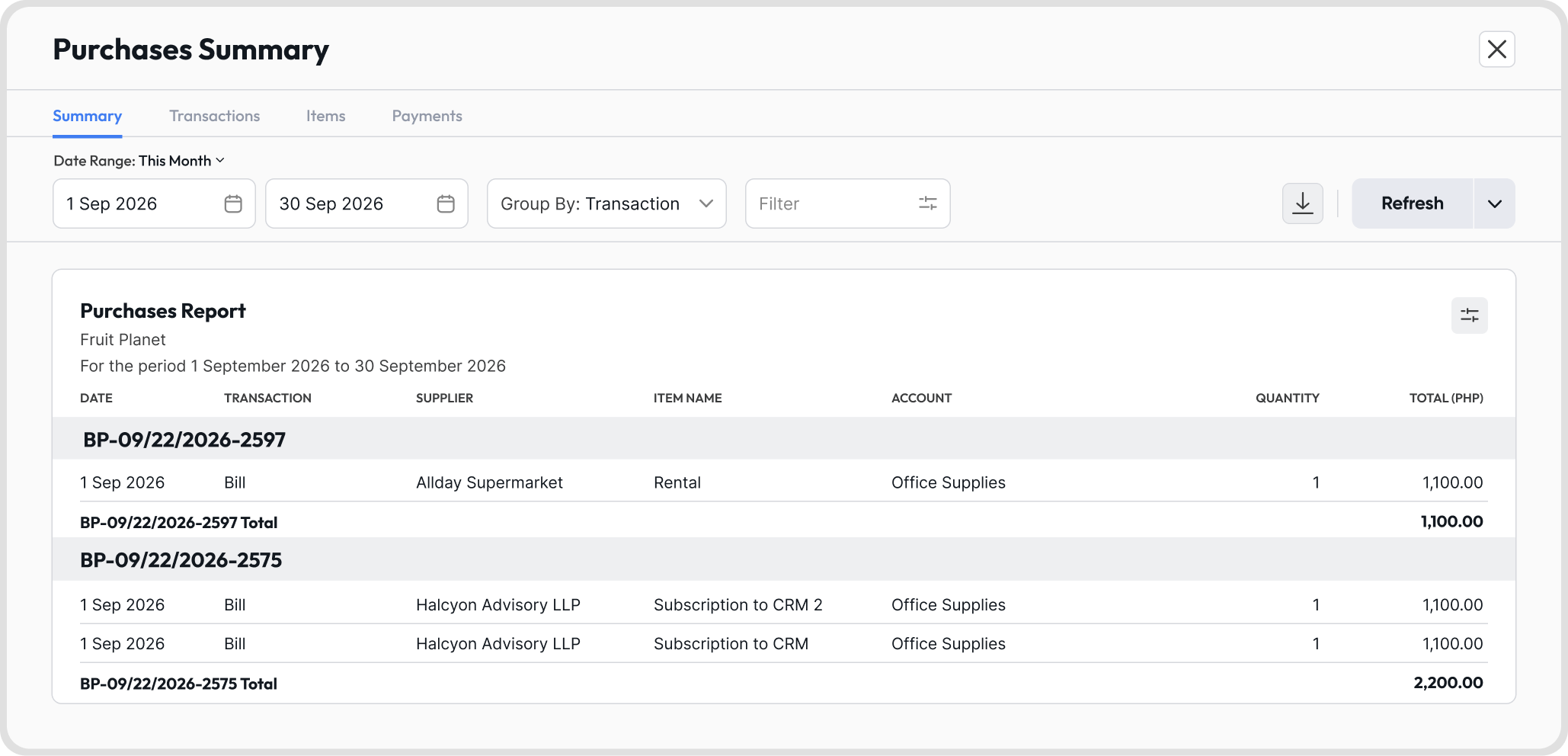
Purchases Summary is a report that gives you an overview of your purchase activity for a selected date range.
It is organized into four tabs:
Summary
Transactions
Items
Payments
It helps you review spending and export purchase data for analysis or reporting.
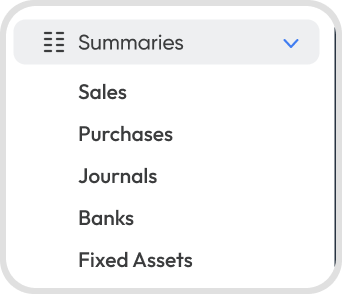
Go to Reports → Summaries → Purchases.
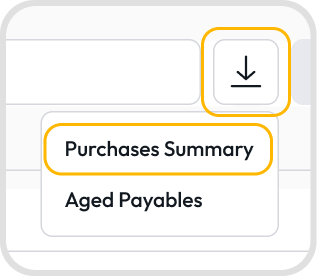
You can also download the Purchases Summary from the Bills and Purchase Payments pages. Click the download button at the upper right of the page.
Summary: a line-level view of your purchases, including the items bought and the accounts they were recorded to.
Transactions: one row per purchase transaction, with its total, withholding tax, payments recorded, and remaining balance.
Items: the items purchased in each transaction, with quantities, accounts, and withholding tax details.
Payments: the payments made to your suppliers, including the payment method and payment account used.
Click the Date Range dropdown and choose a preset option:
This Month
This Financial Quarter
This Financial Year
Last Month
Last Financial Quarter
Last Financial Year
You can also set a custom start and end date using the date fields.
Click Refresh to reload the report with the new date range.
Note: The date range you select applies to all tabs: Summary, Transactions, Items, and Payments.
Yes. Click Group By and choose one of the following:
Transaction
Supplier
None
Click Refresh to reload the report with your grouping applied.
Note: Group By is only available in the Summary tab. The Transactions, Items, and Payments tabs support filtering only.
Yes. Click Filter and apply the filters you need.
Click Refresh to reload the report with your filters applied.
To clear your filters, click the X beside Filter.
Note: Filters apply only to the tab you set them in.
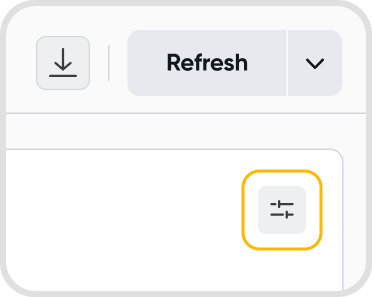
Open the column settings: click the adjust column icon at the upper right of the report
Add or remove columns: select the columns you want to show
Reorder columns: arrange the selected columns in the order you want them to appear
Your changes appear in the report right away. You do not need to click Refresh.
Note: Column settings are saved per tab. The next time you open Purchases Summary, each tab keeps the columns and order you set until you change them.
Open the download options: click the download icon beside Refresh
Choose a format: select Excel or PDF
The format you choose determines what is included:
Excel: downloads all four tabs, with Summary, Transactions, Items, and Payments each saved as a separate sheet in one file. Each sheet reflects the filters, columns, and grouping set on its tab.
PDF: downloads only the tab you are currently viewing.
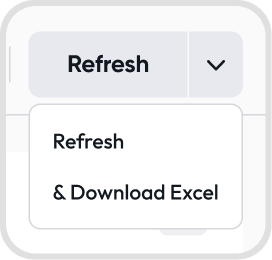
Yes. Click the arrow beside Refresh, then select Download.
Choose one of the following:
Excel
Both
The report refreshes with your latest settings and downloads in the format you selected.
Note: If the tab has more than 12 visible columns, only Excel is available.
PDF downloads support a maximum of 12 visible columns.
If the tab you are downloading shows more than 12 columns, an error appears when you try to download it as PDF.
To download it, reduce the visible columns to 12 or fewer using the adjust column icon, or download the report in Excel instead.