A billable expense is a bill line item you assign to a customer so you can bill the cost to them later on an invoice.
Use it for costs you incur on a customer's behalf, such as materials, subcontracted work, or reimbursable purchases.
Each invoice line stays linked to the bill it came from, so you can trace where the cost originated.
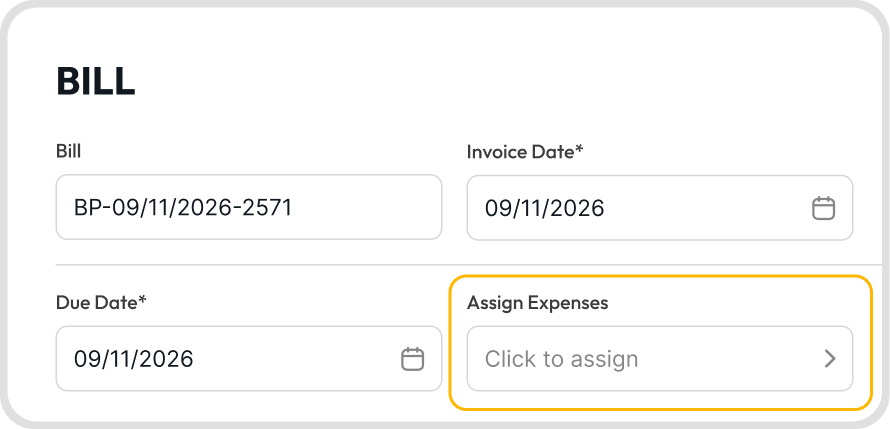
Open any bill, then click the Assign Expenses field.
This is available while creating a bill and while editing an existing one.
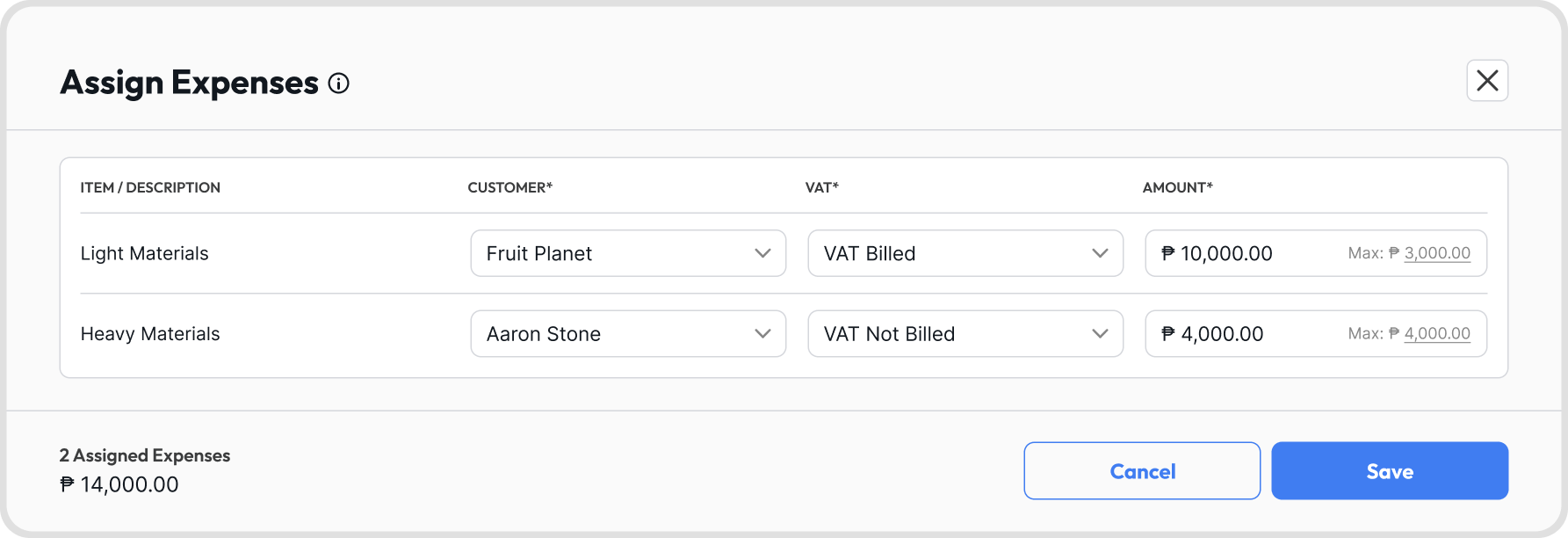
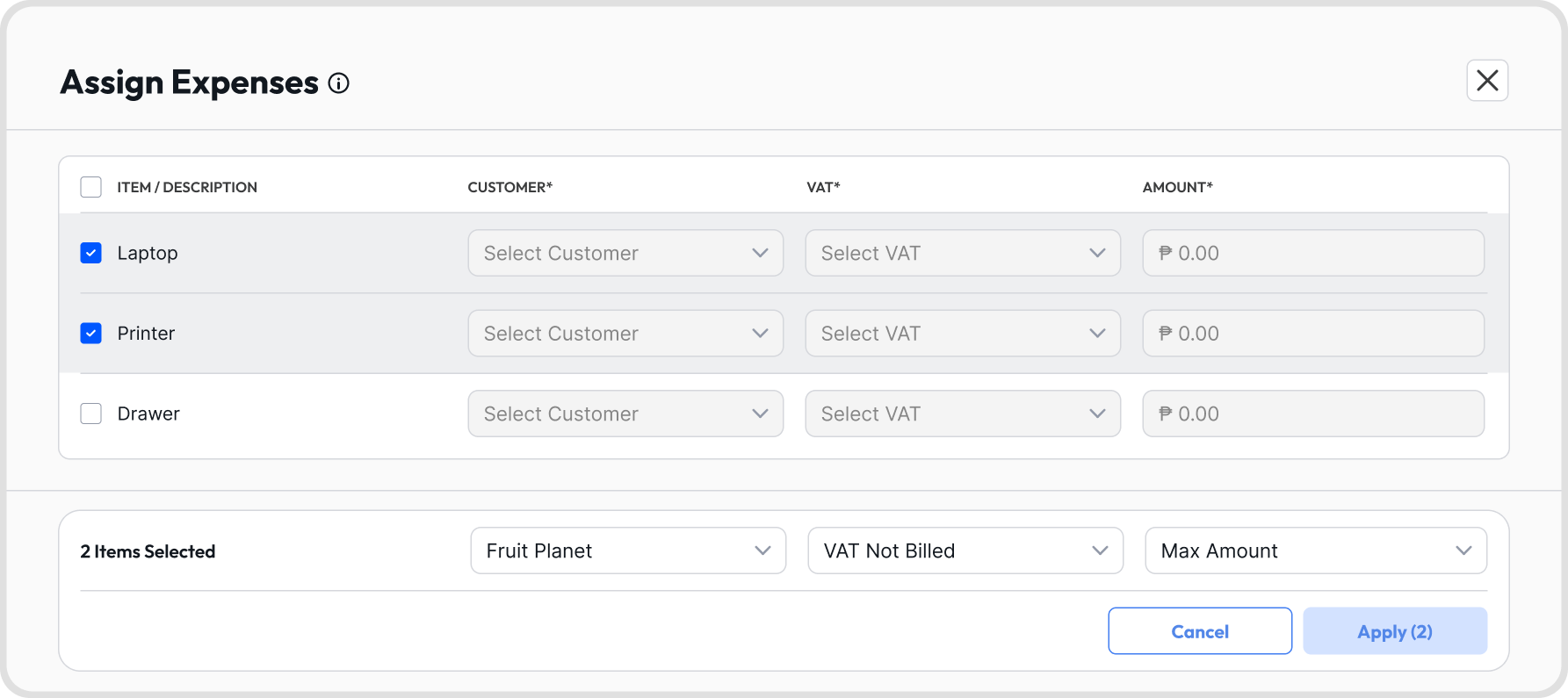
The Assign Expenses window lists the bill's line items with four columns: Item / Description, Customer, VAT, and Amount.
Select a customer for each line item you want to bill, then click Save.
The footer shows the number of assigned expenses and their total before you save.
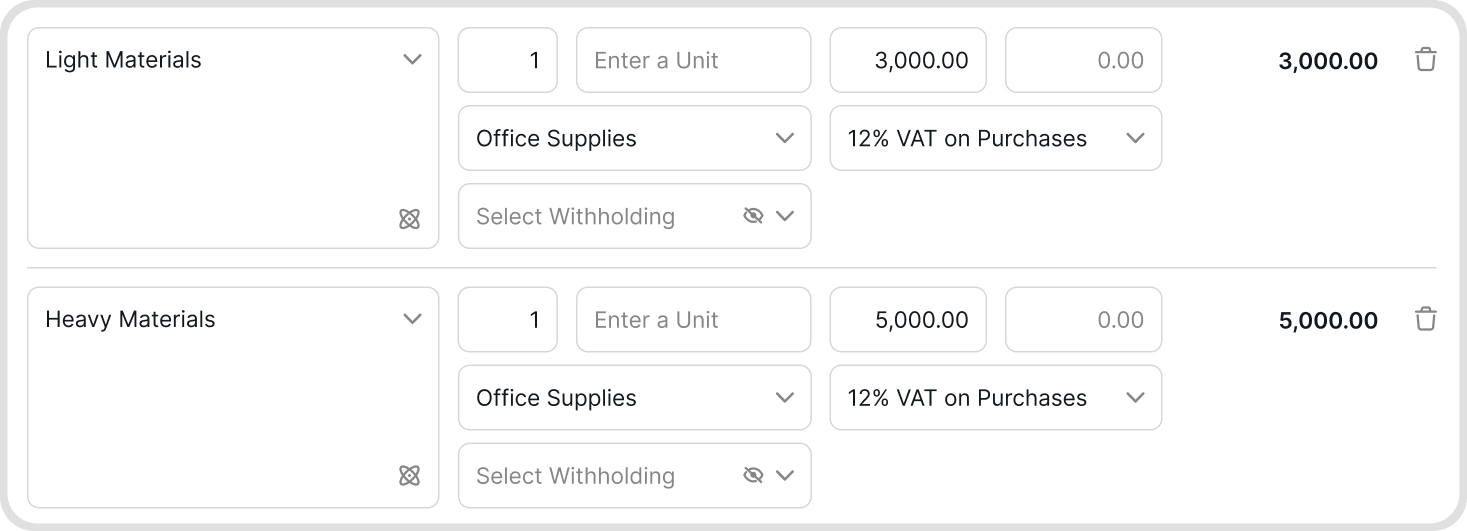
The line item must already have an amount. Line items without an amount cannot be assigned.
Customer, VAT, and Amount are required for every line you assign.
The bill must be saved as Active. Assigned expenses on a Draft bill are not available for invoicing.
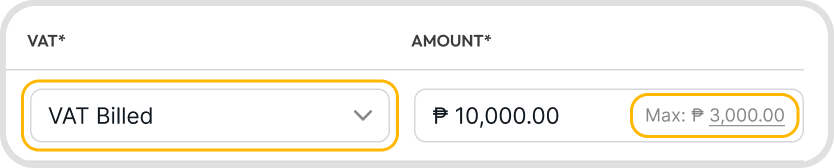
The VAT column sets whether the VAT on the cost is passed on to your customer.
VAT Billed: the VAT is passed on, so the amount you can assign includes the VAT on that line item.
VAT Not Billed: the VAT is not passed on, so the amount you can assign excludes the VAT on that line item.
VAT handling follows the VAT treatment of the bill itself, using the VAT profile and rate applied to that line item.
Max is the highest amount you can assign for that line item.
It is calculated from the line item amount and your VAT selection for that line.
You cannot assign more than the Max. Juan shows an error and will not save the assignment.
Yes, when the bill has 3 or more line items.
Select the checkboxes for the line items you want to assign, choose the customer, then choose how much of each line to assign.
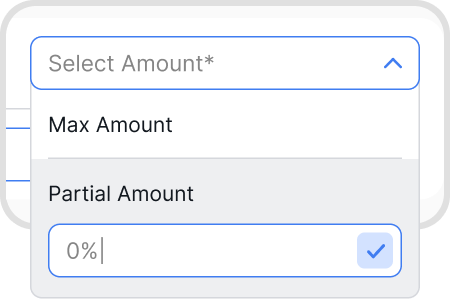
Max Amount: assigns the full assignable amount of each selected line item.
Partial Amount: assigns a percentage of each selected line item. Setting 50% on a 10,000.00 line assigns 5,000.00.
Click Apply to fill the selected line items with those values.
No. Each bill line item can be assigned to one customer only.
Multiple line items on the same bill can be assigned to the same customer. A bill with ten line items can have all ten assigned to one customer.
A single customer can also have billable expenses from many different bills.
Yes. Open the existing bill in edit mode and click Assign Expenses.
This works even if the bill has already been paid.
No. The bill only needs to be Active.
You can bill your customer and collect before your own payment to the supplier falls due.
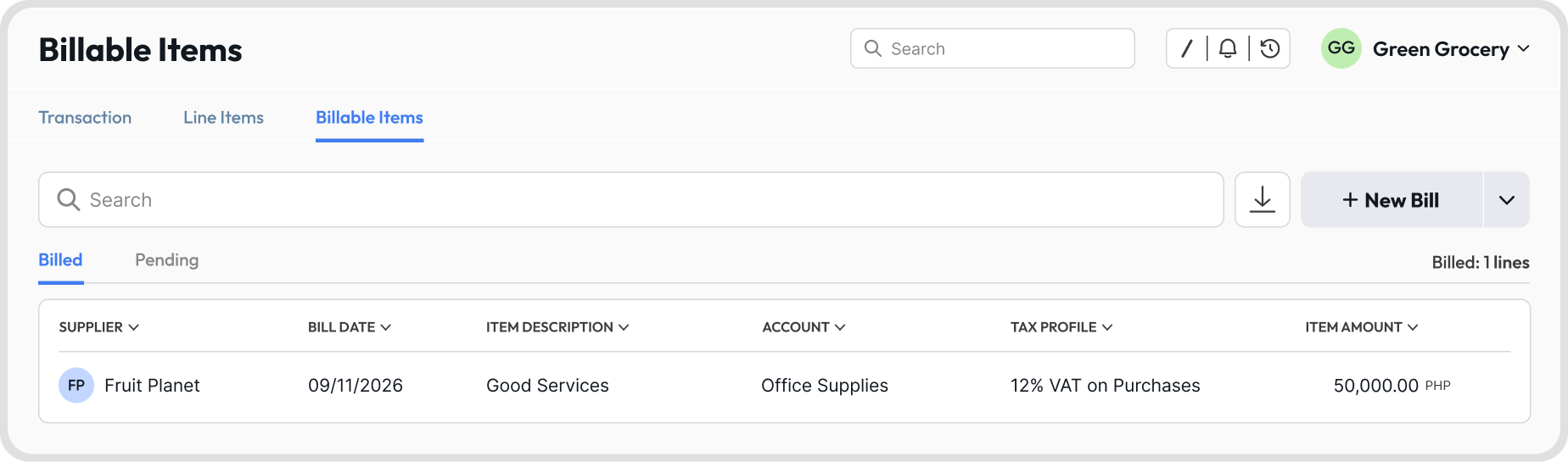
Go to Bills → Billable Items. This is one of the main tabs in the Bills view.
Pending: assigned expenses that have not been billed to a customer yet.
Billed: assigned expenses that have been billed to a customer.
Each row shows the Supplier, Bill Date, Item Description, Account, Tax Profile, and Item Amount.
Use Search to find a specific expense, sort and filter the columns to narrow the list, or export it using the download icon.

The expense moves to Billed once the invoice it was added to is Active.
Adding an expense to a Draft invoice does not move it to Billed.
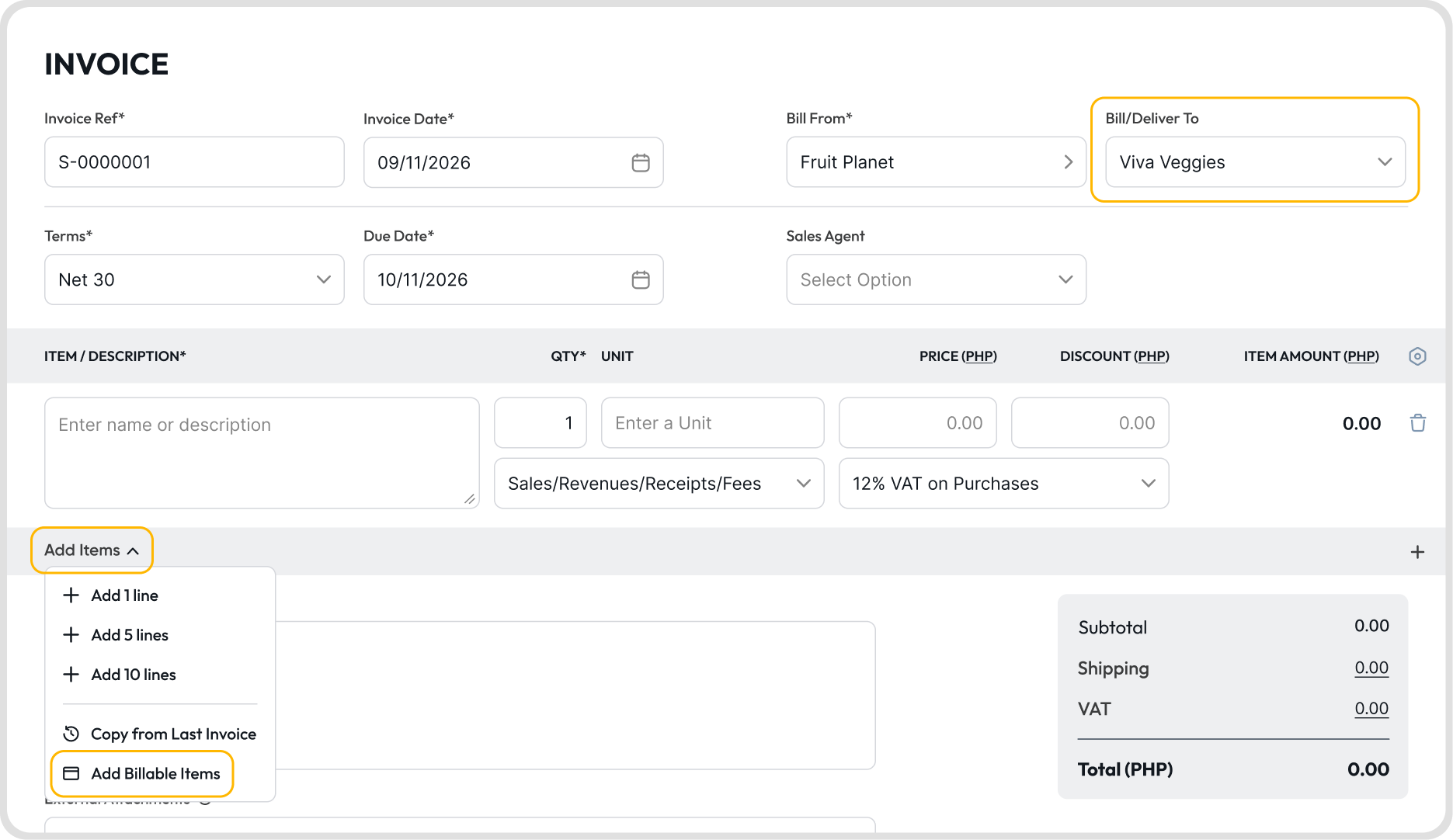
Create an invoice and select the assigned customer in Bill/Deliver To first. Billable expenses only appear after the customer is selected.
Click Add Items → Add Billable Items. This option is only clickable when the selected customer has pending billable expenses available.
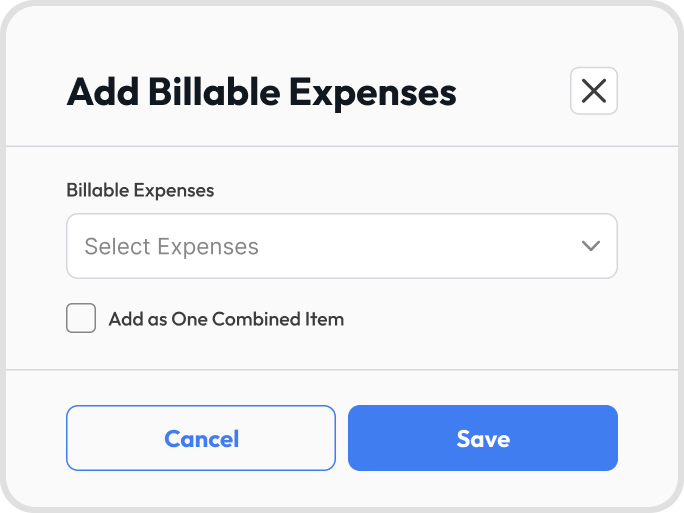
In the Add Billable Expenses window, open Select Expenses and choose the expenses to add.
Expenses are grouped by month and show the item description, source bill reference, date, and amount.
Click Save to add them to the invoice.
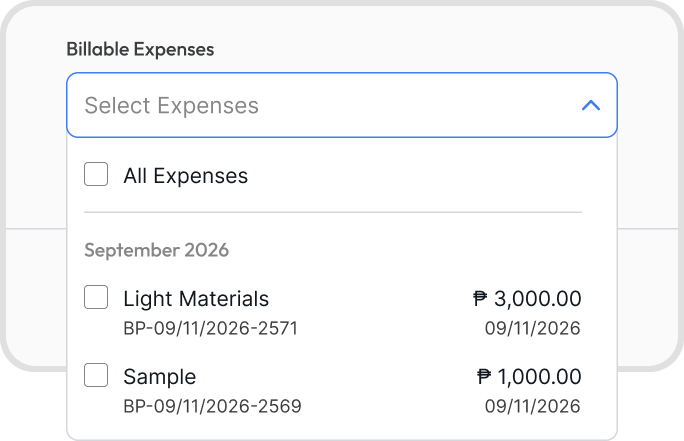
All Expenses selects every pending expense for that customer.
If you have already selected some expenses, All Expenses adds the remaining ones to your selection instead of starting over.
Selecting Add as One Combined Item merges all selected expenses into a single invoice line item.
Leave it unselected to add each expense as its own line item.
A combined line shows the merged descriptions and displays Billable Expense: Multiple Records as its source reference.
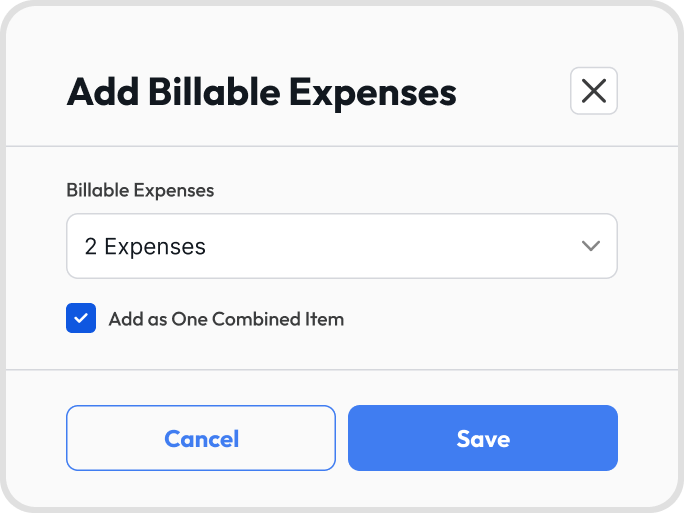

Each invoice line item added this way shows a Billable Expense field with the source bill reference.
Click the field to open the Billable Expenses window, which lists the Item / Description, Reference #, Date, and Item Amount of each linked expense.
Combined lines open the same window and list every expense included in that line.
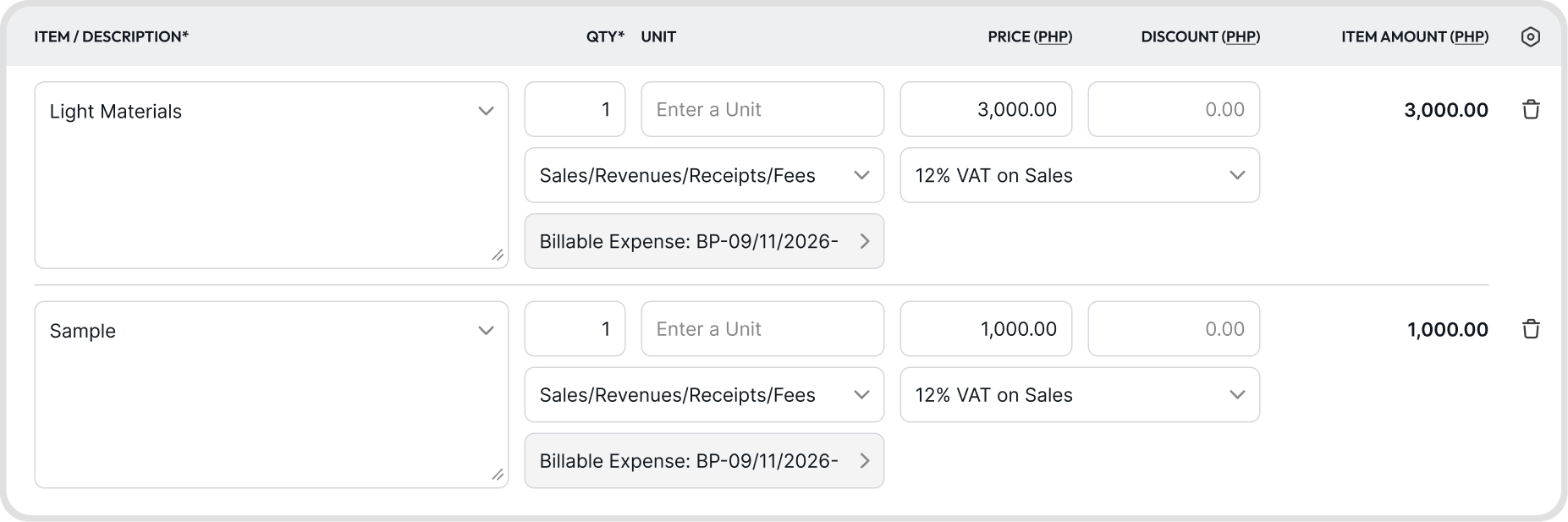
No. The Billable Expense reference field is visible in Juan only.
It does not appear on the invoice PDF sent to your customer.
Yes. The invoice line defaults to the cost from the bill, with no margin added.
Edit the unit price on the invoice line item to add a markup, or to bill less than the assigned amount.
The invoice line is not capped by the assigned amount, so it can be higher or lower.
Open the bill in edit mode, click Assign Expenses, then remove the assignment.
If the expense has already been used on an Active invoice, Juan shows an error and will not save.
To remove it in that case, edit the invoice to remove the billable line item and save the invoice first, then remove the assignment on the bill.
The billable expense is reversed and returns to Pending in Bills → Billable Items.
You can then bill it to the customer again on another invoice.
Pending assignments from that bill or line item are dropped.
A dropped expense no longer appears in Bills → Billable Items and can no longer be added to an invoice.
If the expense has already been billed to a customer, the invoice keeps its record of the billable expense, but the source bill is marked as void. Edit the invoice to apply any changes to it.
The option stays unclickable until the selected customer has a pending billable expense that can be added to that invoice. Common reasons:
No customer has been selected yet in Bill/Deliver To. Select the customer first.
The customer has no pending billable expenses.
The source bill is still a Draft. Only expenses on Active bills are available.
The invoice currency does not match the currency of the bill. A billable expense recorded in PHP cannot be added to an invoice raised in USD, even if the customer has pending expenses.
No. Assigning an expense on its own does not post anything to the ledger.
The accounting impact comes from the bill and the invoice themselves.
The invoice line uses your sales account and a sales VAT profile. The original bill line keeps its own expense account and purchase VAT profile.
Billable expenses are available on all plans.
Access depends on your permissions. If you do not have access to Bills, you cannot assign or view billable expenses.