A payment adjustment records cash that arrived with an invoice payment but does not settle the invoice itself.
The Invoice Payment Amount settles the invoice.
The adjustment carries the extra amount to an account you select.
The total posted to your payment account matches the amount that actually moved in the bank.
Use an adjustment when:
Your customer pays more than the invoice balance in the same transfer.
You need the recorded cash to match your bank exactly without changing the amount applied to the invoice.
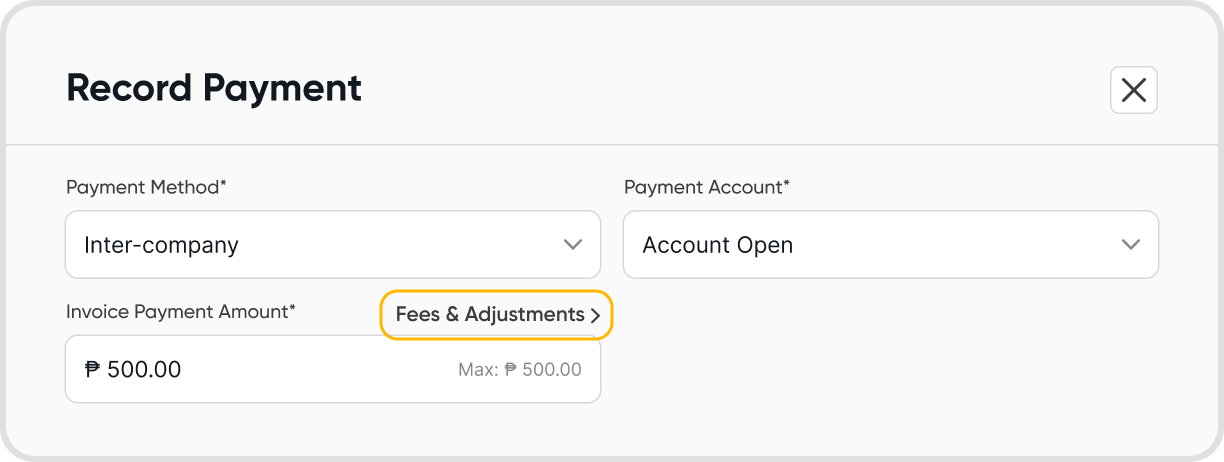
Open the payment form: open the invoice and click Record Payment.
Open Fees & Adjustments: click Fees & Adjustments beside Invoice Payment Amount.
Open the Adjustments tab: the modal opens with Fees Charged, Fees Collected, and Adjustments tabs.
Enter the adjustment: fill in the fields, then click Save to return to Record Payment.
Post the payment: click Save on the Record Payment form.
Adjustment Amount: required. The amount received on top of the Invoice Payment Amount.
Adjustment Account: required. The account the adjustment posts to, selected from your Chart of Accounts.
Adjustment Description: optional. A short reference such as "Overpayment received."
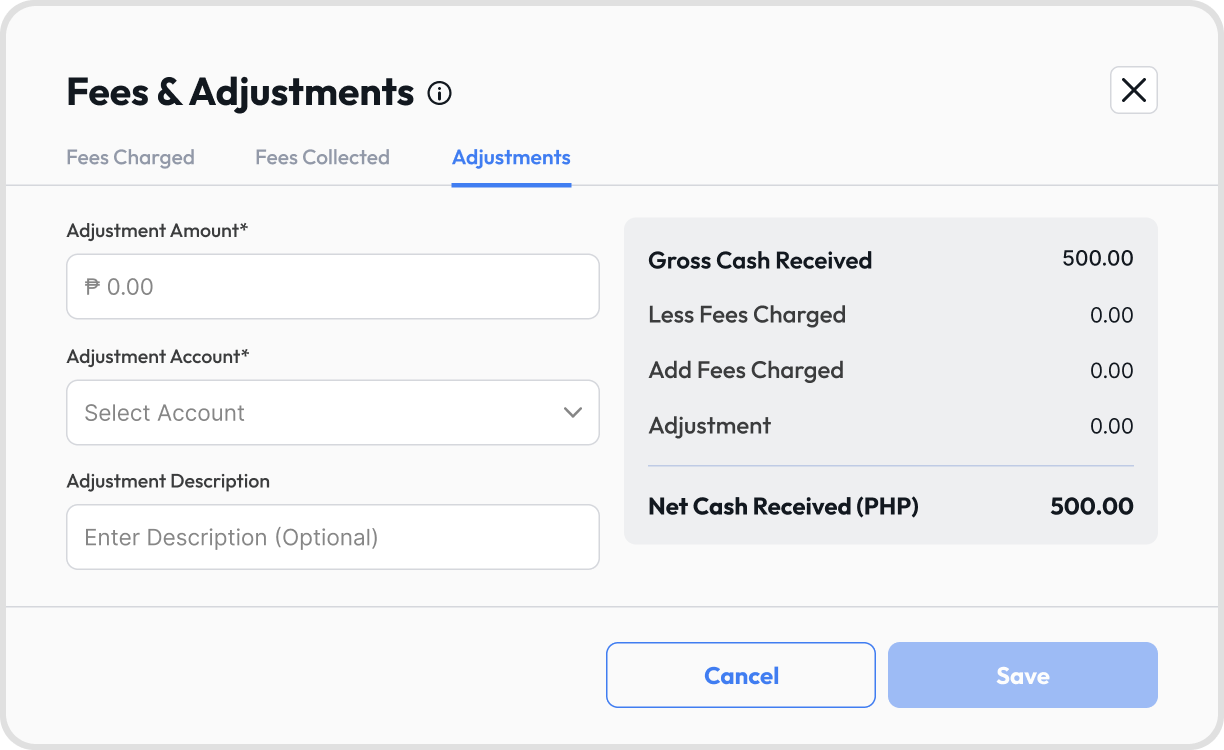
The summary panel in Fees & Adjustments shows how the cash total is built:
Gross Cash Received
Less Fees Charged
Add Fees Collected
Adjustment
Net Cash Received
Net Cash Received is the amount posted to your payment account. It should match the amount on your bank statement.
Before You Start
Before recording the overpayment, make sure the following is ready:
A clearing account exists in your Chart of Accounts to hold the excess cash, for example "AR On-Account Clearing," with the account type set to Current Asset.
Example: your customer paid ₱1,050 in one transfer against a ₱1,000 invoice.
Record the payment: open the invoice, click Record Payment, and enter ₱1,000 as the Invoice Payment Amount. This is the amount that settles the invoice, not the amount that hit the bank.
Select the payment details: choose a payment method that moves money and select the payment account that received the funds.
Add the adjustment: click Fees & Adjustments, open the Adjustments tab, and enter ₱50 as the Adjustment Amount, your clearing account as the Adjustment Account, and "Overpayment received" as the Adjustment Description.
Check the cash total: Net Cash Received shows ₱1,050. Click Save, then save the payment.
Create the customer credit note: open Customer Credits and create a new credit note for the same customer, using the same date as the payment.
Add one line: select your clearing account, enter ₱50, and leave the tax field empty so the line carries no tax profile.
Save and leave the credit open: do not apply the credit note to anything yet.
One bank line of ₱1,050, matching the transfer on your bank statement.
The invoice fully settled.
An open credit of ₱50 on the customer in aged receivables.
Your clearing account at zero.
Note: A clearing account balance that is not zero means a credit note is missing or was raised for the wrong amount.
The payment with the adjustment posts:
A debit to your payment account for the full cash received.
A credit to Accounts Receivable for the Invoice Payment Amount, which settles the invoice.
A credit to your clearing account for the adjustment.
The customer credit note posts:
A debit to your clearing account, which returns it to zero.
A credit to Accounts Receivable, which creates the open credit on the customer.
The adjustment records the cash and parks the excess in your clearing account. It does not create a position on the customer.
The credit note is what moves the customer position: it appears in aged receivables and on the customer statement, it can be applied to a future invoice, and it can be refunded.
A journal moves account balances but does none of these, so use a credit note instead.
Open the invoice: open the invoice you want to settle.
Choose the apply credit option: select the credit note raised for the overpayment.
Enter the amount to apply: a partial amount is allowed.
Save: the invoice balance drops by the applied amount.
Note: To reverse an applied credit, edit the applied credit on the invoice and set the amount to apply to 0.
Open the credit note: open the customer credit note holding the overpayment.
Record the refund: select the payment account the money left from and the refund date.
Save: the refund appears in Cashflows as a customer refund.
Yes. No action is needed. The open credit stays on the customer in aged receivables until you apply or refund it.
You can add an adjustment to an existing payment.
You can change an adjustment that is already recorded.
You cannot remove an adjustment. To remove it, delete the payment record and record the payment again.
Payment methods that move money, such as bank transfer and cash, accept an adjustment.
Payment methods that settle without money movement, such as Clearing Settlement, Debt Write Off, Inter-company, and Withholding Tax Certificate, do not accept an adjustment.
No. The credit note line carries no tax profile, so the overpayment carries no VAT and appears in no box of your VAT return.
Open the invoice and check its payment list. The adjustment shows with the payment details there.
No. An excess of 0.01 records the same way as any larger amount.
Do not use a payment adjustment. Record the receipt as a cash-in Direct Entry against your clearing account, then raise the customer credit note for the same amount.