Anomalies is an analysis report that scans your transactions and flags entries that fall outside your organization's normal pattern.
Each flagged entry shows:
What was detected: the metric type and the analysis it belongs to.
How serious it is: the severity assigned to the entry.
Why it was flagged: the trigger reason, including the values behind the flag.
Example: an invoice is flagged under Weekend Activity when a contact records 47.8% of transactions on weekends against an organization average of 14.8%.
Go to Reports → Analysis Reports → Anomalies.
Anomalies runs on four transaction types, each in its own tab:
Invoices
Bills
Journals
Cashflows
Each tab runs its own report with its own set of filters. Only one tab is displayed at a time.
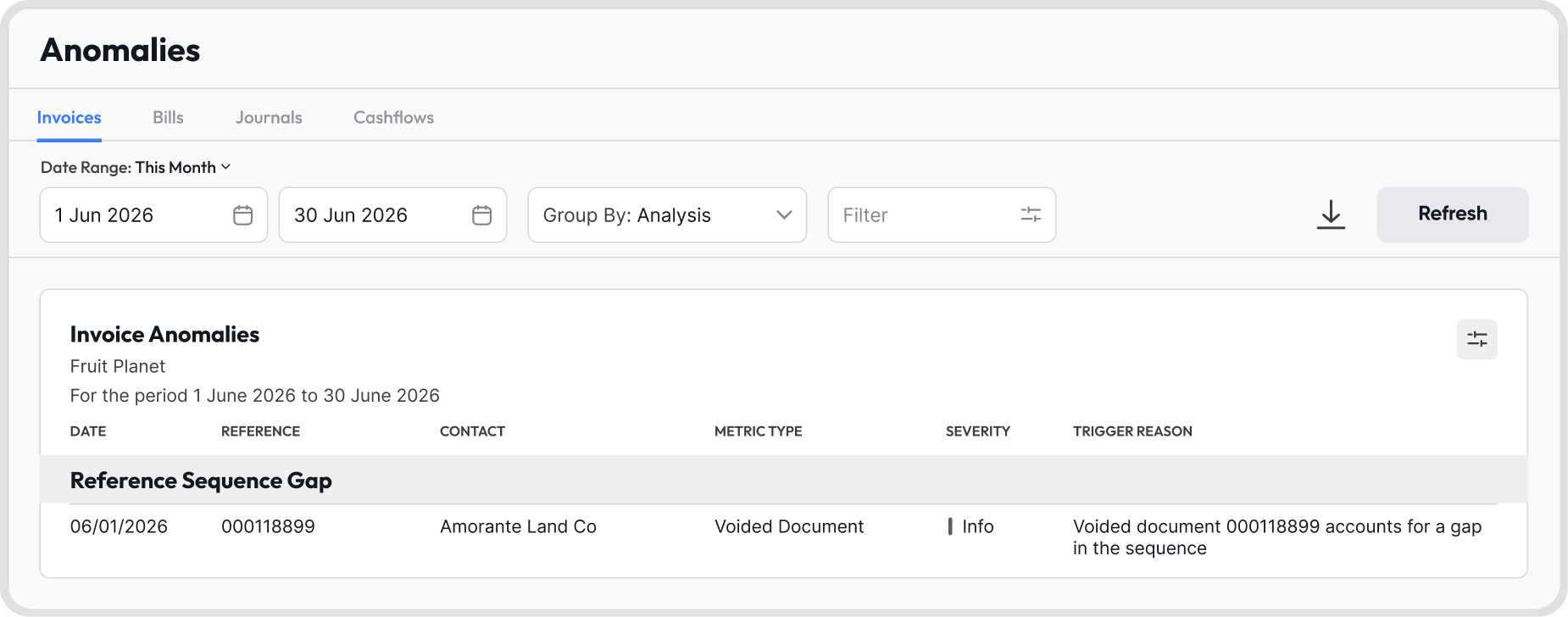
Select a tab: choose Invoices, Bills, Journals, or Cashflows.
Set the date range: choose a preset range or enter your own start and end dates.
Choose a grouping: use Group By to control how flagged entries are grouped in the report.
Apply filters: use Filter to narrow the entries included. This step is optional.
Click Refresh: the report is generated for the selected period and filters.
The report header shows the organization name and the period covered.
Select a preset range from the Date Range list:
This Month
This Financial Quarter
This Financial Year
Last Month
Last Financial Quarter
Last Financial Year
You can also set your own period by entering a start date and end date in the two date fields.
Note: Click Refresh after changing the date range to regenerate the report.
Use Group By: Analysis to group flagged entries under the analysis that triggered them, such as Weekend Activity, Reference Sequence Gaps, and Journal Integrity.
Each group is shown as a header row, with the flagged transactions listed underneath.
Click Filter.
Expand a filter and set the values you need.
Click Apply to run the report with the filters applied.
Click Cancel to close the panel without applying anything.
No. Each tab supports its own filters:
Invoices: Amount, Contact, Currency, Transaction Type, Transaction Reference.
Bills: Amount, Transaction Reference.
Journals: Amount, Contact, Transaction Reference.
Cashflows: Amount, Contact, Currency, Transaction Type, Transaction Reference.
Click the column icon on the report card to open Adjust Columns, then move columns between Hidden Columns and Selected Columns and click Save.
Columns shown by default:
Date
Reference
Contact
Metric Type
Severity
Trigger Reason
Columns you can add:
Transaction Type
Currency
Amount
Analysis Type
Baseline
Deviation
Threshold
Note: Date and Reference are locked and always appear in the report.
Date: the transaction date of the flagged entry.
Reference: the transaction reference number.
Contact: the customer or supplier on the transaction.
Transaction Type: the type of transaction that was flagged.
Currency: the currency of the transaction.
Amount: the transaction amount.
Analysis Type: the analysis that flagged the entry.
Metric Type: the specific measure that triggered the flag, such as Weekend Share Difference or Voided Document.
Baseline: the normal value the transaction was compared against.
Deviation: how far the transaction moved away from the baseline.
Threshold: the point at which an entry is flagged.
Severity: how significant the flag is, shown as High, Medium, or Info.
Trigger Reason: a plain-language explanation of why the entry was flagged.
Open Adjust Columns using the column icon on the report card.
Drag a column into the position you want using the handle beside it in Selected Columns.
Click Save.
Note: Date and Reference are locked and cannot be reordered.
Yes. Click the download icon above the report.
Excel is the only supported format.
The download follows the columns currently shown in the report and the order they appear in.
The report displays “No data to display” when no entries match the report settings. Check the following:
The date range covers a period with transactions.
The filters applied are not excluding the entries you expect.
The selected tab matches the transaction type you are reviewing.
Refresh was clicked after the last change.