Hover over or click an order → click the 3-dot icon → choose edit.
Quick fix is not yet supported for orders.
The bulk edit option only appears when the Purchase Order has 2 or more line items.
Select the checkboxes for the line items you want to edit, or select the header checkbox to select all items.
Click Bulk Edit to update any field on the selected line items.
Hover over or click an order → click the 3-dot icon → choose duplicate.
Orders cannot be deleted, only voided.
Open a Pending order and click View Actions → Accept
You can also bulk accept by selecting multiple requests and choosing Accept.
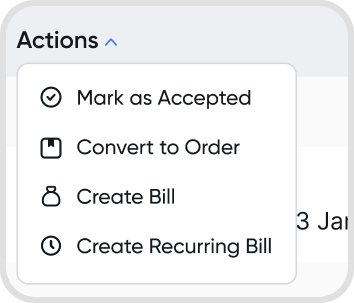
Hover over or click an order > click the 3-dot icon > select Void
You can also bulk void by selecting multiple requests via checkboxes.
There is an associated bill linked to the order that must be voided first.
Yes. You can create an bill for only part of the total order amount. This will update the order status to Partial.
Yes. You can link a purchase order to a bill that already exists, instead of creating a new bill from the order.
Open the purchase order, click View Actions, and select the bill from the dropdown.
Contact: only bills with the same contact as the purchase order appear in the dropdown.
Bill status: you can link any active bill, whether it is unpaid, partially paid, or fully paid.
You can link multiple bills to one purchase order, and the linked total can exceed the order total.
If the total of the linked bills is less than the order total, the order status changes to Partial.
Note: Linked bills appear under Related Bills. See Q14.
No. Once a purchase order and a bill are linked, the link cannot be removed.
To undo it, void the linked bill. You can then link the purchase order to a different bill.
Yes. You can still edit details in a fulfilled order. However, changes made to the order will not affect the linked Bills.
Open an order and in the summary modal, the related request will be listed.
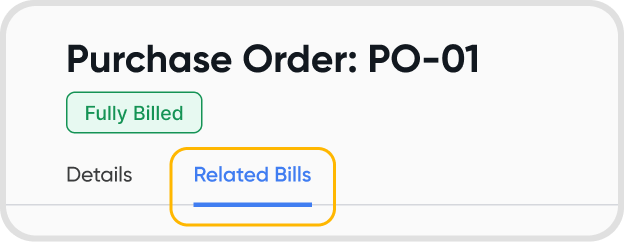
Open an order and click Related Bills to view all linked bills.
No. A repeating request will not automatically create an order, it needs to be converted individually.
Possible reasons for this change:
Related bill amounts were reduced below the order total.
The order amount was edited, increasing the order total above the linked bills.
Related bills were voided, reducing fulfillment and reverting the status to Partial or Confirmed.
Purchase Orders are confirmed commitments to suppliers, so they are created as final records.
Use a Purchase Request if you need a draft or pre-approval stage.
No. A Purchase Order can stand on its own.
No. Purchase Orders and Purchase Requests can be linked but remain independent documents. Changes made to one will not affect the other.