BIR Form 1702 is the Annual Income Tax Return for corporations, partnerships, and other non-individual taxpayers that are subject to the regular corporate income tax rate.
Go to the Mailbox module and choose Annual.
Click Start Submission.
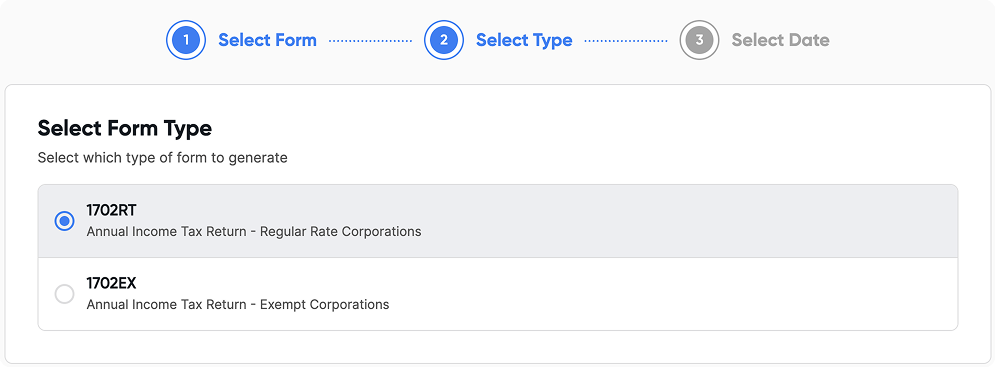
Select Form 1702, choose the correct taxable year, and click proceed to enter the return screen.
Use the Sections menu on the right side of the screen to navigate through different parts of the return. Clicking a section will display it in your main workspace.
Click the Eye icon at the top to preview the tax form in PDF format.
Click the Download button (if available) to download your SAWT attachment, which is generated from creditable withholding taxes on your sales.
Click Save once all required fields are filled out. Take note that this button will only become available when the required fields are completed.
Click Cancel if you need to stop at any time.
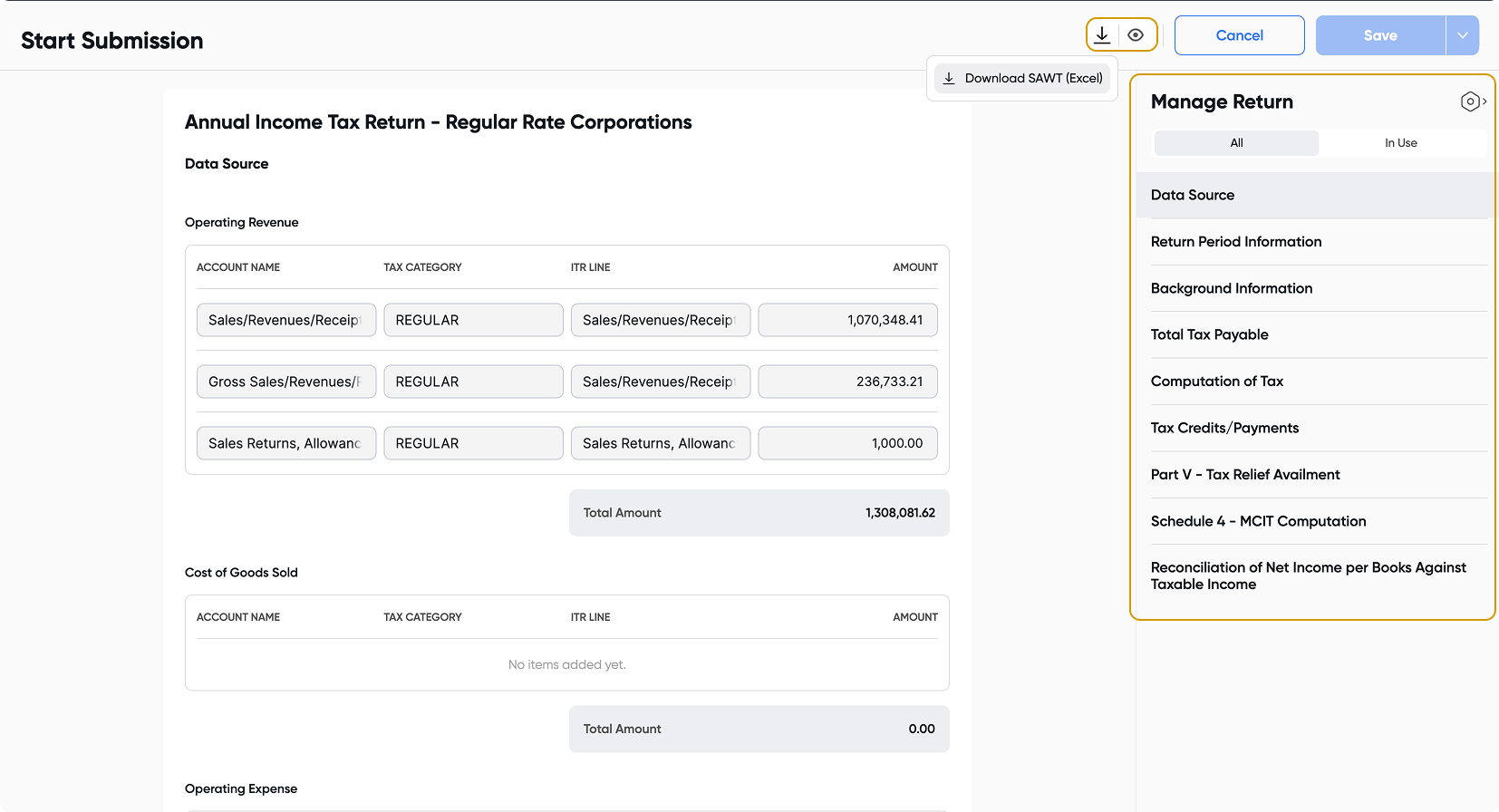
This section captures all transactions recorded within your selected taxable year.
It heavily relies on your mapped Chart of Accounts (specifically Operating Revenue, Cost of Goods Sold, and Operating Expenses).
If Creditable Withholding Tax was applied to your sales transactions, the SAWT attachment will also be created automatically here.
Under Return Period Information, confirm that the taxable year and Alphanumeric Tax Code (ATC) are correct. Make sure to select the correct parameter for your organization (either the 25% Corporate Income Tax rate or the 20% rate for qualified smaller corporations).
Under Background Information, verify the details auto-populated from your organization settings. If anything is incorrect, you must go back to Organization Settings to update the information there.
Confirm your method of deduction: choose either Itemized Deductions or the Optional Standard Deduction (OSD) of 40%.
The Computation of Tax section summarizes your total income and deductions. You should review the detailed breakdown in the following schedules:
Schedule 1 (Ordinary Allowable Itemized Deductions): This details all operating expenses recorded in your transactions. Expenses that do not fall under standard BIR categories will be grouped under Other Expenses, where you can manually provide a description.
Schedule 3 (NOLCO): If a net operating loss was incurred during the year, the system auto-populates this section. To add NOLCO balances from previous years, simply use the Add Row option.
Go to the Tax Credits or Payments section.
Creditable withholding taxes applied to your sales will automatically appear here (which also generates your SAWT attachment).
Ensure you manually add any remaining data, such as Prior Year’s Excess Credits.
If your quarterly income tax returns (Form 1702Q) were filed within Juan Accounting, those payments will be automated. If they were filed outside the system, you must enter them manually.
Scroll down to the Reconciliation of Net Income per Books Against Taxable Income section.
This area explains how accounting income from your books is adjusted to arrive at your taxable income.
Make sure that the Net Taxable Income shown here matches the taxable income reflected in the Computation of Tax section.
Go to the Total Tax Payable section. All values from previous sections will automatically flow here.
Check the Aggregate Amount Payable to determine your final tax due.
Once everything is correct, click the Save button at the top.
To file, navigate to the Actions Needed tab, open the saved return, and proceed to file with the BIR.
Both the tax return and any generated attachments (including SAWT) will be securely submitted electronically through Juan Accounting.