Go to Settings > Templates > Reports > Accounting Tab, then click New Template (VAT Ledger).
Alternatively, in Reports > VAT Ledger, click the template selector (top right) and choose New Template.
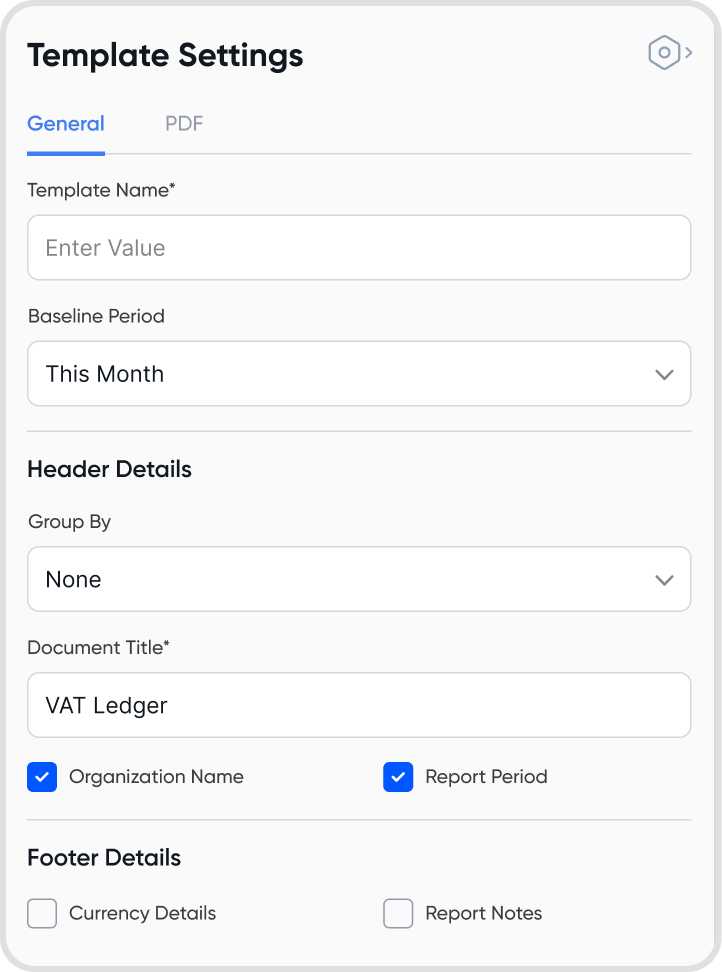
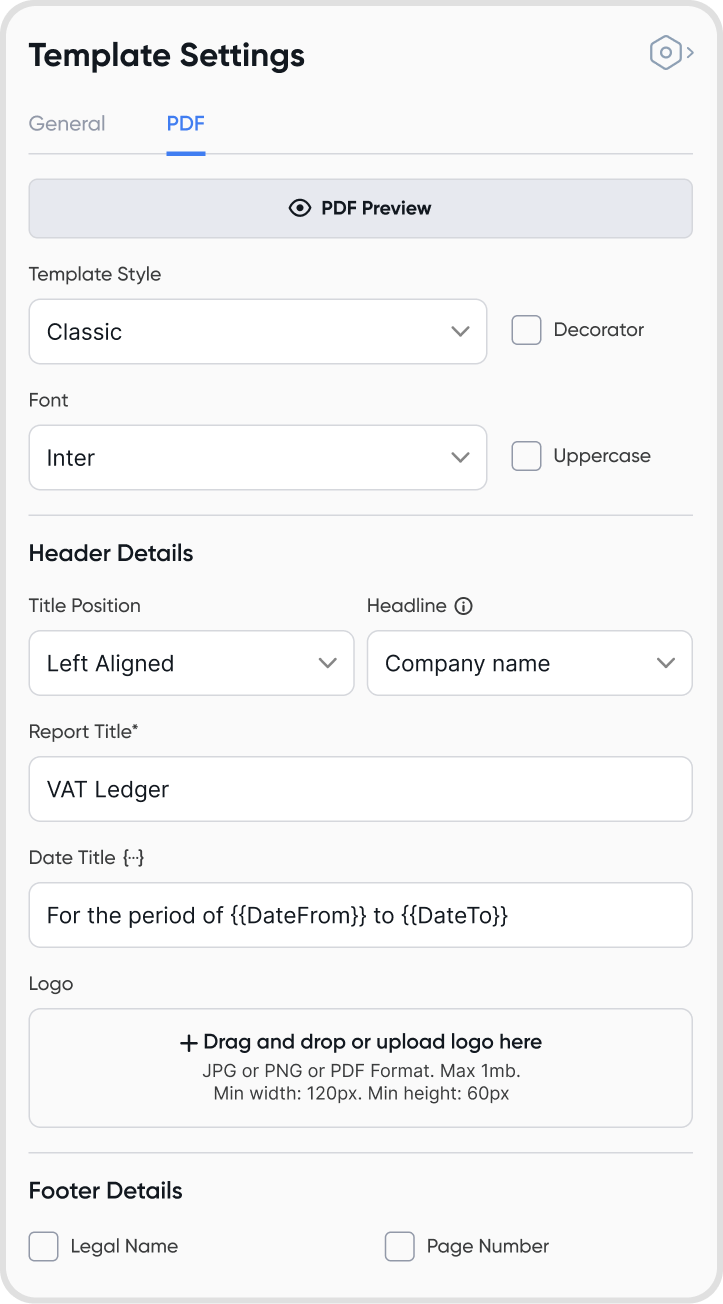
The Ledger template has two tabs: General and PDF.
General: Edit template name, baseline period, header, and footer.
PDF: Customize layout, header, and footer for PDF version of the report.
Note: PDF preview and export are only supported for up to 8 columns.
The VAT Ledger template supports the following columns:
Adjustable:
Date (locked)
Transaction (locked)
Description (locked)
Account Code
Account Name
Account Type
Contact
Contact Tax ID
Currency
FX Rate: Source to Tax
Gross (PHP)
Gross (Source)
Net (PHP)
Net (Source)
Tracking Tags
Transaction Reference
VAT Adj. (PHP)
VAT Adj. (Source)
VAT Profile
VAT Rate (%)
VAT (PHP)
VAT (Source)
VAT Type
Note: Date, Transaction, and Description are locked. This means you cannot hide or re-arrange them. (PHP) pertains to the org’s default currency.
To show or hide columns:
Click the column icon at the top right of the template.
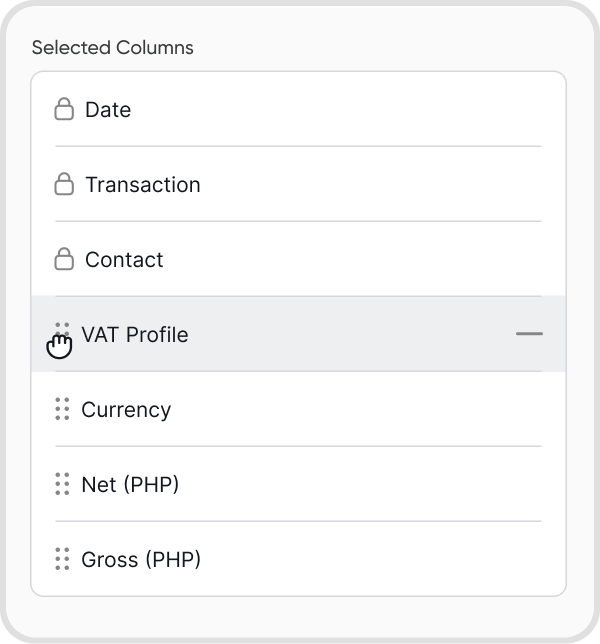
In the panel, you’ll see two lists: Hidden Columns and Selected Columns.
To show a column, move it from Hidden Columns to Selected Columns.
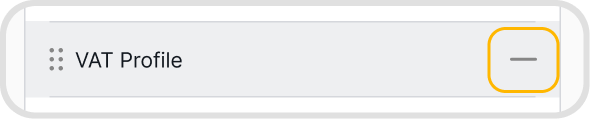
To hide a column, hover over it in the Selected Columns list and click the hide icon.
To arrange columns:
Click the column icon at the top right of the template.
In the Selected Columns list, hover over a row and drag it to your preferred position.
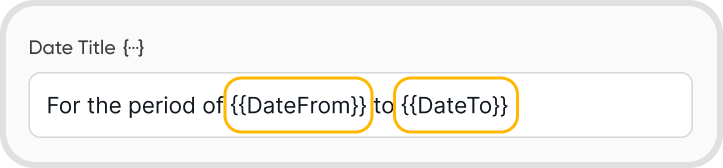
You can use the dynamic string for dates to configure your date title according to your preferred format.
Go to Settings > Templates > Reports, hover over the template, click the three-dot icon, and select Duplicate.
Changes apply automatically. For previously downloaded reports, redownload them to apply updates.