Before filing your taxes, make sure the following are completed
Setup 1: Complete your organization details
Go to Settings > Organization Details
Setup Fields | Location |
Organization Name | Settings > Org Details |
Legal Entity Name | Settings > Org Details |
Organization Email | Settings > Org Details |
Phone Number | Settings > Org Details |
*VAT ID (TIN) using the format: 111-222-333-444 | Settings > Org Details |
Organization Type | Settings > Org Details |
All fields in BIR Details (Taxpayer classification, RDO, Date of Birth, Citizenship) | Settings > Org Details > Compliance |
VAT Registration = Not Registered | Settings > Org Details > Compliance |
Billing Address (Address lines, country, city, state, and postal code) | Settings > Org Details > Addresses |
Primary Address - can be same as Billing Address (Address lines, country, city, state, and postal code) | Settings > Org Details > Addresses |
Setup 2: Have an active subscription
Note: Some tax forms can only be filed after the tax period ends. For example, Q1 taxes can only be filed starting in April. Most BIR forms follow this rule. Therefore, it would be best to subscribe after a coverage period.
Create your Billing Account. Go to Settings > Billing Accounts
Fill in the required details and leave the preferred billing date blank to avoid prorated subscription charges.
Recharge your account. Click on a Billing Account > Recharge Account
Recharge only the exact amount needed for the subscription, which is ₱2,000.
Setup 3: Input your sales for the quarter or year
For Non-Accountants
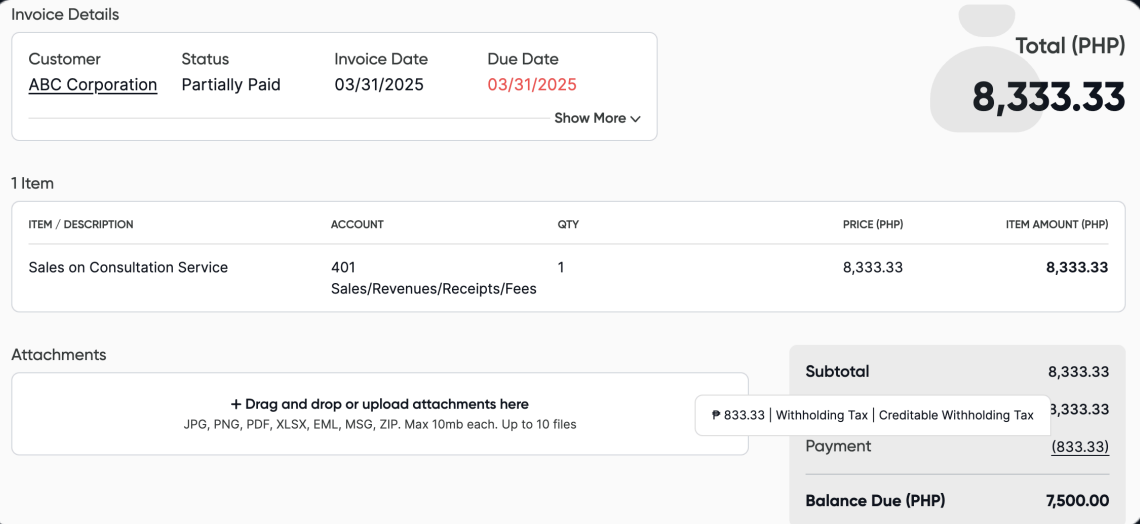
Add the total income in one transaction and Juan Accounting will
push the total amount on the Operating Revenue Account to ITR
Note: Only do this if your purpose is to only use Juan for tax filing purposes. We still recommend recording all your sales in Juan so you can apply Creditable Withholding Tax (CWT) properly.
For Accountants
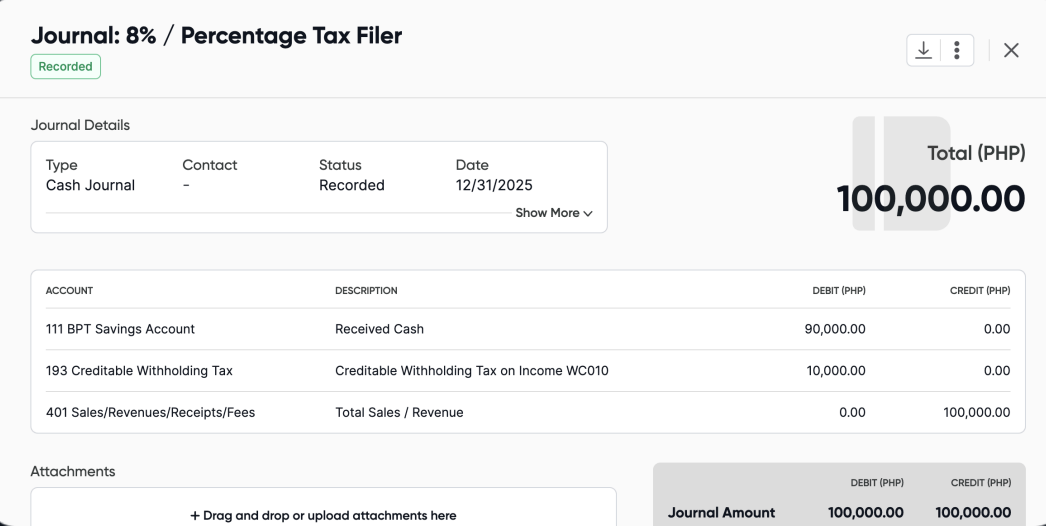
Add a Manual Journal entry of your Gross Sales in Juan as a Journal Entry including the Creditable Withholding Tax
Go to Mailbox > choose a period > start submission > pick a tax form you want to generate
For 8% filers, these are the usual Quarterly and Annual forms:
ITR: Individual
Percentage Tax Return
Go to Mailbox > Quarterly > ITR > 1701Q > Select Year and Month Period
Once you have generated the form, go to Background Information on Taxpayer/Filer and choose from the available 8% deductions:
II015=Business-8%: for individuals engaged in business (sole proprietors) who are non-VAT registered
II017=Profession-8%: applies to professionals/freelancers (e.g., lawyers, engineers, accountants) who are non-VAT registered
II016=Mixed-8%: applies to individuals earning both from compensation (as an employee) and from self-employment (business or profession)
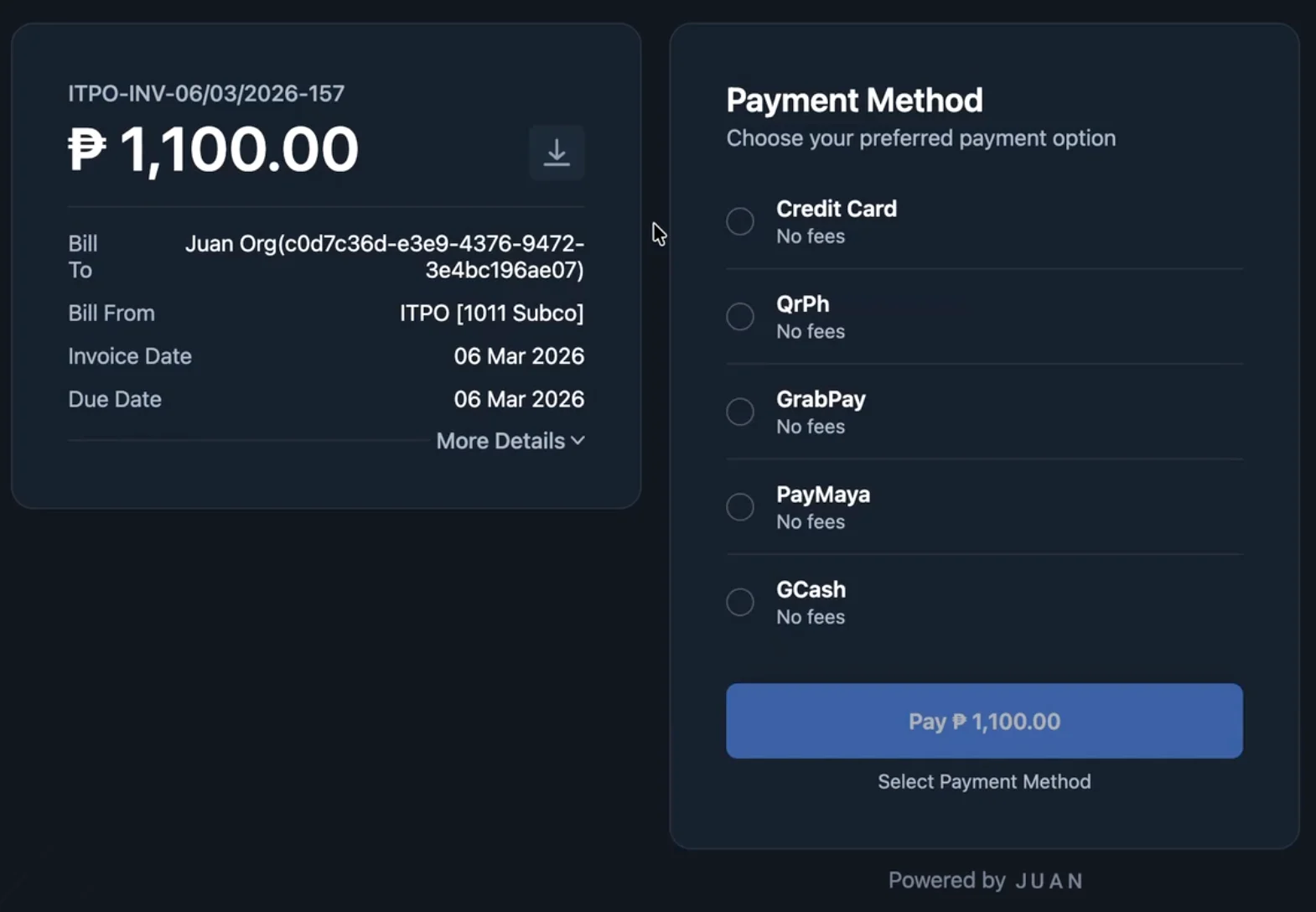
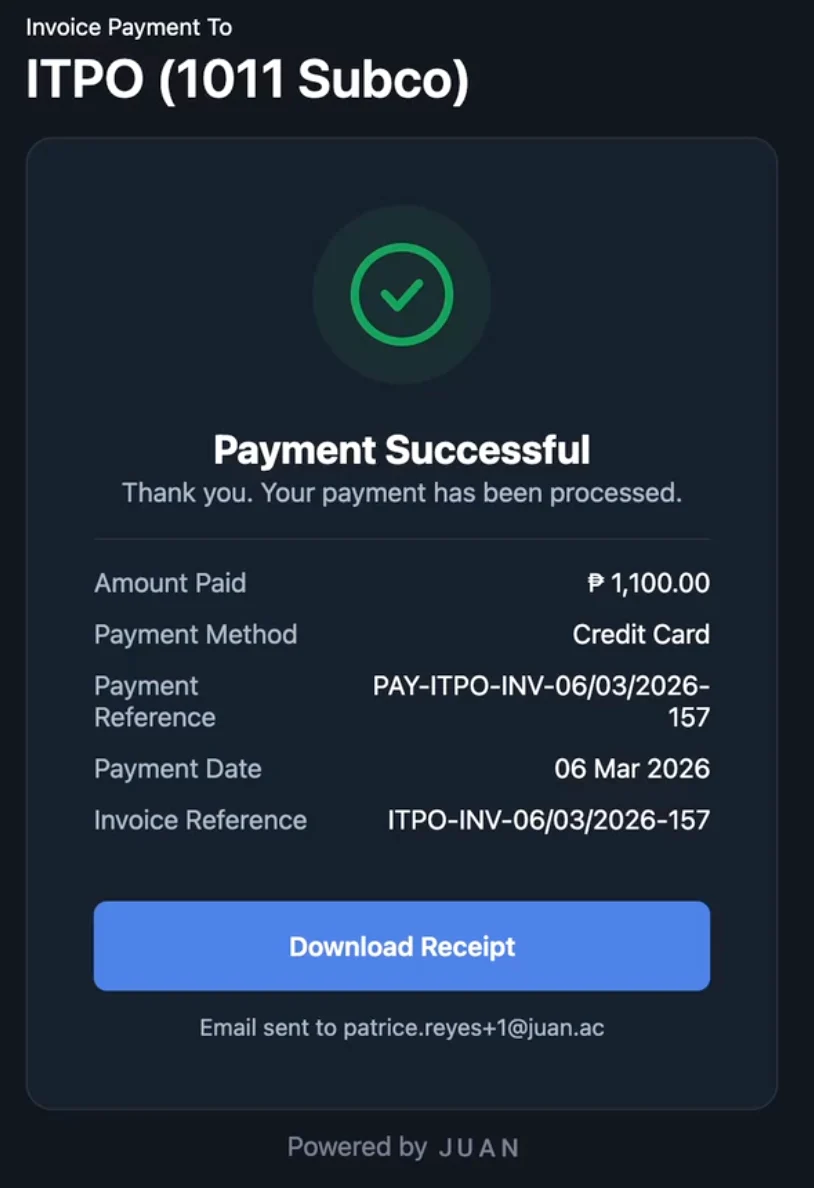
Once you complete the tax form, it will appear under the Action Needed tab. If there is a payable amount, a File & Pay Online option will appear. Clicking it will file the form with the BIR and direct you to the payment checkout.

A CWT is a form of credits you can apply as payment to your invoice. Choose the checkbox of the invoice you wish to record CWT > click Record Payment > this will open the Batch Payment function.
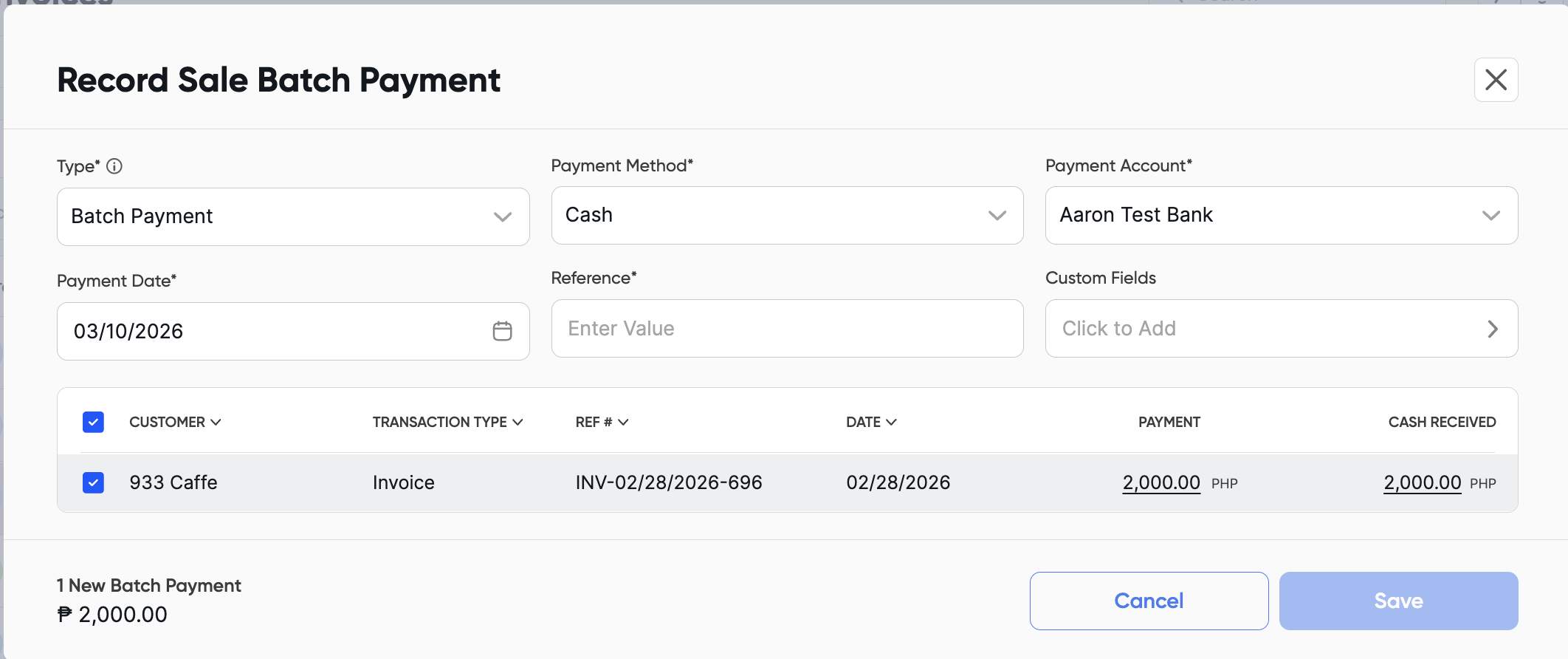
Click the Cash Received amount to edit it and enter the amount withheld by your client.
For example, if the invoice is ₱2,000 and the client withheld ₱200 (10%), change the cash received amount from ₱2,000 to ₱200.

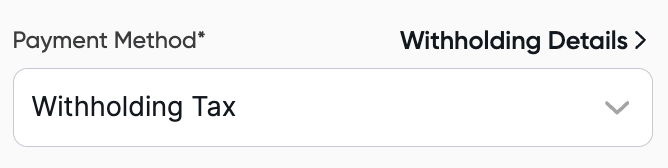
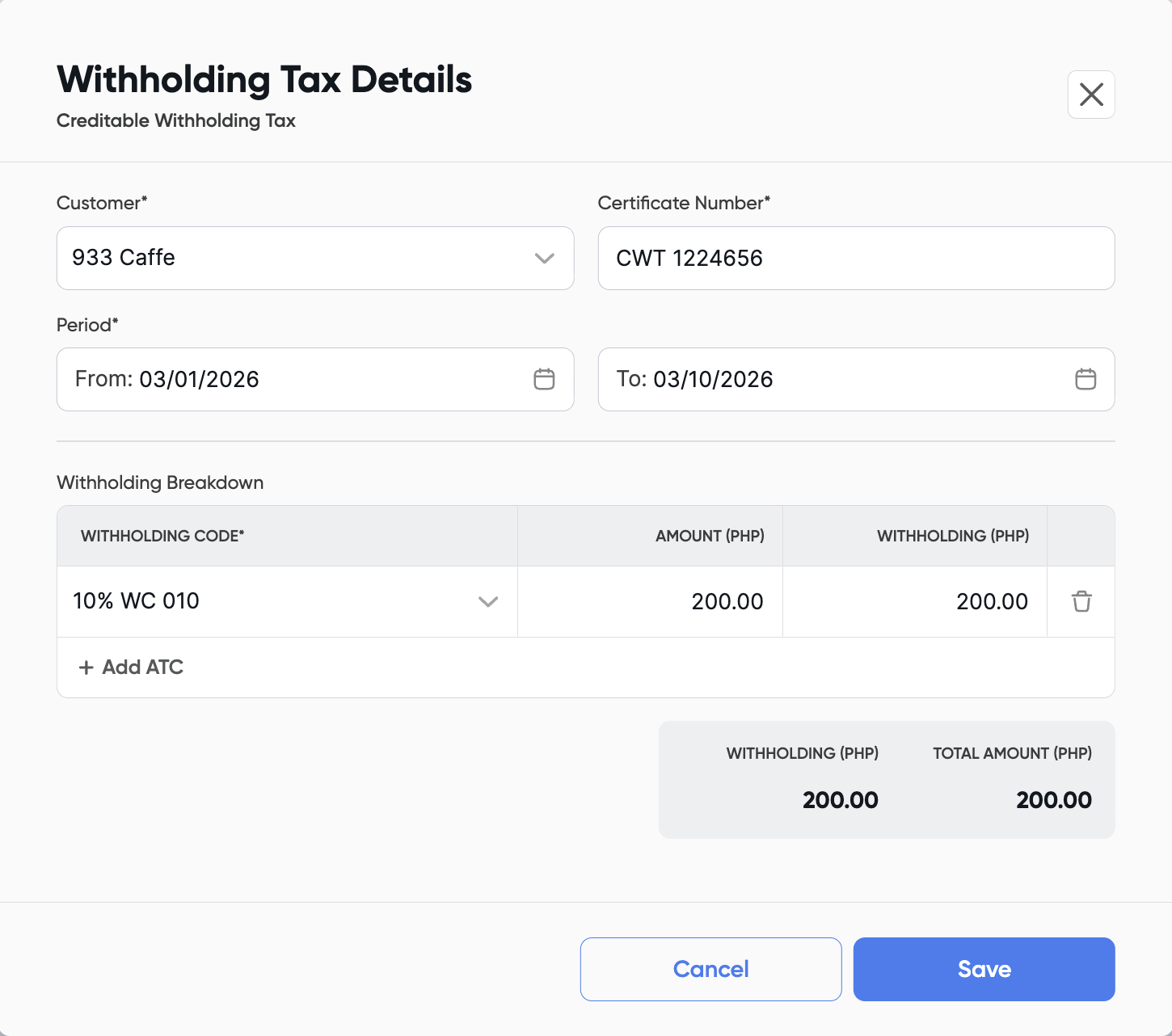
In Payment Method > Choose Withholding Tax > Click Withholding Details > Fill in all the details from the CWT > click Save
Once you have chosen a type of income tax deduction in Q1, this sets your deduction for the whole year. In order to change this, you need to amend the Q1 form.
Some fields are locked because their values are automatically pulled from Juan or calculated from other fields in the form.White fields can be edited manually, while greyed-out fields are auto-filled and cannot be modified.

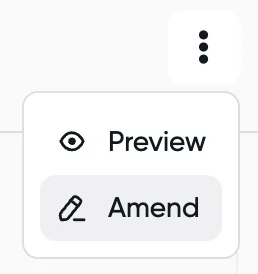
Open a tax form and click the three dot icon.
Please refer to your BIR 2303 - Certificate of Registration (COR). It should indicate the list of forms that you need file to the BIR.