A cash transfer moves funds from one bank account to another.
It automatically creates a cash out entry from one account and a cash in entry to the other in your Cashflows.
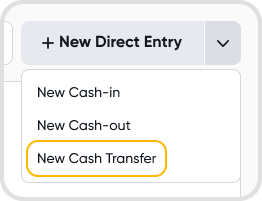
Go to Reconciliations > Cashflows > click the New Direct Entry dropdown and select Cash Transfer.
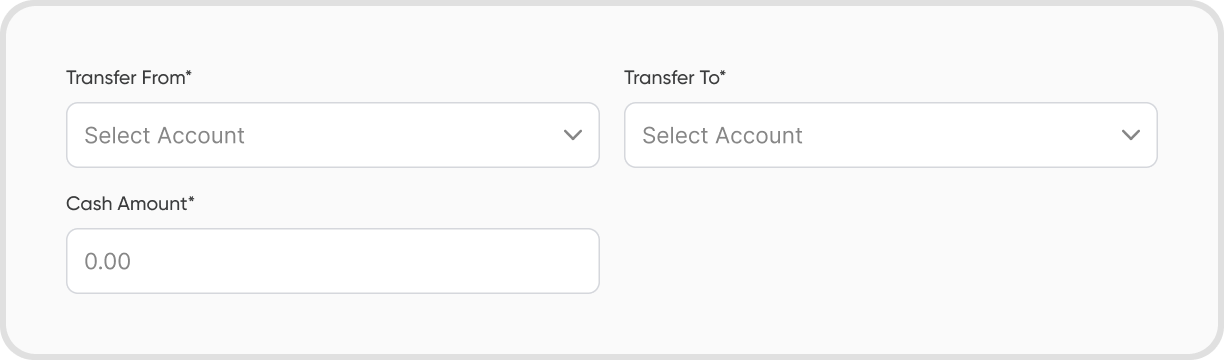
Choose the bank account to transfer from and the bank account to transfer to.
Enter the amount, transfer date, and reference.
Contact, Tracking Tags, Internal Notes, and Attachments are optional.

Go to Cashflows > Direct Entries > Cash Transfers.
Yes. Open a cash transfer record, click the three-dot icon, and select Duplicate.
Yes. Open the cash transfer record and update the necessary details before saving.
Editing a cash transfer will reset any existing reconciliation linked to it.
Yes. Open the cash transfer record, click the three-dot icon, and select Delete.
Deleting a cash transfer will reset any existing reconciliation linked to it.
It credits the sending bank account and debits the receiving bank account.
No income or expense accounts are affected.
Yes. During bank reconciliation, you can match the cash transfer entry with the corresponding bank record.
Open the cash transfer record.
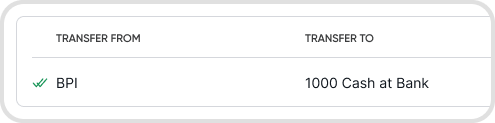
A reconciled icon will appear next to the bank account that has been reconciled.
Use Cash Transfer when moving funds between your own bank or cash accounts.
It records the transaction as a movement of money rather than an accounting adjustment.
This ensures it appears correctly in your Cashflow report and supports bank reconciliation.
Yes. You can upload supporting documents such as transfer receipts when creating or editing a cash transfer.
Yes. Set a future transfer date when creating the cash transfer.
Yes, if multi-currency is enabled.
Exchange rates will apply based on your currency settings.
Yes. When creating or editing a cash transfer, click the capsule icon in the reference field to assign it to a capsule.