Follow this step by step guide to convert to Juan.
Step 1: Import your Chart of Accounts (COA)
Go to Configurations > Chart of Accounts > Import Template > Download Template
Map it consistently with your old accounting software
You can also manually edit each COA
Step 2: Set up your accounting details in Juan
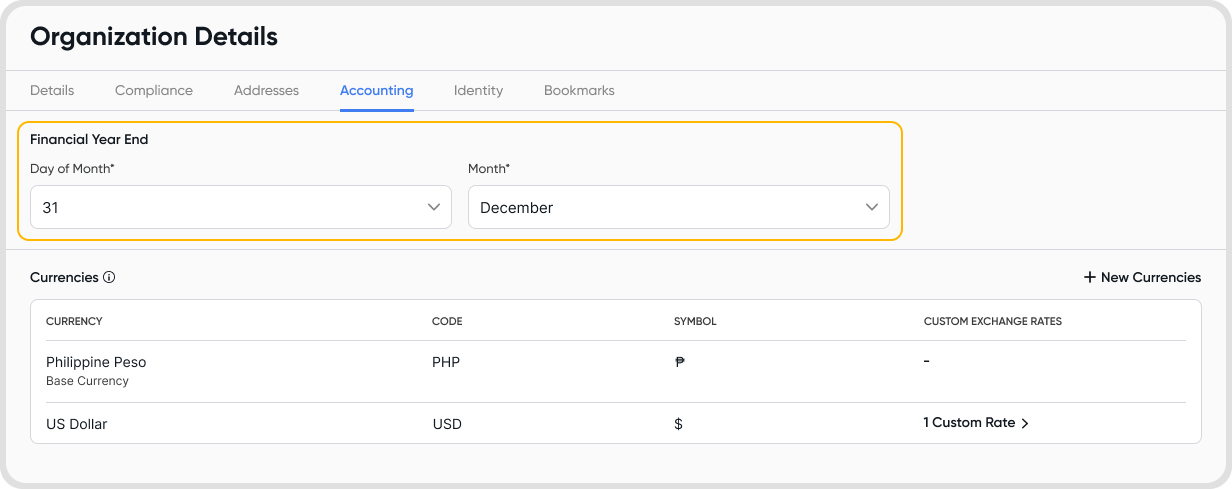
Go to Settings > Organization Details > Accounting
Set your Financial Year End (FYE).
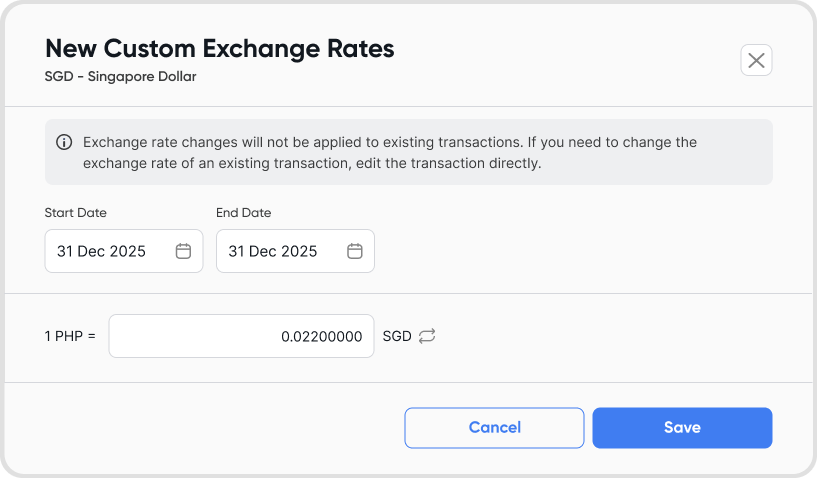
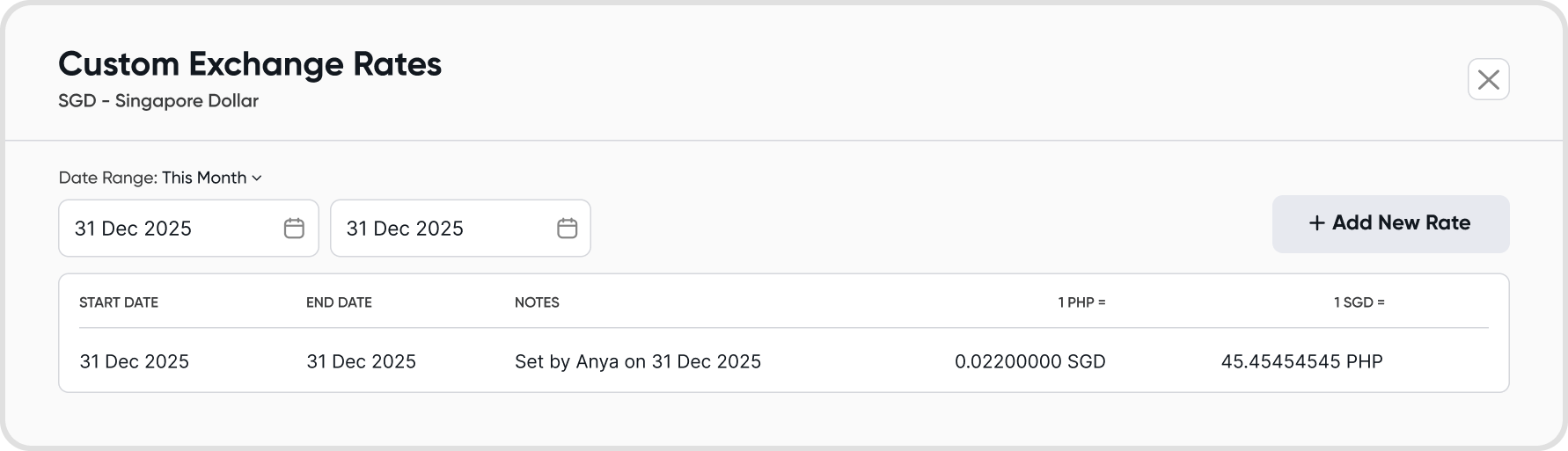
If you use multi-currencies, add all relevant currencies and use the exact exchange rates from your old system as at conversion date.
For this guide, we will use 31 Dec 2025 as the conversion date.
Note: The conversion date is the starting point of your accounting records in Juan. It must be today or a past date. Many businesses choose their FYE so reporting begins cleanly from a new financial year.
Step 3: Create Accounts Receivable (AR) and Accounts Payable (AP) Clearing Accounts
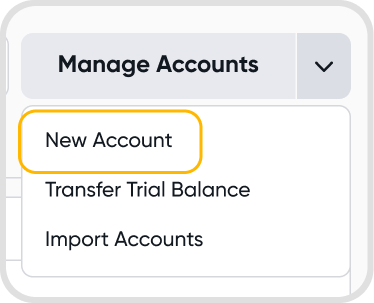
Go to Configurations > Chart of Accounts > Add New accounts
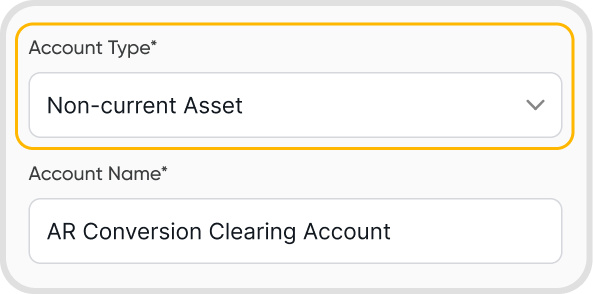
Add an AR conversion clearing account
Account name: AR Conversion Clearing Account
Account type: Non-current asset
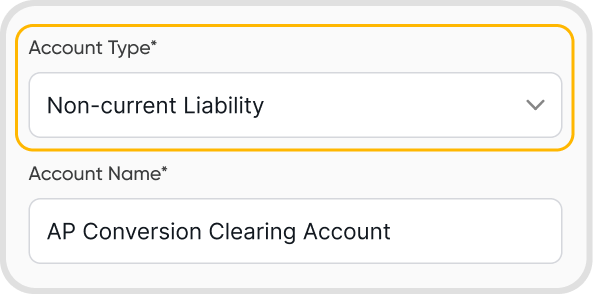
Add an AP conversion clearing account
Account name: AP Conversion Clearing Account
Account type: Non-current liability.
Notes:
You can choose any name for these clearing accounts.
AR/AP clearing accounts act as temporary holding accounts during conversion to prevent duplicate AR and AP balances.
Step 4: Generate & Review your Trial Balance (TB)
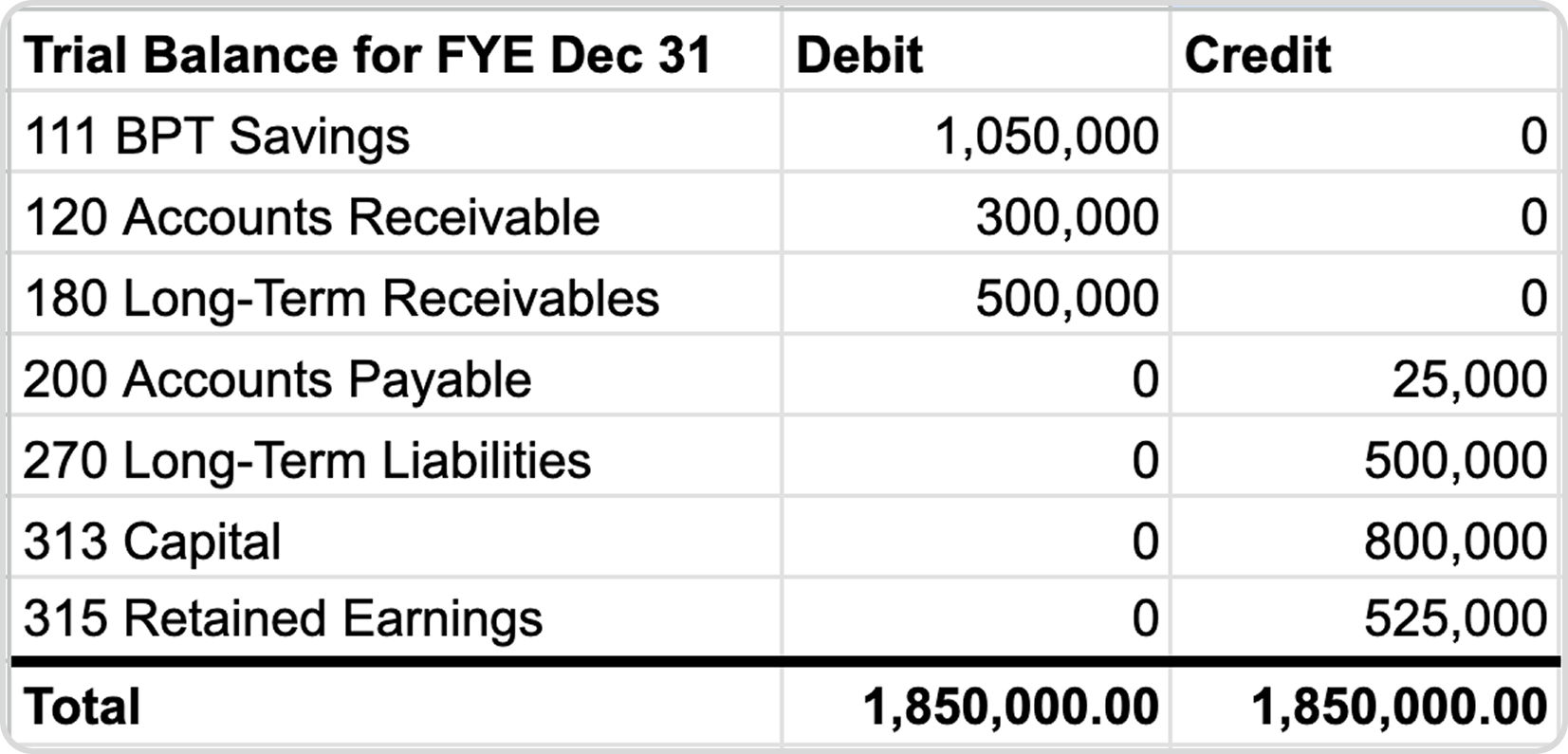
Generate TB from your old system as at conversion date.
Make sure the TB is balanced.
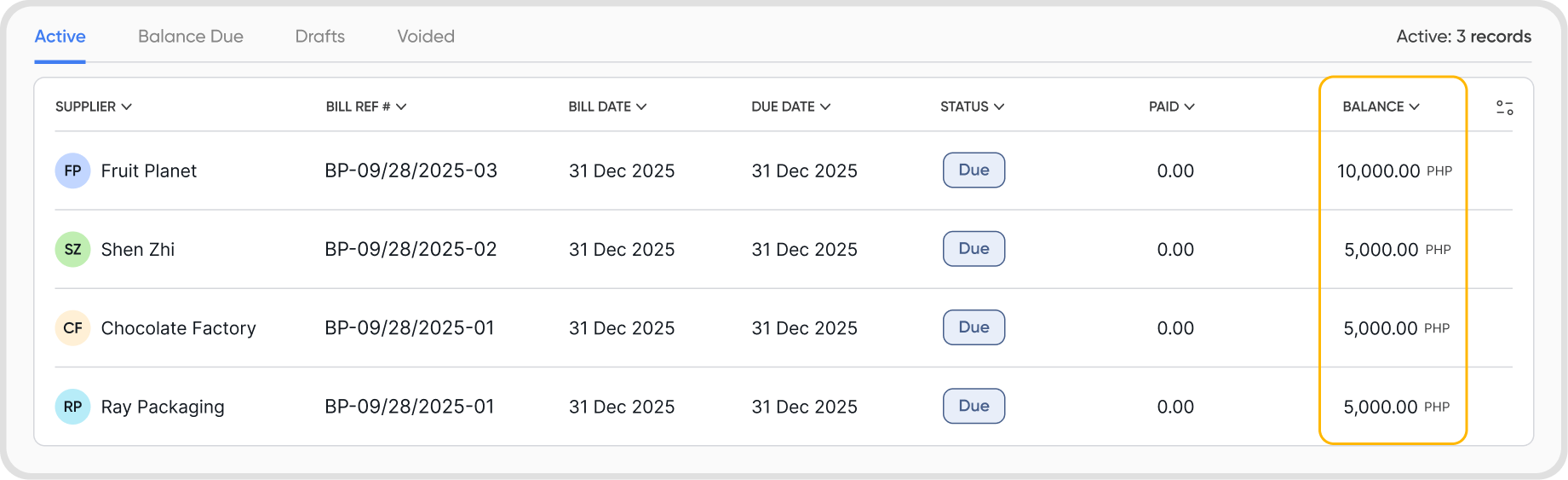
Step 5: Recreate Outstanding Invoices and Bills.
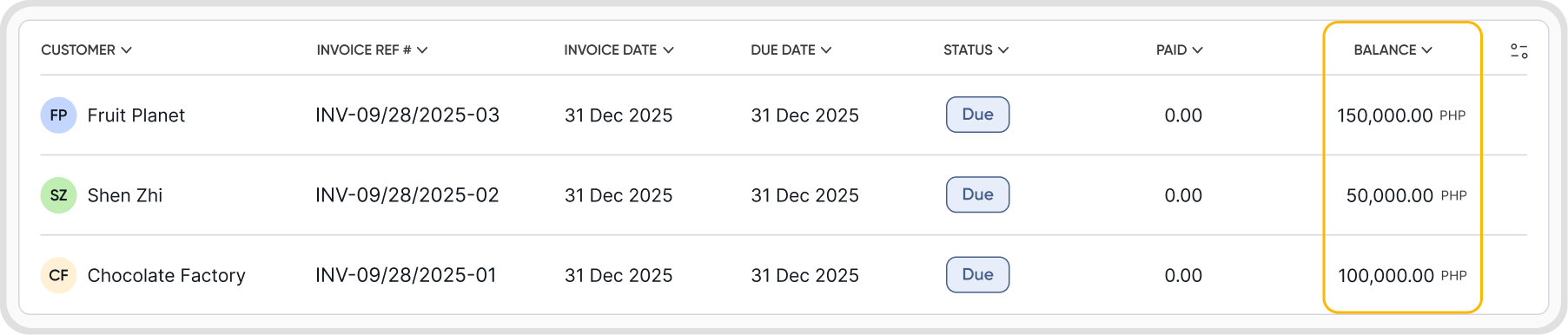
Your Invoices should total the amount of your TB’s AR balance
Set the invoice date as at conversion date or before.
Under Accounts, choose the AR clearing account you’ve set up in step 3.
Input a customer (optional)
Your Bills should total the amount of your TB’s AP balance
Set the bill date as at conversion date or before.
Under Accounts, choose the AP clearing account you’ve set up in step 3.
Input a supplier (optional)
Step 6: Transfer your Trial Balance (excluding AR and AP)
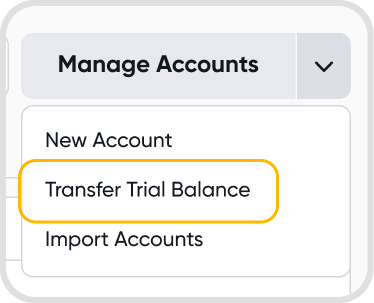
Go to Settings > Configurations > Chart of Accounts > Transfer Trial Balance
Make sure you’ve set the correct transfer date as of conversion date.
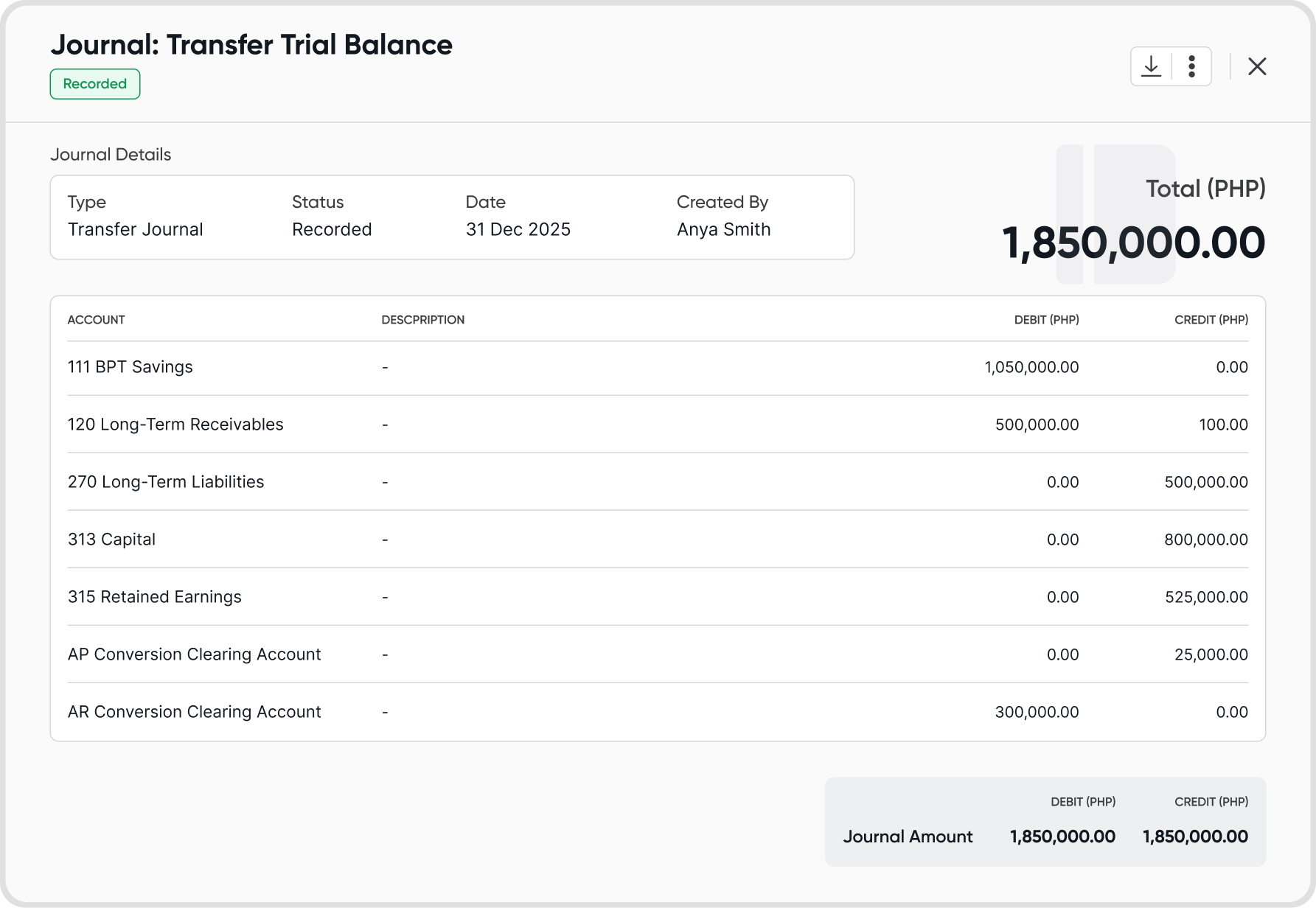
Transfer the Debits and Credits for each account except for AR and AP, for now.
Step 7: Balance the AR and AP clearing accounts
AR in your TB = input as debit in AR conversion clearing account
AP in your TB = input as credit in AP conversion clearing account
Notes:
After this step, both clearing accounts should have 0 balance.
Do not enter any amounts directly into the Accounts Receivable or Accounts Payable control accounts. Only use AR/AP clearing accounts.

Step 8: Double check everything before saving.
Total debits equals total credits
Trial Balance in Juan matches your old system as at conversion date, 31 Dec 2025.
AR and AP balance from TB were entered in the AR & AP clearing accounts and not in the AR/AP accounts.
Step 9: Save.
A Transfer Trial Balance journal will be generated.
Conversion can typically be done in a day.
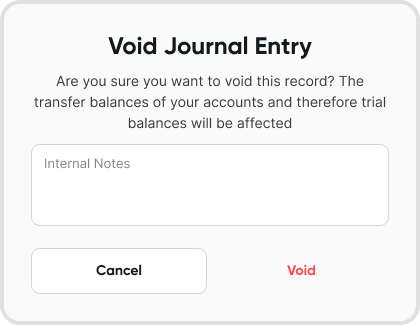
You can void and then delete the Transfer Trial Balance Journal to reset the conversion.
After transferring your Trial Balance as at FYE, you can recreate your invoices and bills in either of the following ways:
Option 1: Import or recreate all invoices and bills from FYE up to the current date
Option 2: Post a summary journal entry to reflect the net movement in AR and AP from FYE to the current date.
Because Juan does not contain historical data before the Conversion Date:
Certain tax reports (such as SLSP and QAP) may not be generated correctly. For example, if you convert on 28 Sept 2025:
Transactions from 1 January 2025 to 27 Sept 2025 will remain in your old system.
Juan will only contain opening balances as at 28 Sept 2025 and transactions recorded after that date.
If you require complete tax reporting within Juan for the full financial year, it is recommended to convert at FYE instead.