A Nano Classifier lets you tag line items across transactions with custom labels, so you can report more granularly, such as in your Profit & Loss Report.
Each classifier has a type (for example, Department) and a set of classes under it (for example, Engineering, Sales).
A classifier's classes can use a Custom Type format, where you manually enter each class, or a Dynamic Type format, which automatically populates the classes from active records in your organization.
Helps you break down transactions more granularly, based on what matters to your organization.
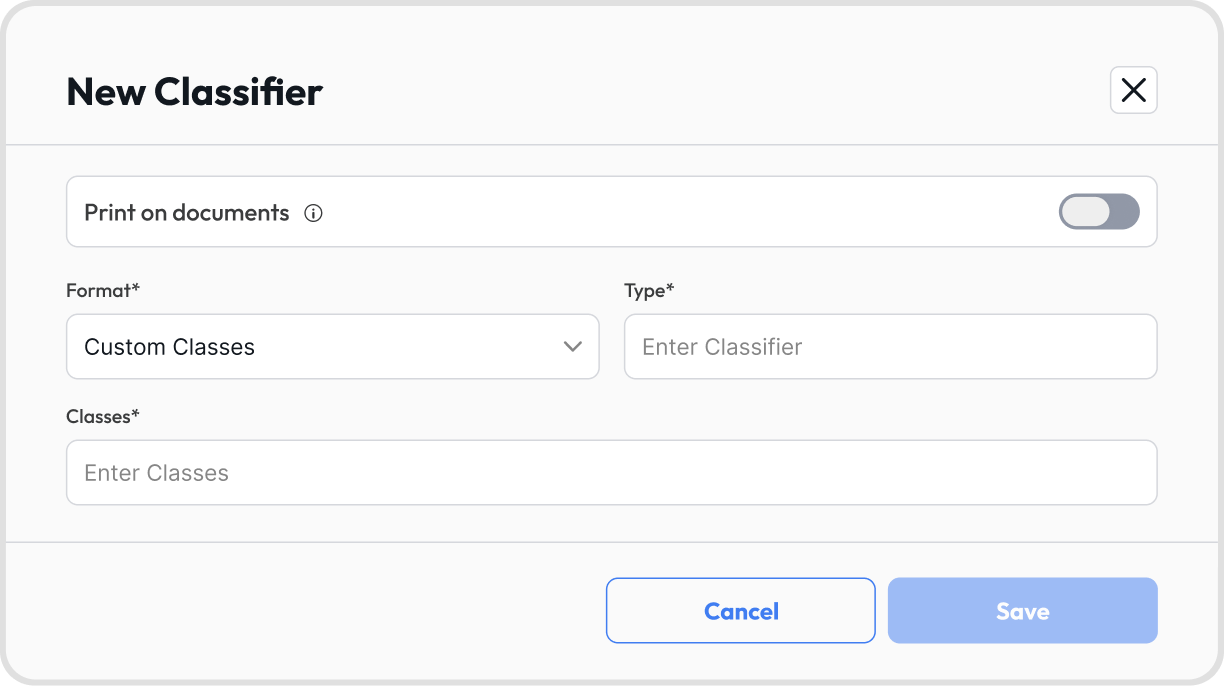
Open Nano Classifiers: Go to Settings → Configurations → Nano Classifiers.
Start a new classifier: Click + New Classifier.
Name the classifier: Enter a name for the classifier (for example, Department).
Choose a Format: Choose a Format for the classifier's classes.
Custom Type lets you manually add classes yourself (for example, Engineering), pressing Enter after each one.
Dynamic Type automatically populates the classes from active records in your organization (All Customers, All Suppliers, All Contacts, All Employees, All Users).
Nano Classifiers can be added to:
Invoices
Bills
Customer credit notes (CCNs)
Supplier credit notes (SCNs)
Manual journals (MJs)
Direct Cash-in
Direct Cash-out
Collection requests
Direct disbursements
Fixed Assets
Sales Orders
Purchase Orders
Bank Reconciliation Adjustment
Schedulers: Subscriptions, Invoice, Bills, Journals
Apply at line-item level: After creating Nano Classifiers, you can apply them at the line item level in transactions.
Open a transaction: Open a new or existing transaction (for example, an invoice or bill).
Assign the classifier: Click Select Classifier to choose from the created classifiers and assign them to line items for more granular reporting.
The selected classifier(s) then show up on the transaction details.
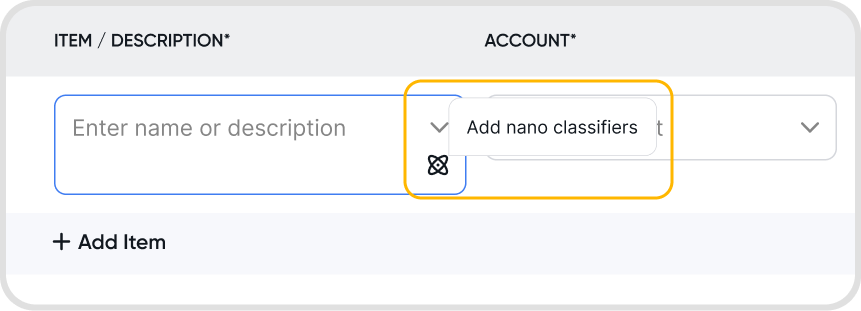
Yes. Assigning Nano Classifiers to items ensures they're automatically applied to line items in transactions, removing the need for manual assignment.
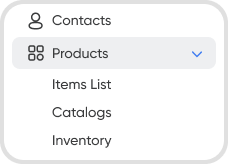

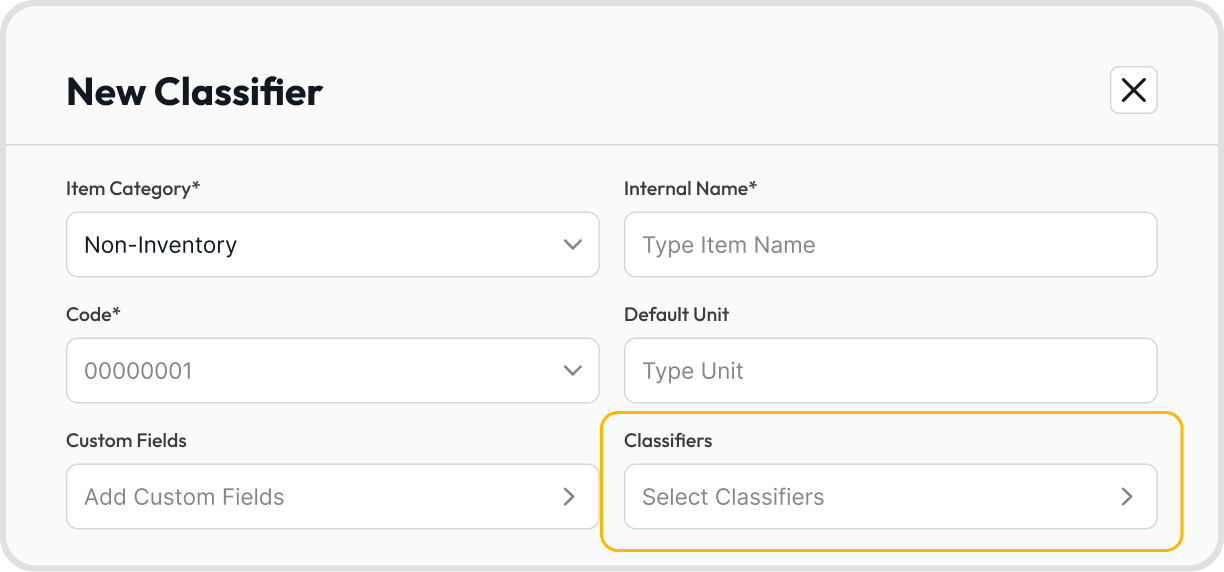
Under the Reports section, Nano Classifiers can be used as filters or as part of adjustable columns in certain reports.
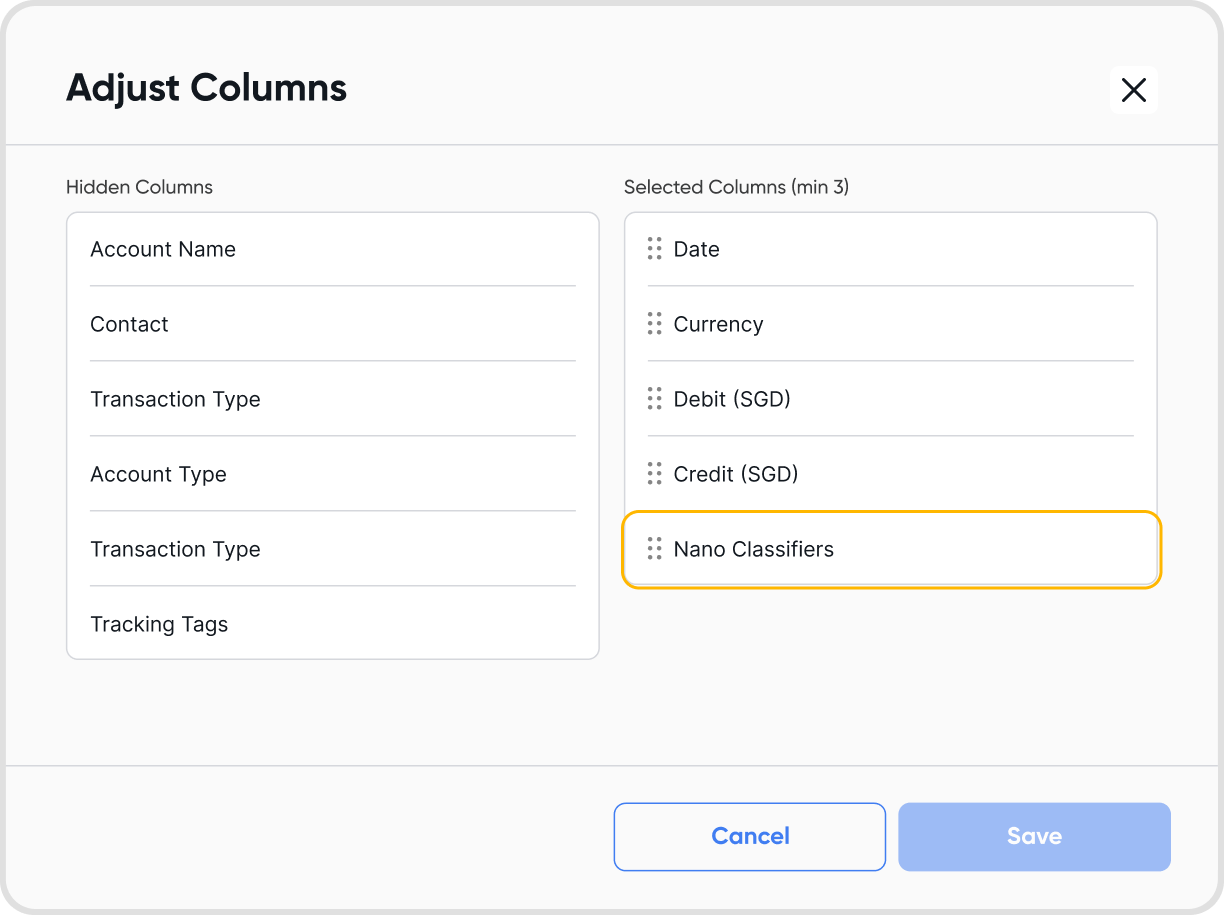
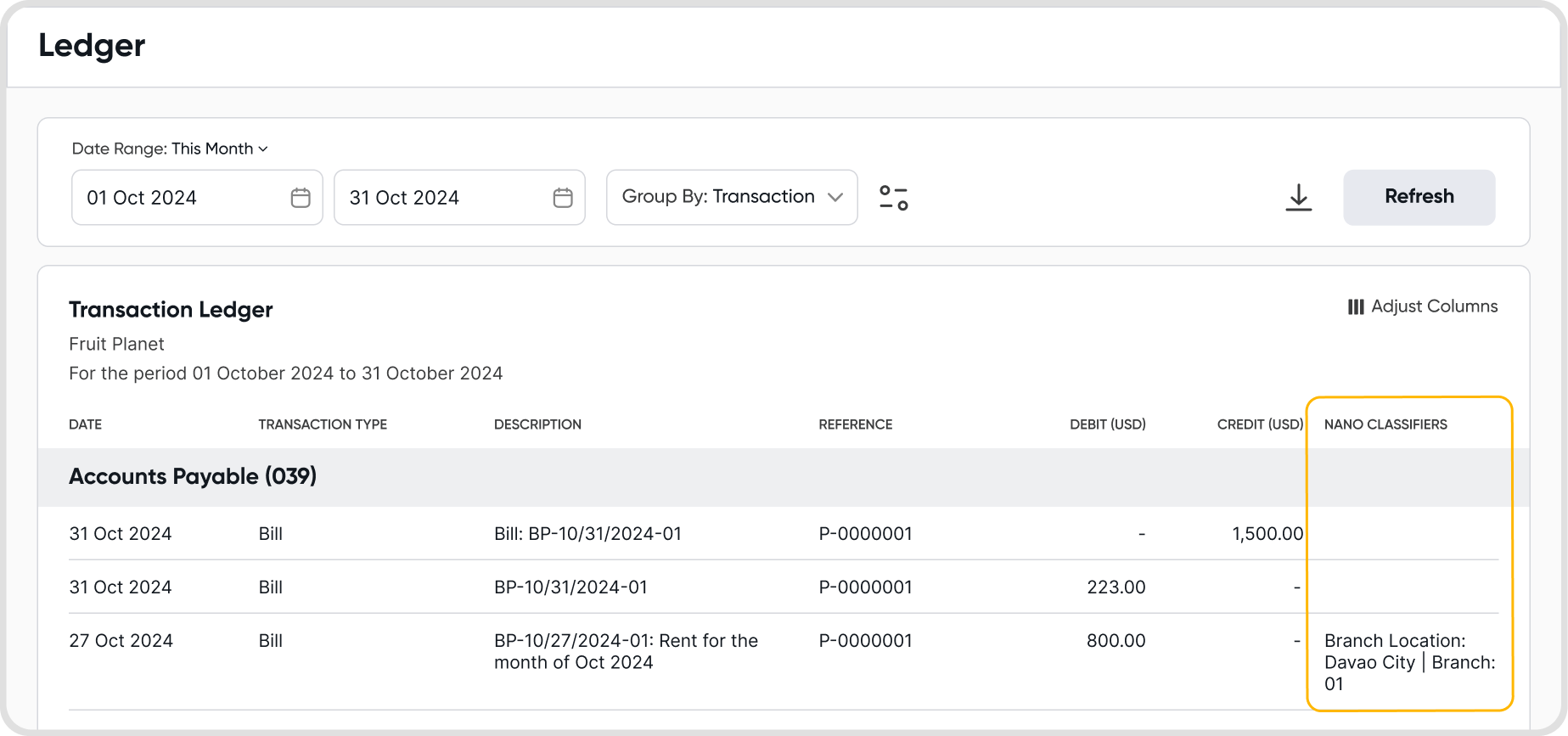
Currently, Nano Classifiers are supported in ledger reports.
Open Nano Classifiers: Go to Settings → Configurations → Nano Classifiers.
Edit the classifier: Click the classifier you want to modify, and choose Edit.
Update details: Modify the classifier name or classes as needed.
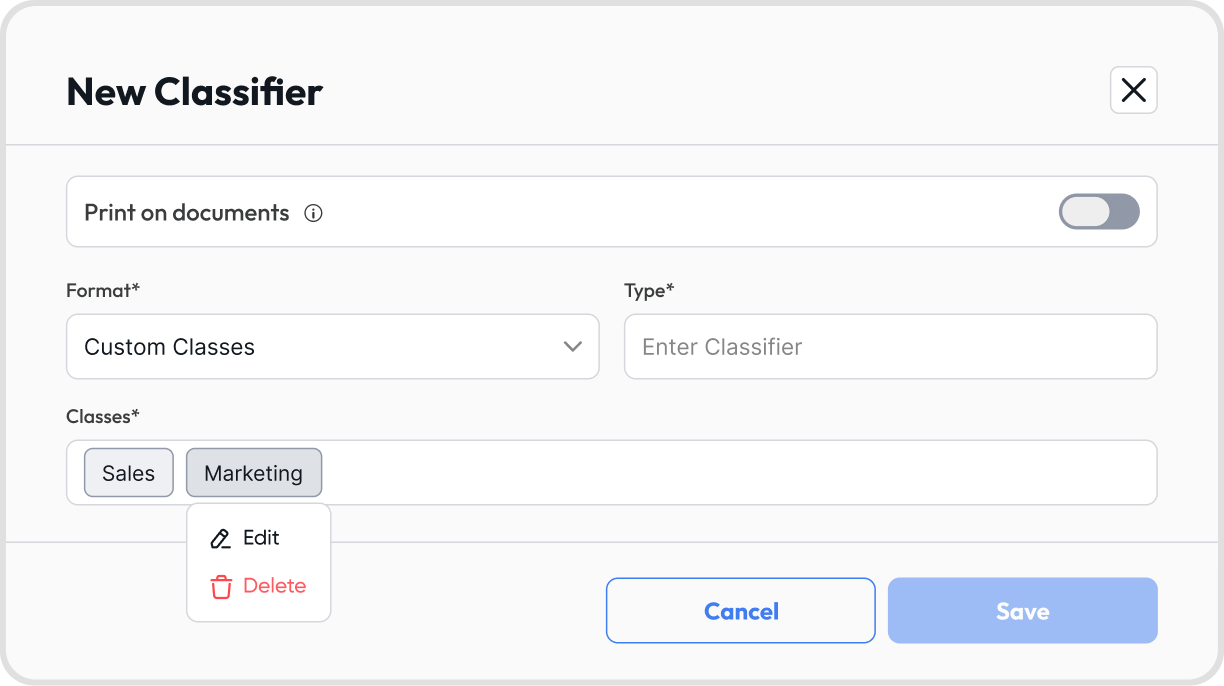
Open Nano Classifiers: Go to Settings → Configurations → Nano Classifiers.
Select the class: Select the class of the classifier you want to edit, and choose Edit.
Rename the class: Rename the classifier class as needed. The update automatically reflects in transactions, ledgers, and reports.
Modifying a classifier won't alter past data, but it will affect how that data displays in reports and views when using classifier filters.
Deleting a class or the Nano Classifier itself doesn't delete the record on previously attached line items. Editing a class, such as renaming it, applies retroactively to all line items where that class is used.
Open Nano Classifiers: Go to Settings → Configurations → Nano Classifiers.
Delete the classifier: Click the classifier you want to delete, and choose Delete.
Deleted classifiers remain in historical records but no longer appear in new transactions.