Contacts are the business or people that you engage with. These can be suppliers, customers, or both.
Head over to Contacts > + Add New Contact
Yes, you can import contacts in bulk.
You can import up to a maximum of 5,000
Yes, just switch on the toggles for both This contact is a Customer and This contact is a Supplier.
Edit/Delete options can be found under the 3 dot menu for a contact.
Note: If a contact is deleted, you will not be able to undo the action or retrieve the deleted contact.

To edit in bulk, choose Import Contacts and download the Template.
Use the template to edit your current contacts.
Note: do not edit or enter values in "Unique ID". This will cause import errors.
Tick the boxes of the contacts you wish to delete in bulk and click the delete button.
Under Contact Emails, you can define one or more emails to be associated with a contact.
To add multiple emails, enter a label and email, click "Add New Line" or press CTRL+i, and repeat.
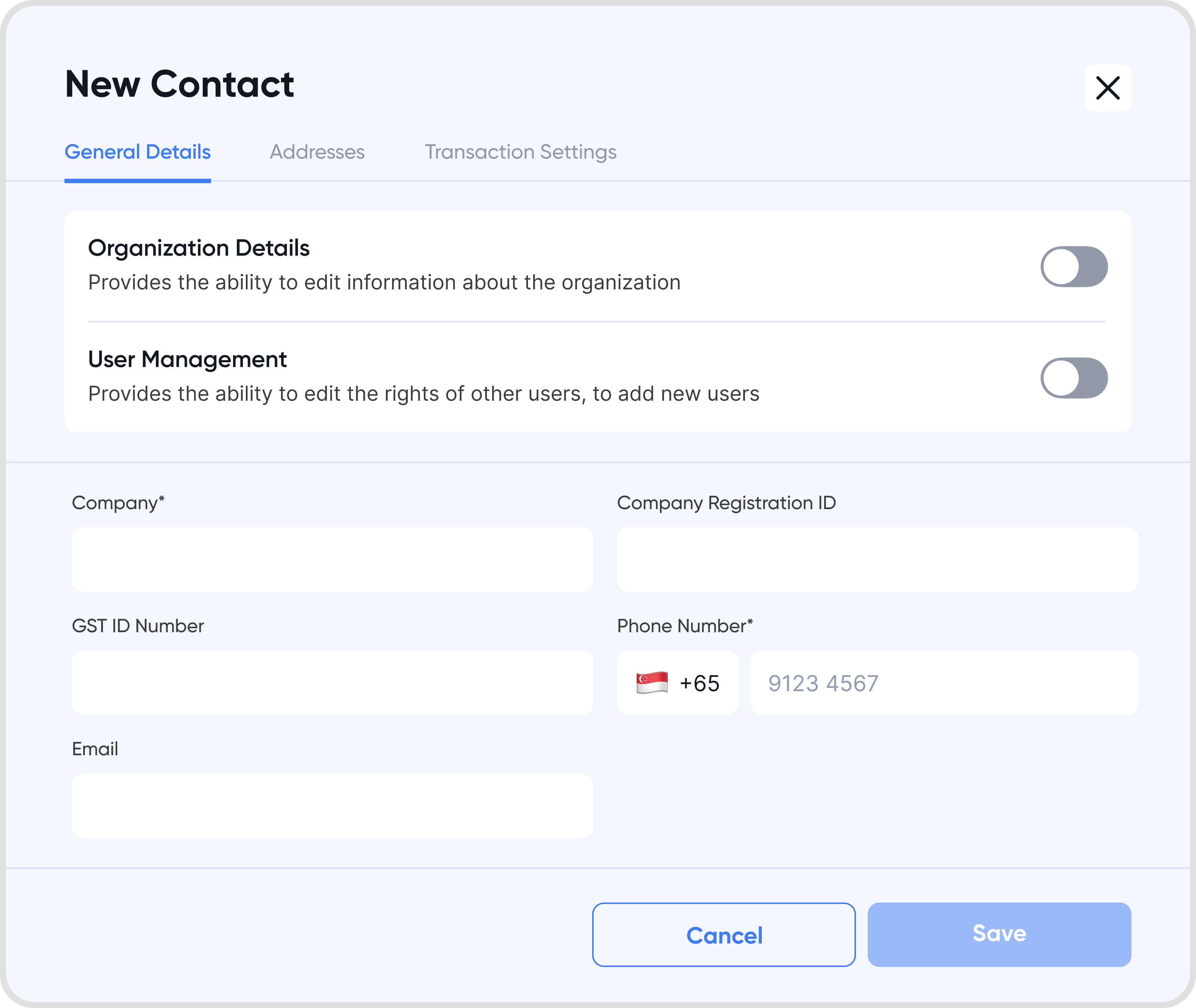
Yes, documents can be attached to contacts for easier management.
Transaction level settings for a contact which will be fetched and used to autofill a transaction based on the contact selected.
Some transaction settings include the default customer payment terms, and default VAT profile.
Payment terms refer to the maximum duration that a customer has from the date of a transaction to make payment. This affects the due date of a transaction.
If the payment terms is 7 days, then a customer needs to make payment for an invoice within 7 days.
To set them for a contact, refer to What are transaction settings?
Yes, you can assign a currency to a contact. See What are the transaction settings? for more information.
You can change the contact's currency afterward by editing the contact.
This serves as a default for invoice notes when creating invoices with this contact.
Any information filled in this box will be used when you create a new invoice with the contact.
Note: Invoice notes can be useful for keeping track of information relating to the contact, such as bank account or payment information.
Yes, you can assign default WHT code to a supplier contact.
When a contact is applied to a Bill Transaction, the WHT code is automatically applied to line items based on the contact’s default.
You can also assign default WHT code during importing
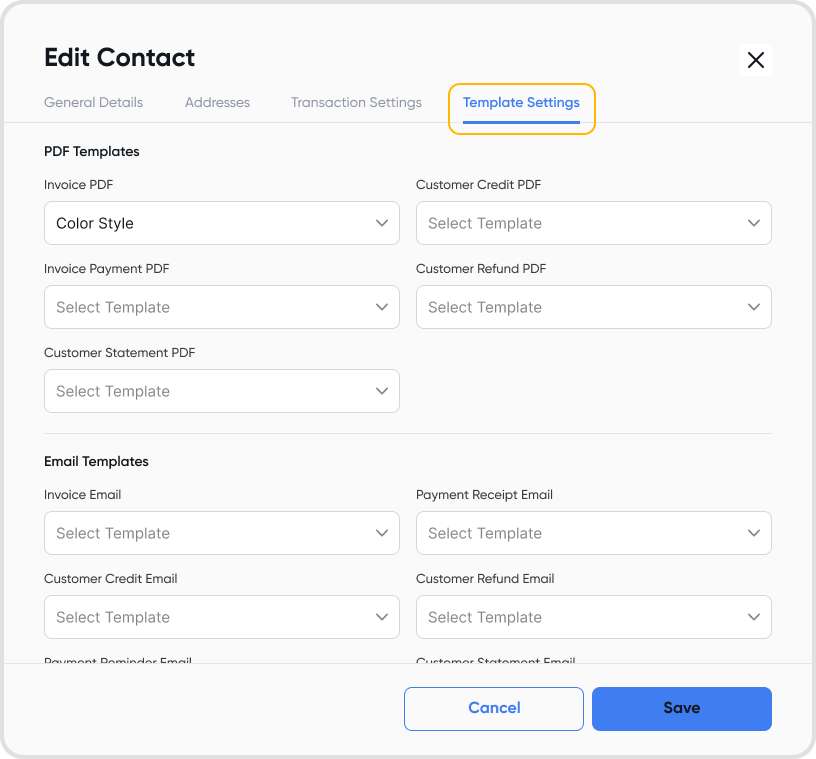
Yes, you can assign contact-specific default PDF and email templates. If none is set, the organization’s default template applies.
Yes, you can apply custom fields to contacts. Use this to further add custom details to your contacts.
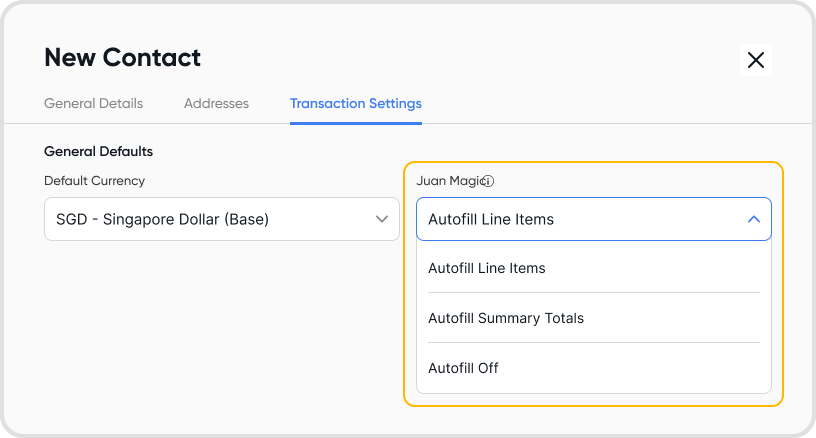
Juan Magic default setting controls how data from invoice, bill, credit and supplier credit note attachments is automatically extracted when creating transactions for that contact.
Autofill Line Items: Extracts each line separately. Ideal for different accounts or tax profiles.
Autofill Summary Totals: Extracts total amount only. Ideal for quick entry.
Autofill Off: Enter details manually.
You will not be able to trigger invoices or other transaction documents via email within Juan. You will have to download them and send the documents outside of Juan.
Go to Contacts > Choose a Customer > Click on the download icon > choose a period to download the customer statement
In the Home screen, search for a contact
You should see a list of transactions related to the contact.
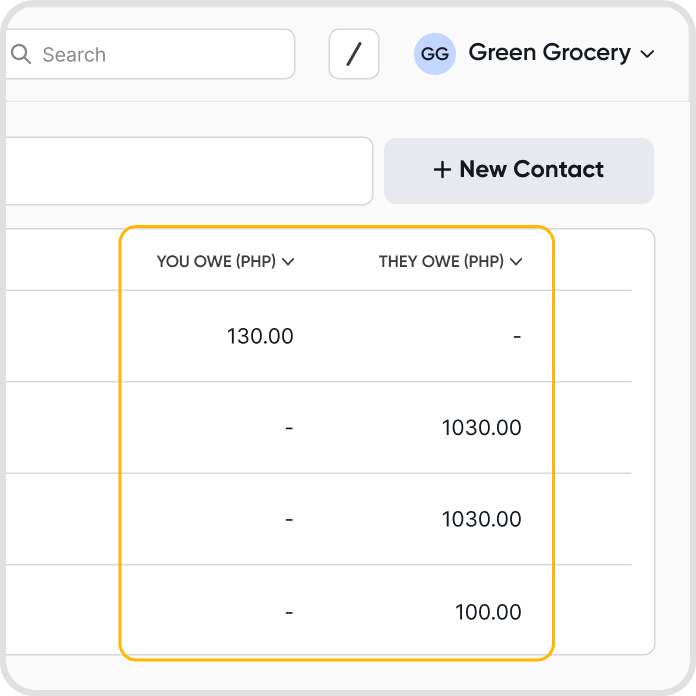
The amounts in these columns will always be in your organization's base currency, not the contact's currency.
It is not possible to change the display currency.
If the contact is used to create transactions in foreign currency, the "You owe / they owe" amount will be calculated with today's exchange rate rather than the rates at which the original transactions were created.
No, it will not. The contact will still be recorded in previous transactions.
However, you will not be able to select the contact in further transactions.
No, deleting a contact has no impact on your financial reports.